 Ledgr
- Guides
- Start here
Make it yours
Choose how Ledgr looks, from light or dark mode to one of 17 app colours and a matching icon. Then arrange Home the way you like it and set up the categories and tags you'll file things under.
Light, dark or automatic
Ledgr can follow your device, or stay light or dark all the time.
- Open Settings: the gear on Home on iPhone, the sidebar on iPad, or ⌘, on a Mac.
- Go to Settings › Appearance. On a Mac it's in the Preferences pane.
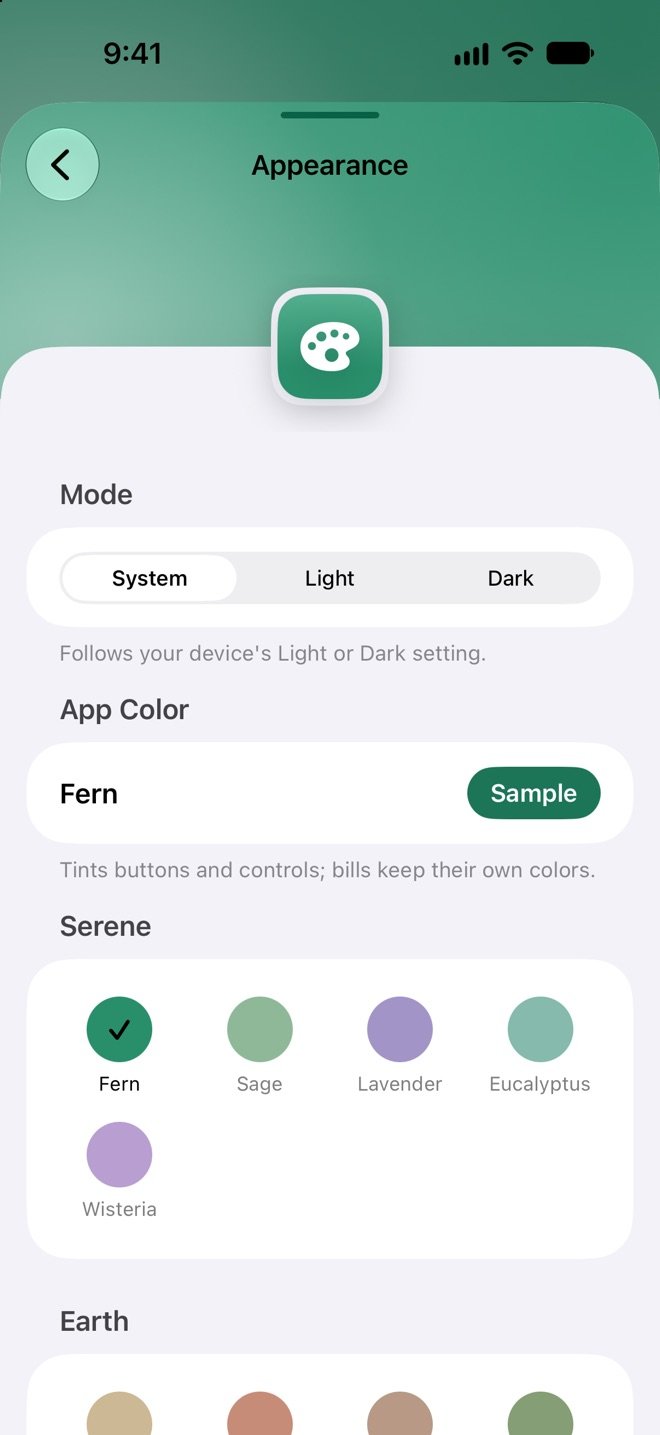
- Under Mode, choose one:
- System follows your device, switching between light and dark when it does.
- Light keeps Ledgr light.
- Dark keeps Ledgr dark.
Pick an app colour
The App Color tints Ledgr's buttons, highlights and backgrounds. You first chose one during setup, and you can change it whenever you like in Settings › Appearance. Tap a colour and the app changes straight away. There are 17, in four groups:
- Serene: Fern (the default), Sage, Lavender, Eucalyptus and Wisteria.
- Earth: Sand, Terracotta, Clay and Moss.
- Ocean: Ocean, Slate, Seafoam and Mist.
- Sunset: Rose, Coral, Peach and Mauve.
With iCloud Sync on, your colour and mode follow you to your other devices.
Tip: Bills, categories and tags have their own colours as well. Those show on the Calendar dots and in lists whatever app colour you pick.
Match the app icon
On iPhone and iPad, the Home Screen icon can take on your app colour. There's a matching icon for each of the 17 colours.
- Go to Settings › Appearance.
- Turn on Match App Icon. The icon changes to match your current colour.
- iOS shows a message confirming the icon has changed. This happens every time the icon changes, and it's normal.
With Match App Icon on, a new colour reaches the icon when you leave the Appearance screen, so you can try a few colours without the icon changing each time. Turn it off to go back to the standard icon.
On a Mac: Match App Icon isn't available. The Mac keeps the standard icon.
Arrange your Home screen
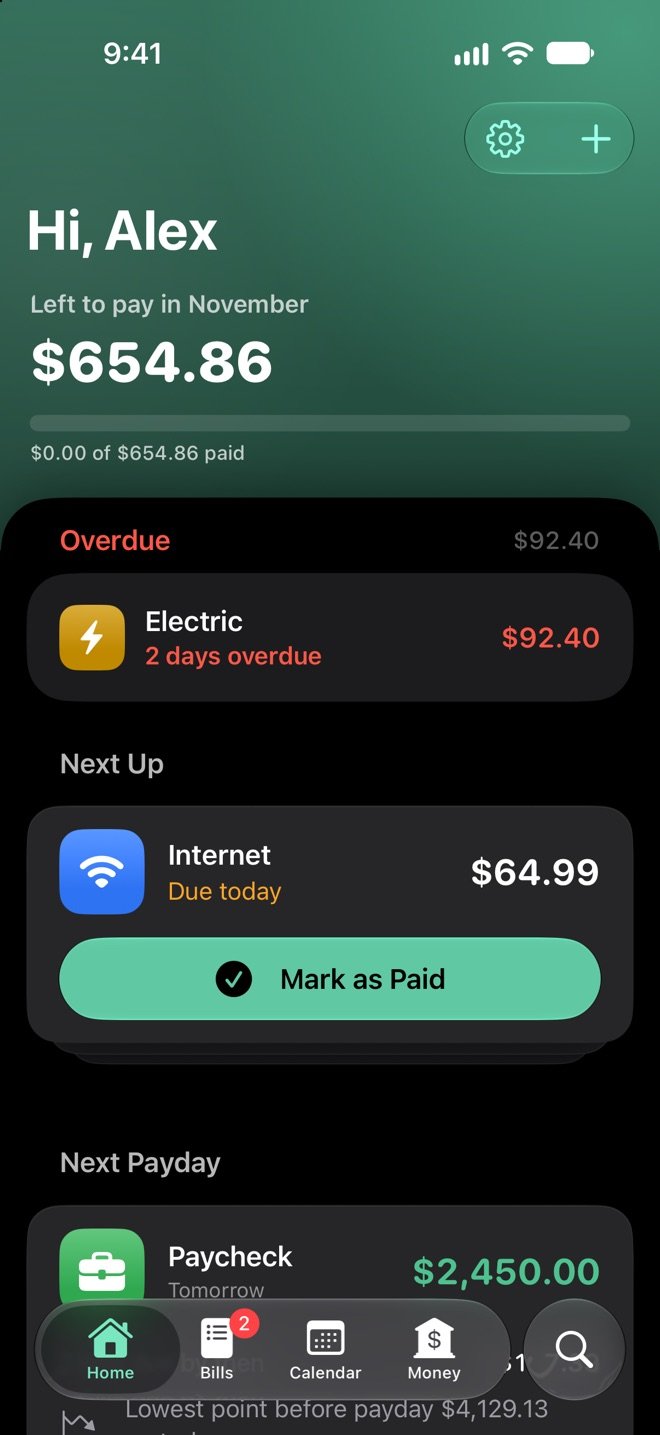
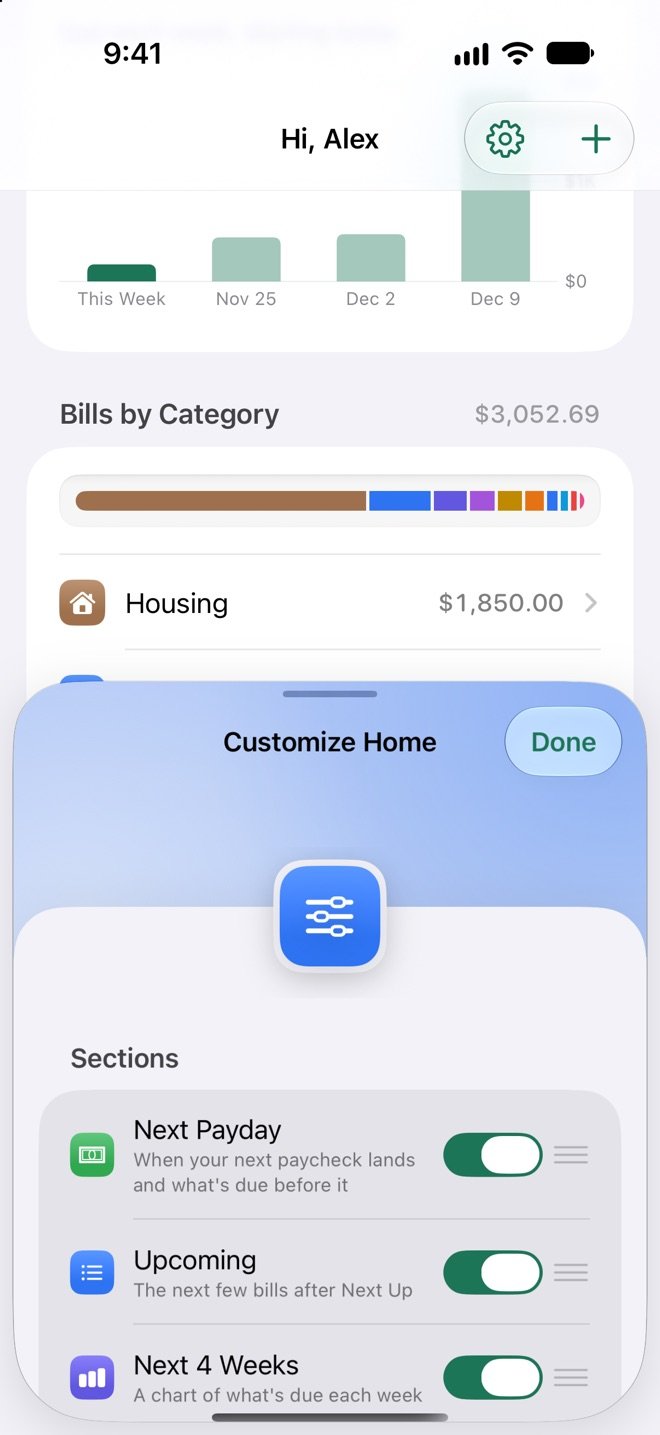
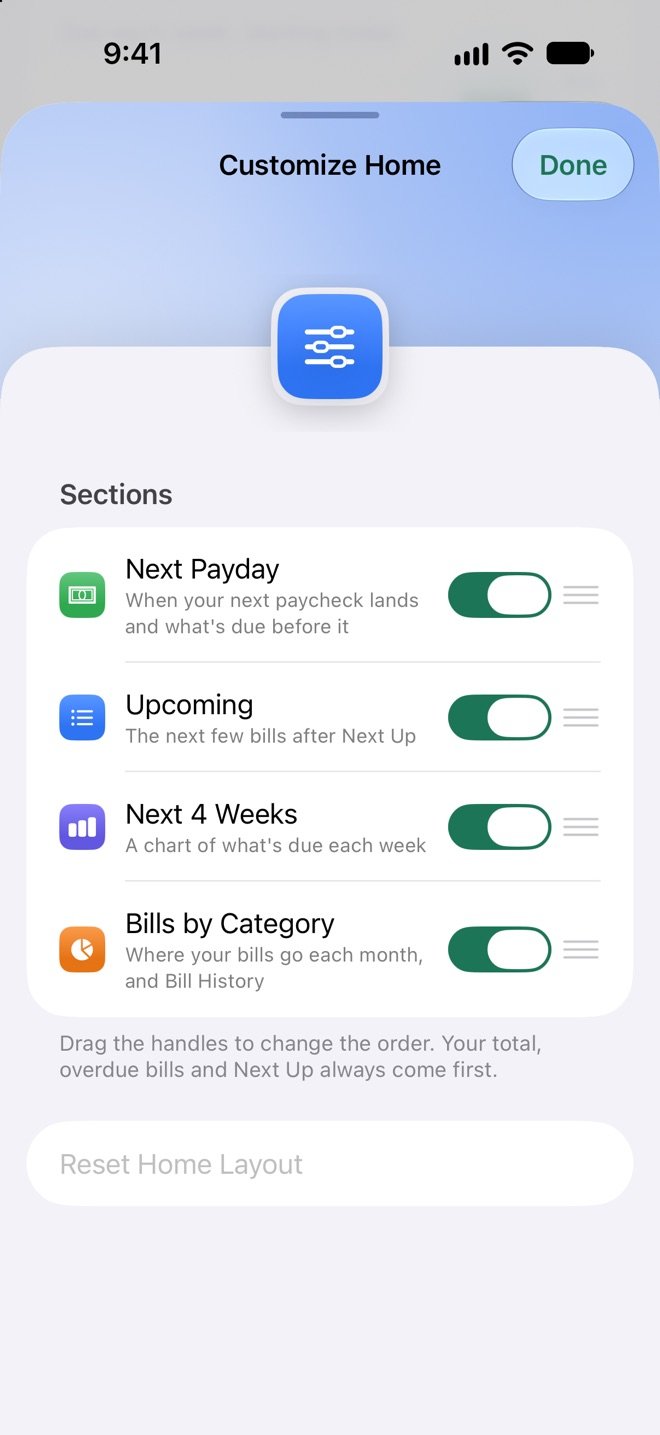
The top of Home always shows the same three things, in this order: what's left to pay this month, any overdue bills, and Next Up. Below them are four sections you can hide or reorder:
- Next Payday: "When your next paycheck lands and what's due before it". It only shows once you've added income.
- Upcoming: "The next few bills after Next Up".
- Next 4 Weeks: "A chart of what's due each week".
- Bills by Category: "Where your bills go each month, and Bill History".
- Scroll to the bottom of Home and tap Customize Home.
- Switch off any section you don't want. It stays in the list, faded, so you can turn it back on later.
- Drag the handles to change the order. On a Mac, use the Move Up and Move Down arrows.
- Tap Done.
Reset Home Layout
To undo your changes, open Customize Home and tap Reset Home Layout. Ledgr asks "Reset Home Layout?". Tap Reset and every section comes back, in the original order. The button is greyed out when Home is already in its original layout.
Categories and tags
Categories and tags are how you group things in Ledgr. Every bill, expense and income source has one category, such as Housing or Utilities. Tags are optional extra labels that cut across categories, like Shared or Work, and a bill or expense can have several. Both live under Organize in Settings: Settings › Categories and Settings › Tags. On a Mac, they're at the bottom of the Preferences pane.

Categories
The Categories screen lists your categories for bills and spending, and for income. Bill payments are filed under these categories too, so they count towards your budgets.
- Go to Settings › Categories and tap + (New Category).
- Type a Category Name.
- Under Used For, choose Spending, Income or Both. A category set to Both is offered in both places.
- Choose a Color and an Icon, then save.
- Built-in categories are marked "Built-in". You can change their colour and icon, but you can't rename or delete them.
- Your own categories can be edited or deleted. Each one shows how many bills, transactions, budgets and income sources use it.
- Deleting a category tells you what uses it first. Choose Move to Other and Delete, or Move Items To… to pick another category. To fold one category into another, touch and hold it (right-click on a Mac) and choose Merge Into.
You can also create a category while adding a bill: choose New Category… at the end of the Category picker.
Tags
- Go to Settings › Tags and tap + (New Tag). If you have none yet, tap Create a Tag.
- Type a Tag Name, then choose a Color and an Icon.
- Tap Add.
- Each tag shows how many bills and transactions use it, or "Not used".
- Tap a tag to edit it, or use Delete Tag in its editor. Deleting a tag removes it from your bills and transactions. The bills and transactions themselves stay.
- You can add tags straight from a bill or expense too: tap the Tags row, then Add Tag… or New Tag….
- Bills, All Transactions and Receipts & Tax can all be filtered by tag.
Tip: Deleted a tag or category by mistake? Tap Undo in the banner at the bottom of the screen to bring it back, with everything that was filed under it.
Show Tips Again
Ledgr shows short tips the first few times you use a screen, then stops. If you dismissed them and want them back:
- Open Settings and go to the About section (the About pane on a Mac).
- Tap Show Tips Again. A checkmark appears.
The tips don't all appear at once. They come back gradually, one at a time, as you open each screen.
Common questions
Does my app colour sync to my other devices?
Yes, when iCloud Sync is on. Your app colour, mode and Match App Icon setting follow you to your other devices.
Why does iOS show a message every time my icon changes?
iOS always confirms when an app changes its own icon. Ledgr can't turn that message off. To see it less often, pick your colour and then leave the Appearance screen, since the icon only changes then.
Can I hide the overdue section or Next Up?
No. Your total, overdue bills and Next Up always come first on Home. Only Next Payday, Upcoming, Next 4 Weeks and Bills by Category can be hidden or moved.
I turned Next Payday on, but it isn't on Home. Why?
It only shows once you've added income. In Customize Home it reads "Shows once you add income" until then. See Income & paydays.
Why can't I delete a category?
Built-in categories can be restyled but not renamed or deleted. You can delete categories you've made yourself.
Still stuck?
Try Troubleshooting, send a message from Settings › Contact Support in Ledgr, or email hello@szymonstephansikora.com. I read every message.