 Ledgr
- Guides
- Start here
Getting started
Set Ledgr up in a few minutes, then learn where everything lives on iPhone, iPad and Mac. By the end you'll have your first bills in and know where to go next.
Set up Ledgr
The first time you open Ledgr, a short setup walks you through the basics. There's no account to create, and Ledgr never connects to your bank: balances and bills are only what you enter. Every page after the first shows Back, a bar showing how far along you are and Skip Setup. If you skip, Ledgr asks "Skip the Rest of Setup?" and you can choose Skip Setup or Keep Going. Anything you skip can be added later.
- Welcome. Under "What should we call you?", type your first name. It's only used for greetings, and you can add a photo if you like. Pick your Currency (USD, EUR, GBP, CAD, AUD, JPY, CHF and PLN are shown, and More has the rest), choose an App Color, then tap Get Started.
- Household. Ledgr asks "Who do you split bills with?". Choose Just Me if you pay your own bills, or With Someone for a partner, family or roommates, and type their first name. This only sets up splitting. Sharing Ledgr with them comes later, in Settings › iCloud & Sharing.
- Account. "Where do your bills get paid from?" Add the account your bills come out of, such as your checking account, with its Balance today (or Owed today for a card). Tap Add & Continue, or Save & Add Another to add more. Tap Not Now to skip. With an account in place, paying a bill takes it off that balance and Money can show what's safe to spend.
- Income. "When do you get paid?" Pick a kind of income, such as a paycheck, and fill in when it arrives. Ledgr then shows which bills fall before each payday. Tap Continue when you're done, or Not Now.
- Bills. "What bills do you pay?" Tap one of the Common Bills, like Rent or Phone, to start from a template, or tap Add Custom Bill. When you've added a few, tap Continue with N Bills. Not Now skips this too.
- Stay on Top. "Never miss a due date". Tap Turn On next to Bill Reminders and choose when you're reminded, or tap Not Now. Then turn on the extras you want: Add Bills to Calendar (if you added bills), Bills Due Today on Lock Screen (iPhone and iPad), iCloud Sync, App Lock and Hide Amounts Outside Ledgr. Then tap Start Tracking. If you haven't answered yet, Ledgr asks for permission to send notifications, so allow it if you want reminders.
The last screen says "You're all set", with your name. Everything you chose can be changed later in Settings.
Tip: If you've used Ledgr before with iCloud Sync on, a new install first looks for your data ("Looking for your Ledgr data in iCloud…"). If it finds some, choose Restore My Data to bring it back, or Start Fresh Instead. Starting fresh asks first, and erases the old data in iCloud.
Joining someone's household? If you open Ledgr from an invitation, setup skips the Account, Income and Bills pages, because those come from the household. See Sharing a household.
Finding your way around on iPhone
Ledgr on iPhone has four tabs, with Search at the end of the tab bar:
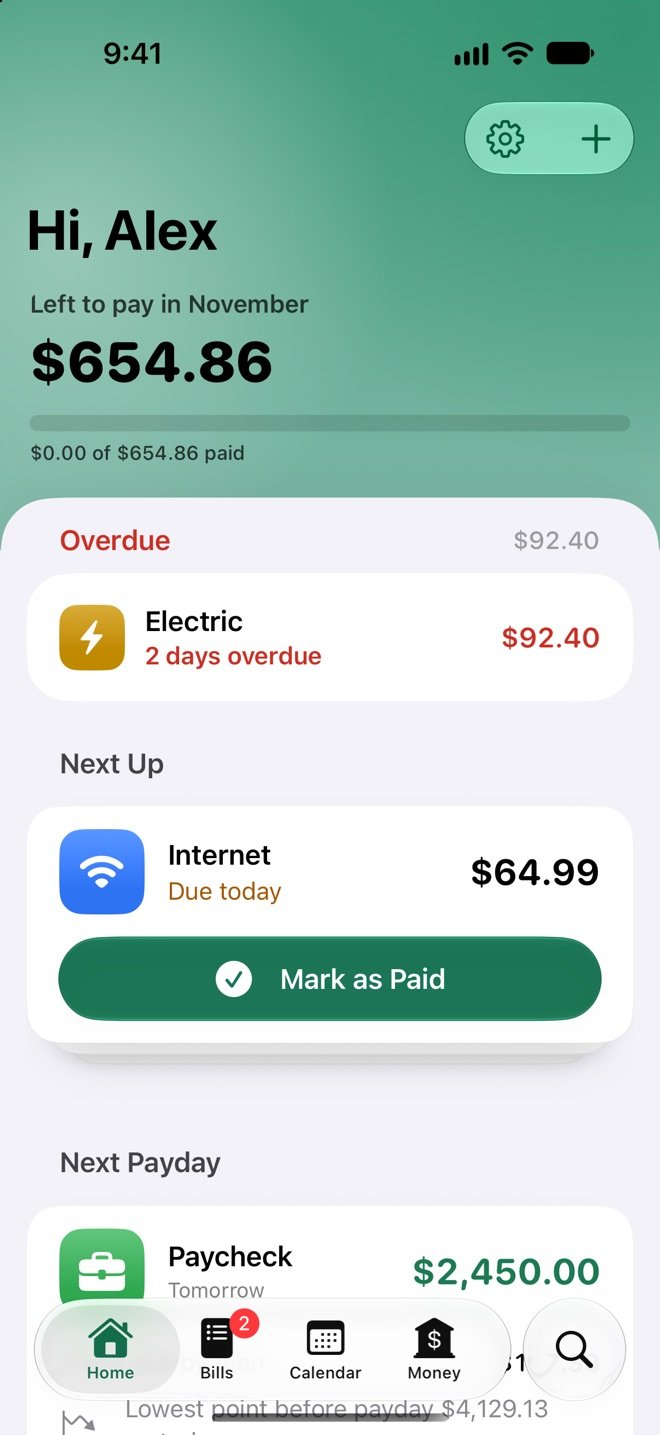
- Home greets you with "Hi, [name]" and shows what needs attention: what's "Left to pay" this month, any Overdue bills (with Pay All Overdue when there are two or more), and Next Up, the next bill to pay. Below that are Next Payday, Upcoming, Next 4 Weeks and Bills by Category, which you can rearrange with Customize Home.
- Bills lists every bill under Overdue, Due Today, Next 7 Days, Later This Month, After This Month, Paid This Cycle, and Paused & Ended. Its badge shows how many bills need attention.
- Calendar shows the month, with a mark on each day a bill is due or pay arrives.
- Money holds your accounts, spending, income and budgets. Switch to Plan at the top for Insights, goals, pay later plans, the Debt Payoff Planner and Receipts & Tax.
- Search looks through everything at once.
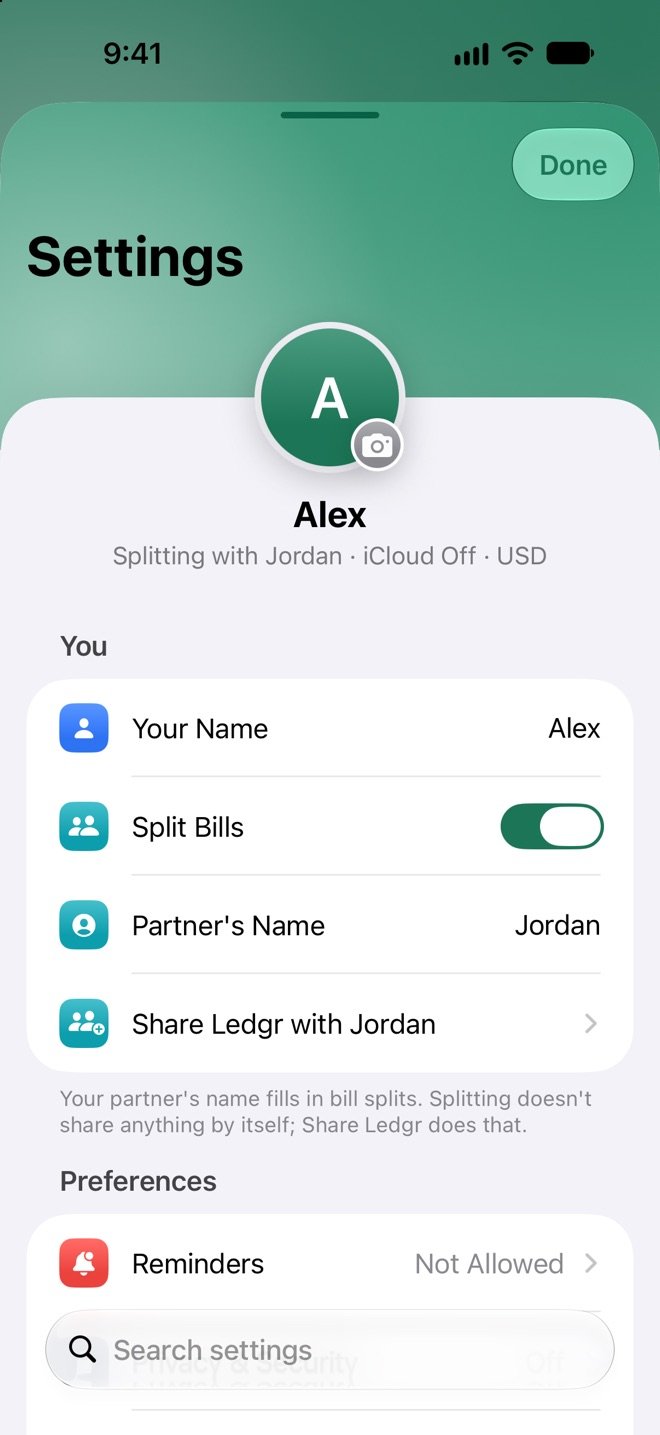
Settings isn't a tab. Tap the gear at the top of Home to open it, and tap Done to close it. When iCloud Sync is on, a cloud at the top left shows the sync status ("Synced just now", "Offline" and so on). Tap it to open iCloud & Sharing. Tap the + button on Home, Bills or the Calendar for a New Bill. Touch and hold it for Quick Add, Log Expense, Log Income or New Income Source.
Tip: Pull down on Home or Bills to sync straight away.
Finding your way around on iPad and Mac
iPad
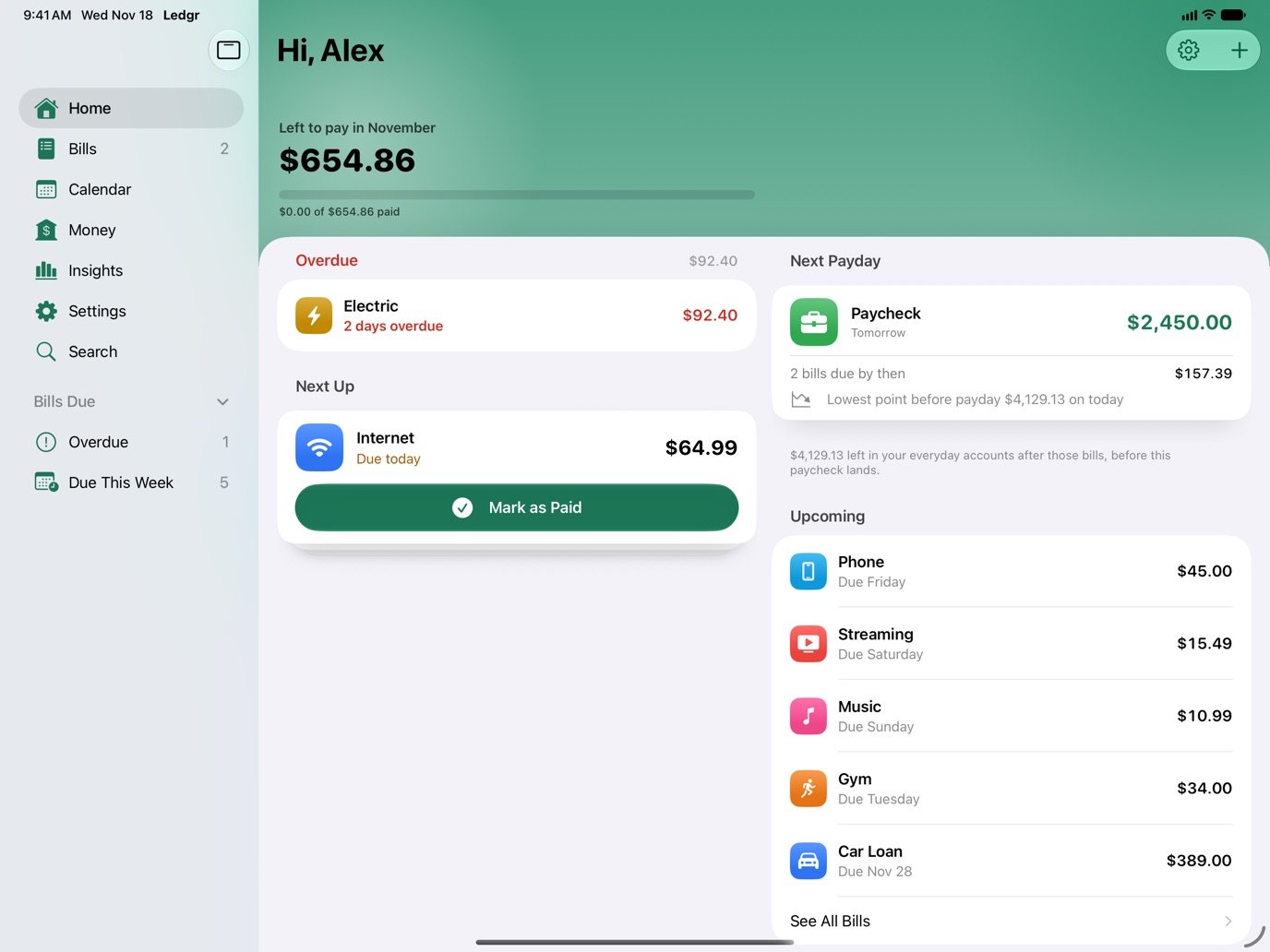
On iPad, a sidebar lists Home, Bills, Calendar, Money, Insights, Settings and Search, with Overdue and Due This Week under Bills Due. You can switch it to a tab bar if you prefer. Settings is in the sidebar, and also opens from the gear on Home. The Bills screen shows the list and the bill you've selected side by side. With nothing selected, the right side reads "No Bill Selected".
Mac
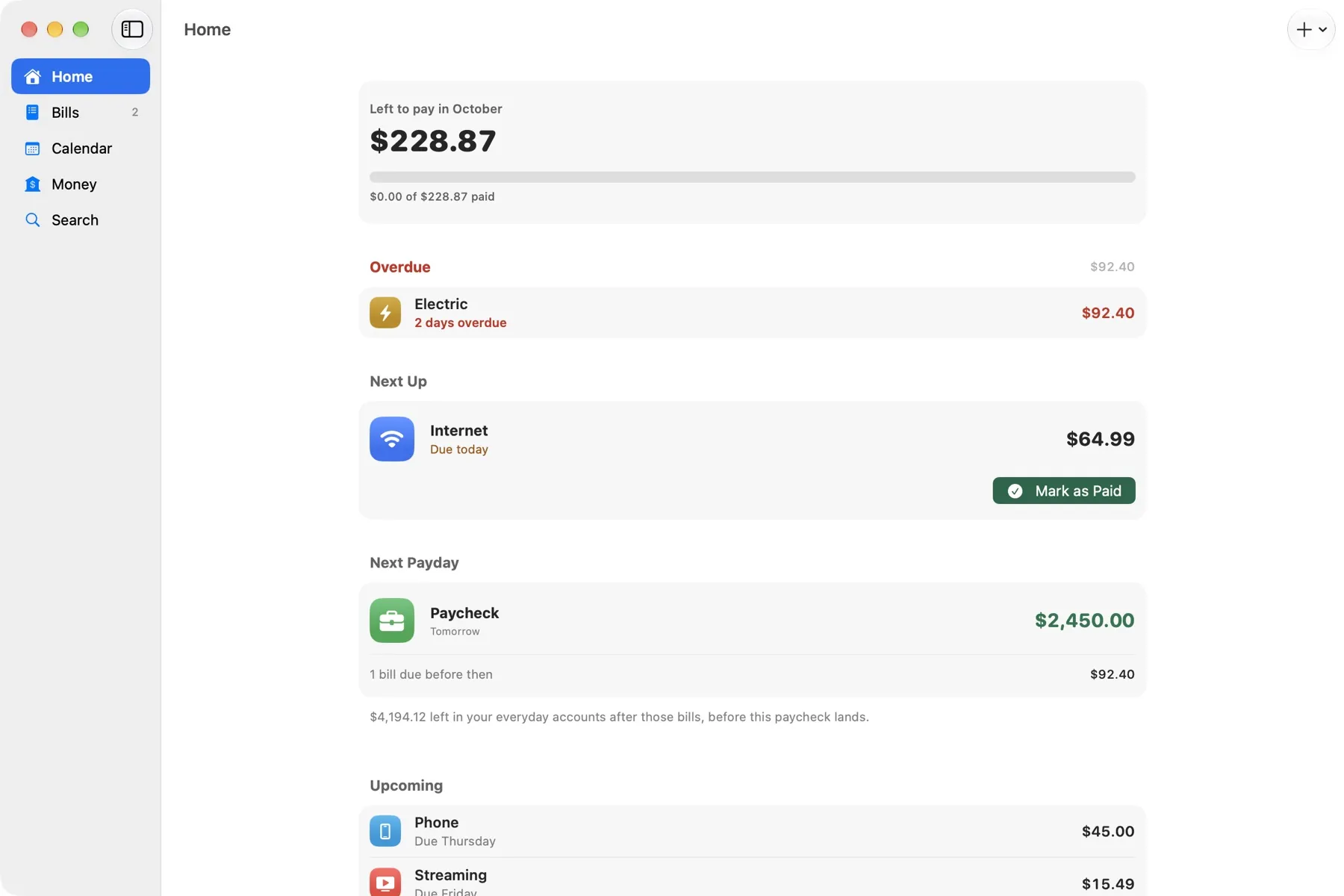
Ledgr on Mac is a native Mac app. The sidebar has Home, Bills, Calendar, Money, Insights and Search, plus Overdue and Due This Week under Bills Due. Home is titled "Home" rather than greeting you by name.
- Settings is its own window. Choose Settings… from the Ledgr menu or press ⌘,. It has four panes: You, Preferences (which includes Organize), Data and About.
- Go menu: Home ⌘1, Bills ⌘2, Calendar ⌘3, Money ⌘4, Insights ⌘5, Search ⇧⌘F.
- File menu: Quick Add… ⌘K, New Bill ⌘N, Log Expense ⇧⌘N, Record Income… ⌥⌘N and Transfer….
- Where iPhone uses swipes, the Mac uses right-click (or Control-click) menus.
- The Help menu links to this guide and to Ledgr Support.
For more about the bigger screens, read Ledgr on iPad & Mac.
Add your first bill
If you skipped bills during setup, Home shows "No Bills Yet" with a New Bill button and quick starts for Rent, Electric, Internet, Phone, Streaming and Insurance. Otherwise:
- On Home or Bills, tap +. It opens New Bill. On a Mac you can also press ⌘N.
- Type the amount at the top.
- Type a name, or tap a template such as Rent, Electric or Phone. Ledgr suggests a category from the name.
- Under Due, tap Today, 1st, 15th or End of Month, or pick a date.
- Under Repeats, choose how often it comes round, such as Monthly.
- If you've added accounts, choose where it's paid from under Pay From. Turn on Autopay if it pays itself.
- Tap Add.
The bill now appears on Home, in Bills and on the Calendar. When you've paid it, swipe right on it and tap Mark Paid, or tap Mark as Paid on Home. For reminders, notes, splitting and the rest, see Adding bills.
Search everything
Search finds bills, accounts, income, goals, budgets and transactions in one place. It matches names, companies, notes, categories, tags and amounts.
- Tap Search at the end of the tab bar on iPhone, or in the sidebar on iPad and Mac. On a Mac you can also press ⌘F.
- Start typing in "Bills, accounts & more". Before you type, the screen reads "Search Everything".
- Results are grouped by kind. Tap Show All N to see a whole group, and tap any result to open it.

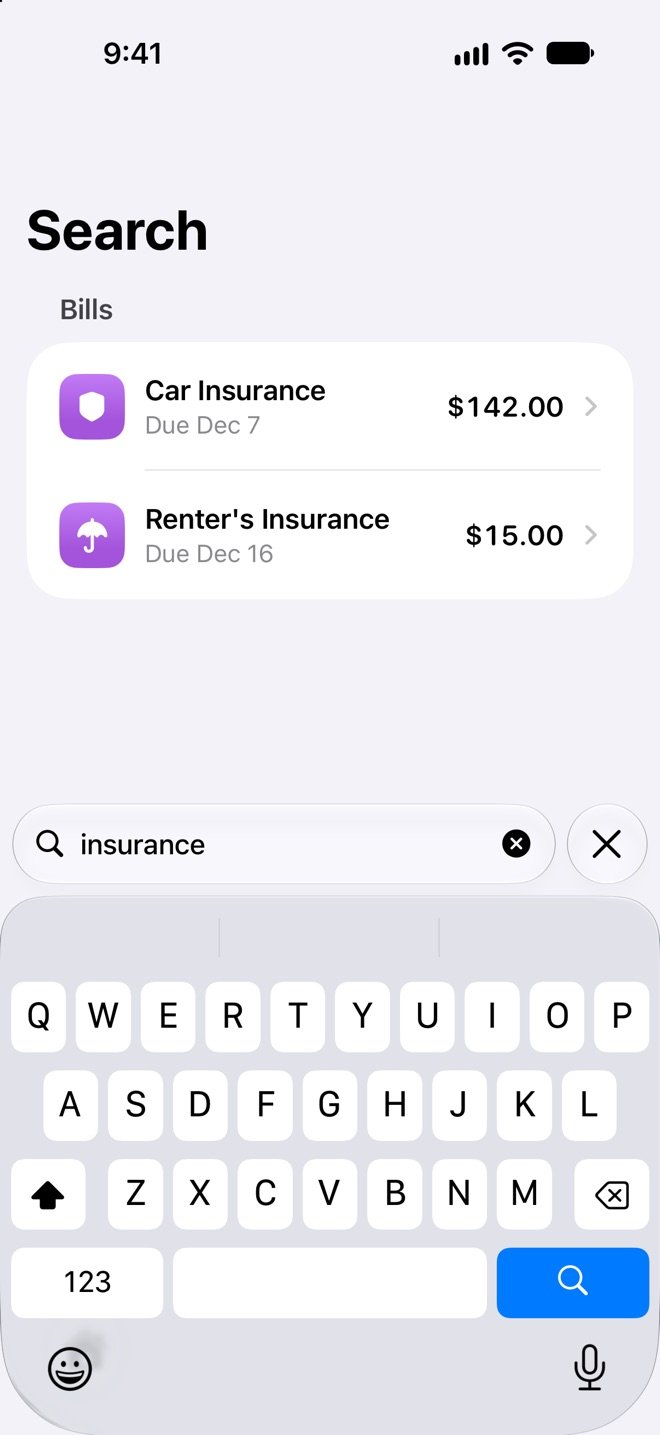
Some screens have their own search too. Bills has "Search bills", All Transactions has "Search transactions", and Settings has "Search settings", which finds a setting by keyword.
On a Mac: Find Bills (⌥⌘F) jumps to the Bills search field.
Where to go next
Once your first bills are in, these guides cover the rest:
- Make it yours: colours, dark mode, a matching app icon and your own Home layout.
- Adding bills: every option for a bill, and bills Ledgr finds in your spending.
- Paying, snoozing & skipping: marking bills paid, partial payments and undo.
- Reminders & notifications: when you hear about each bill.
- The calendar: every due date and payday on one month.
- Accounts & spending: balances, expenses and Safe to Spend.
- Sharing a household: share bills with a partner, family or roommates.
- Widgets, Siri & shortcuts: check and pay bills without opening Ledgr.
Common questions
Do I need an account or a bank login?
No. Ledgr has no sign-up and never connects to your bank. Everything is what you enter, and it stays on your device unless you turn on iCloud Sync, which uses your own private iCloud account.
I skipped setup. How do I add what I missed?
Add bills and income with + on Home, and accounts from the Money tab. Reminders, iCloud Sync, App Lock and the calendar are all in Settings.
Can I change my currency later?
Yes, in Settings › Currency. Changing it doesn't convert your amounts, and in a shared household it changes for everyone.
Where did Settings go on my iPhone?
It's behind the gear at the top of Home, not in the tab bar.
Will my data appear on my other devices?
Only if iCloud Sync is on. Turn it on in Settings › iCloud & Sharing on each device. The change applies the next time Ledgr opens.
Still stuck?
Try Troubleshooting, send a message from Settings › Contact Support in Ledgr, or email hello@szymonstephansikora.com. I read every message.