 Ledgr
- Guides
- Bills
Paying, snoozing & skipping
Everything you can do once a bill comes due: pay it, pay part of it, put it off, skip it or pause it. Mistakes are easy to undo, and each bill keeps its history, receipts and price changes.
Mark a bill as paid
Ledgr doesn't pay bills for you. When you've paid one, at the company's website, by bank transfer or however you pay, you tell Ledgr. It records the payment, takes it off the account you chose under Pay From, and moves a repeating bill on to its next due date. Until then, it sits under Paid This Cycle in the Bills list.
There are several ways to do it, so use whichever is closest:
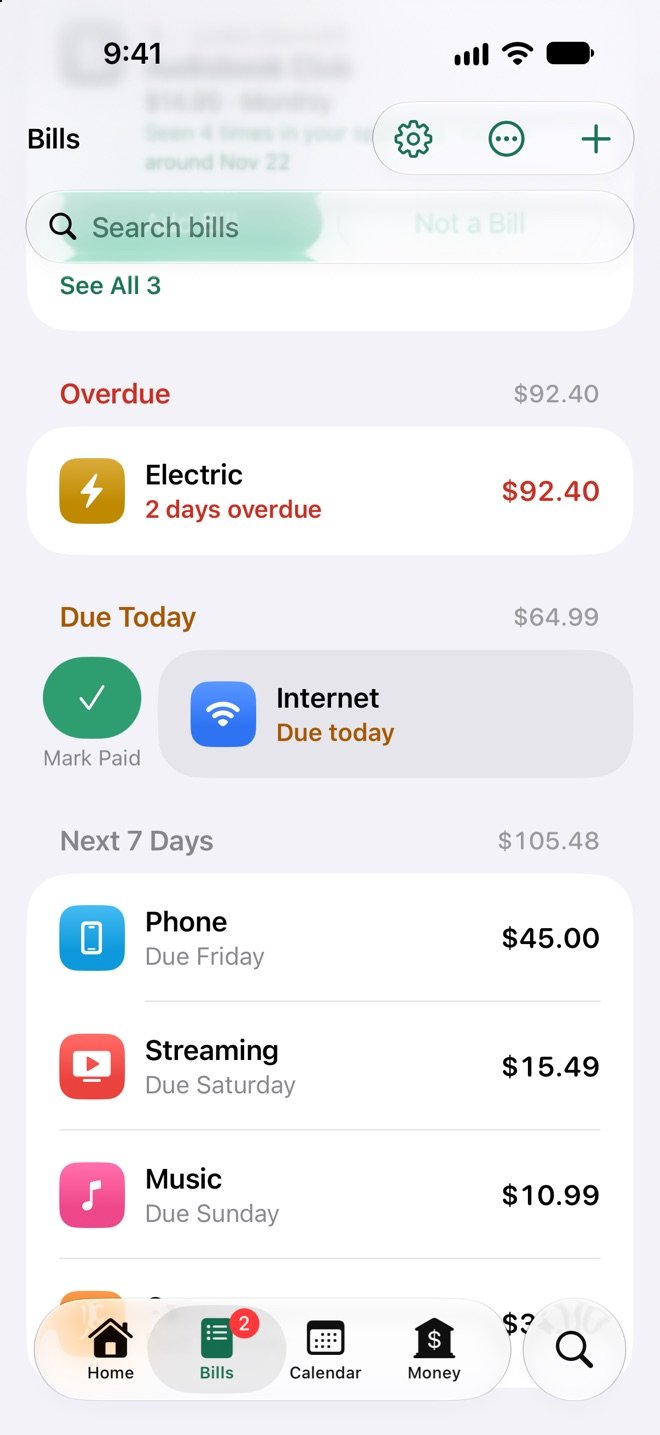
- Swipe right on a bill in a list and tap Mark Paid. A full swipe does it in one go. (iPhone and iPad.)
- On Home, tap Mark as Paid on the Next Up card.
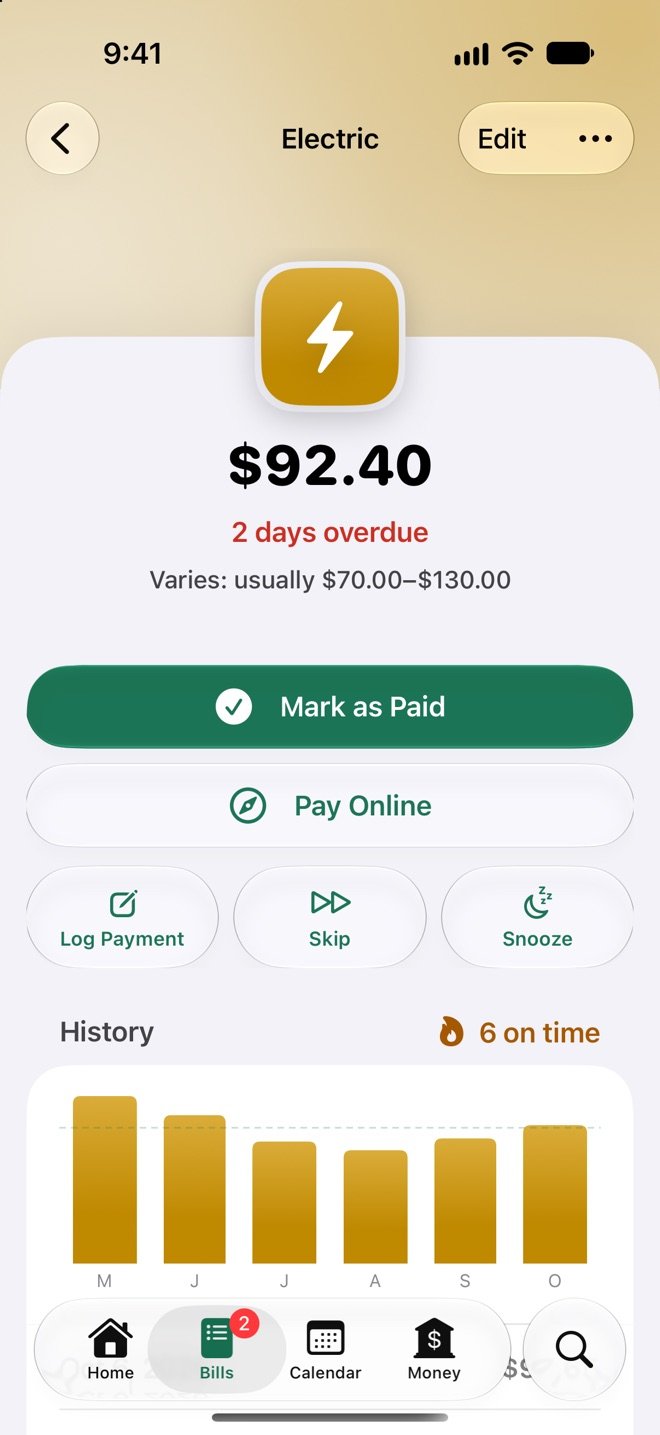
- Open the bill and tap Mark as Paid. For a bill whose amount varies, this opens Log Payment with the usual amount filled in, so you can enter what you actually paid.
- Touch and hold a bill (right-click on a Mac) and choose Mark as Paid.
- From a reminder, a widget or Siri. See Reminders & notifications and Widgets, Siri & shortcuts.
For bills set to Autopay, the button reads Confirm or Confirm Autopay instead. Use it once you've seen the payment go through.
Pay several at once
- Pay All Overdue: with two or more bills overdue, Home shows Pay All Overdue. Ledgr asks "Mark N Bills as Paid?" before it does.
- Select Bills: on the Bills tab, open the More menu (the ⋯ button) and choose Select Bills. Tick the bills you want, then use the bar at the bottom: Mark Paid (N), Skip (N), Snooze (N) (1 Day, 3 Days or 1 Week) or Archive (N).
On a Mac: open a bill and press ⌘↩, or use the Bill menu, which has Mark as Paid, Log Payment…, Skip This Payment, Snooze, Edit Bill… and Delete Bill….
Partial and extra payments
If you pay a bill in parts, or pay more than is due, use Log Payment instead of Mark as Paid.
- Open the bill and tap Log Payment.
- Enter the Payment Amount and the Date you paid.
- If you like, add a Confirmation Number, a Note, or a receipt with Attach Receipt….
- Tap Log.
If the payment is less than what's due, Ledgr tells you the bill stays due. Once your payments cover the amount, the bill is marked as paid. To fix a payment later, open it from the bill's payments list, where you can edit it or tap Delete Payment.
Undo a mistake
After you pay, snooze, skip or archive a bill, a banner appears at the bottom of the screen with Undo. Tap it to put things back exactly as they were.
If the banner has gone:
- Swipe right on the paid bill and tap Undo (iPhone and iPad).
- Or touch and hold it (right-click on a Mac) and choose Undo Payment.
- On the Calendar, tap the day, then touch and hold the paid bill and choose Undo Payment.
Undoing a payment removes it from the bill's history and puts the money back in the Pay From account.
Snooze, skip, pause and change the amount
Not every bill gets paid on its due date. These options cover the rest. Find them by swiping left on a bill (iPhone and iPad), by touching and holding it or right-clicking it, or on the bill's own screen.
- Snooze quietens the reminder for a while: 1 Day, 3 Days or 1 Week. A left swipe shows Snooze and Skip. Snoozing doesn't move the due date, so the bill's schedule stays right. To stop a snooze early, choose Snooze › Cancel Snooze.
- Skip This Payment passes over this one payment without paying it, and moves a repeating bill on to its next date. Use it when a bill isn't charged one month. It's only for repeating bills.
- Pause for a Month hides the bill and stops its reminders for a month. It waits under Paused & Ended until then. Choose Resume to bring it back sooner.
- Change Amount Due… changes what's due for this one payment, for example when a bill is higher this time. The rest stay at the usual amount, and Use Usual puts it back.
- Pay Online opens the bill's payment website, if you've added one.
- Call rings the company's customer service number, for overdue bills that have one.

Tip: Skip and archive both show the Undo banner too, so you can try them without worrying.
History, receipts and price changes
Open a bill to see its record over time.
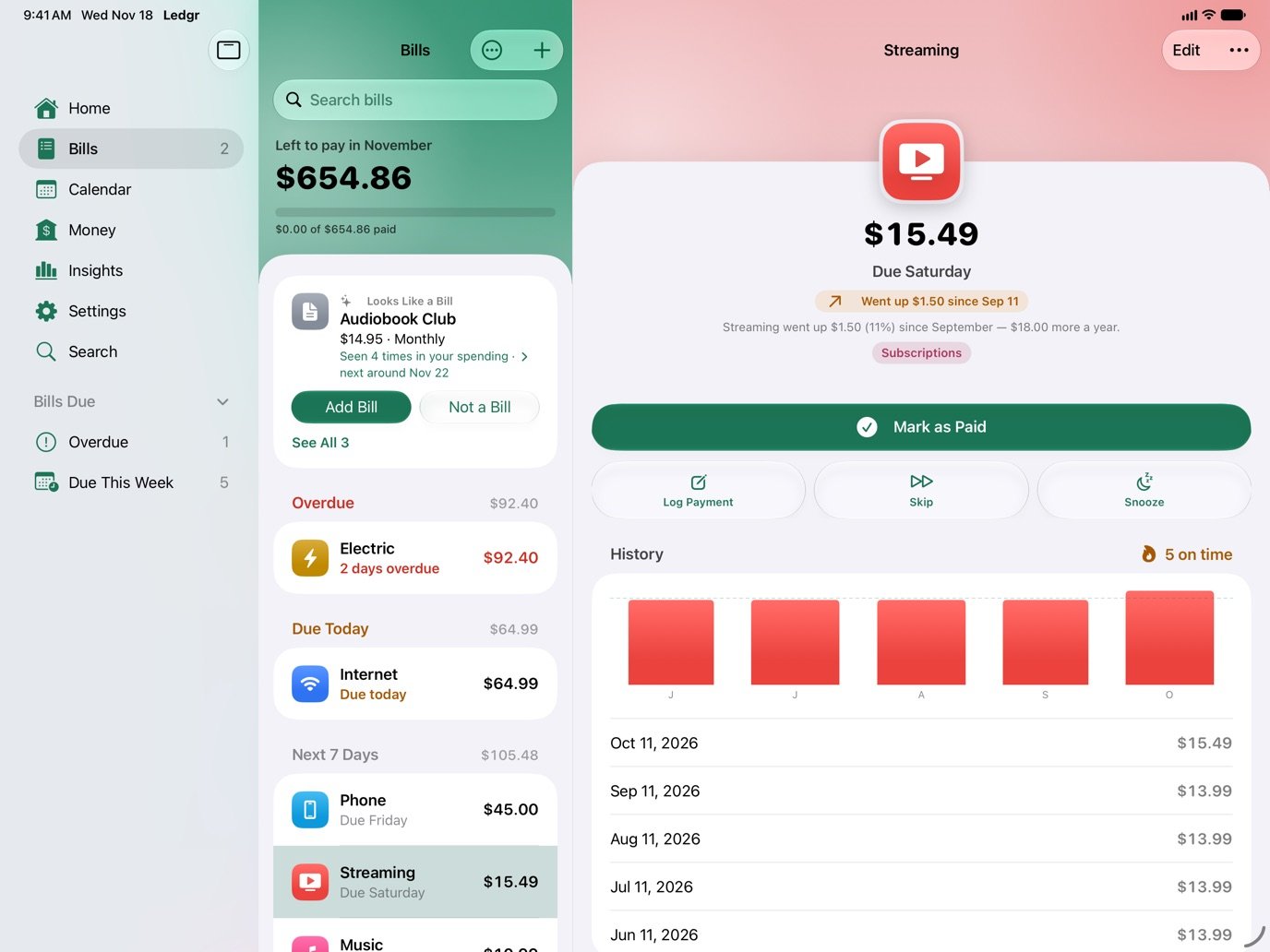
- History chart: recent payments, with the average and your on-time streak. Tap See All N Payments for the full list.
- Price changes: if a bill's latest payment is noticeably different from before, the bill shows "Went up $X since [date]" or "Went down…". Ledgr compares it with the typical (median) amount of up to 6 earlier payments. It needs at least 3 earlier payments and a change of at least 2%.
- Debts: bills with a balance owed show a line like "At $X a month, paid off around [date]", with the number of payments and roughly how much interest.
- Add to Calendar: puts the bill in the Calendar app. See The calendar.
Add a receipt
- Open the bill and scroll to the bottom.
- Tap Add Receipt.
- Choose Choose Photo…, Scan Document… to use the camera, or Choose File…. Each file can be up to 10 MB.
Celebrations
Ledgr marks milestones with a short celebration and confetti: "Paid Off!", "All Done!", "All Caught Up!", "Back on Track!", and streaks of on-time payments ("N-Payment Streak!" at 3, 6, 12, 24, 36, 48 and 60). With Reduce Motion on, there's no confetti.
Common questions
Does marking a bill paid send any money?
No. Ledgr only records that you paid. It never connects to your bank or moves money.
What's the difference between snoozing and skipping?
Snooze puts off the reminder but the bill is still due. Skip says this payment isn't happening, and moves the bill on to its next date.
I marked the wrong bill as paid. How do I fix it?
Tap Undo on the banner, or touch and hold the bill and choose Undo Payment. The money goes back into its account.
Can I see bills I've archived?
Yes. On the Bills tab, open the More menu (the ⋯ button) and choose Archived. From there you can Restore or Delete them.
Why didn't I get a price change badge?
It needs at least 3 earlier payments to compare with, and a change of at least 2%. A new bill won't show one yet.
Still stuck?
Try Troubleshooting, send a message from Settings › Contact Support in Ledgr, or email hello@szymonstephansikora.com. I read every message.