 Ledgr
- Guides
- Privacy & data
Troubleshooting
Something not behaving as you expect? Find the problem below, then work through the steps in order. Most fixes take under a minute.
Where a step says Settings, that means Ledgr's own settings: on iPhone, tap the gear on Home; on iPad, choose Settings in the sidebar; on a Mac, press ⌘,. Where it says the Settings app, that's your device's settings (System Settings on a Mac). If nothing here helps, see Getting help at the end.
Reminders not arriving
No reminders at all
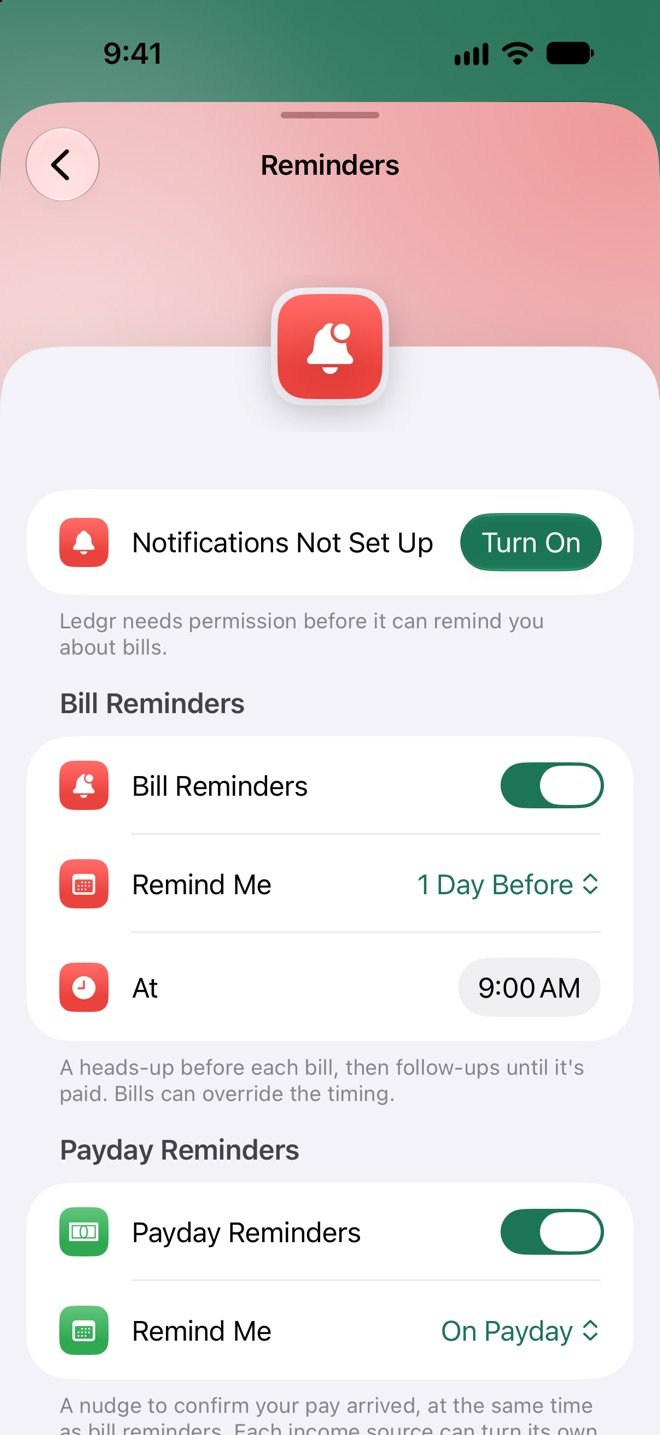
Start with Settings › Reminders. The row at the top shows whether Ledgr is allowed to notify you:
- "Notifications Not Set Up": tap Turn On and allow notifications when asked.
- "Notifications Are Off": you said no earlier. Tap Open Settings, then turn on Allow Notifications for Ledgr.
- "Delivered Quietly": reminders arrive in Notification Center without a banner or sound. Tap Turn On Banners.
- Check that Bill Reminders is on, and look at Remind Me and At to see when they're due to arrive.
- Tap Send a Test Reminder. It arrives in about 5 seconds. If it does, notifications are working and the issue is with a particular bill (see below).
The test arrives, but a bill's reminder doesn't
- Open the bill, tap Edit and check its Reminder section. Remind Me must be on. Its When can override your usual timing, for example On the Day instead of 1 Day Before.
- In a household, check Who Pays. Only the person who pays a bill gets its reminders. Everyone else hears about it only if it goes overdue.
- Check whether the bill is paused (it shows under Paused & Ended) or archived. Resume or restore it to get its reminders back. A snoozed bill reminds you for its new date.
Reminders arrive late, or follow-ups stop
- Focus modes: a Focus such as Sleep or Work can hold notifications back until it ends. In the Settings app, open Focus, choose the Focus, and add Ledgr under allowed apps if you want its reminders to get through.
- Grace period: if a bill has a Grace Period (under More Options when you edit it), Ledgr doesn't send overdue follow-ups until the grace period is over.
- Overdue follow-ups come daily for the first 7 days overdue, then weekly. That's expected.
Reminders just say "N bill reminders"
Your device is set to hide notification previews on the Lock Screen, so Ledgr only says how many are waiting. Unlock to read them, or change Show Previews under Notifications in the Settings app.
Reminders don't show amounts
Hide Amounts Outside Ledgr is on in Settings › Privacy & Security. It turns on automatically with App Lock. Turn it off if you want amounts back. See the App Lock & privacy guide.
More on every reminder setting in the reminders guide.
iCloud sync not working
Changes on one device don't appear on another
- Check that every device is signed in to iCloud with the same Apple Account. If one isn't, iCloud & Sharing shows Sign In to iCloud: "Nothing syncs until this device is signed in".
- On each device, open Settings › iCloud & Sharing and turn on iCloud Sync.
- Close Ledgr completely and open it again. The change applies the next time Ledgr opens, and until then the screen says "Turns on when Ledgr reopens". On iPhone and iPad, swipe up and pause to open the app switcher, swipe Ledgr away, then reopen it. On a Mac, quit Ledgr (⌘Q) and open it again.
- Look at the sync status caption at the top of Home. "Syncing…", "Synced just now" or "Synced [time]" mean it's working. "Offline" means there's no internet connection. "iCloud needs attention" means something's wrong: tap it to see what.
- Pull down on Home or Bills to sync straight away.
Household changes are slow or stuck
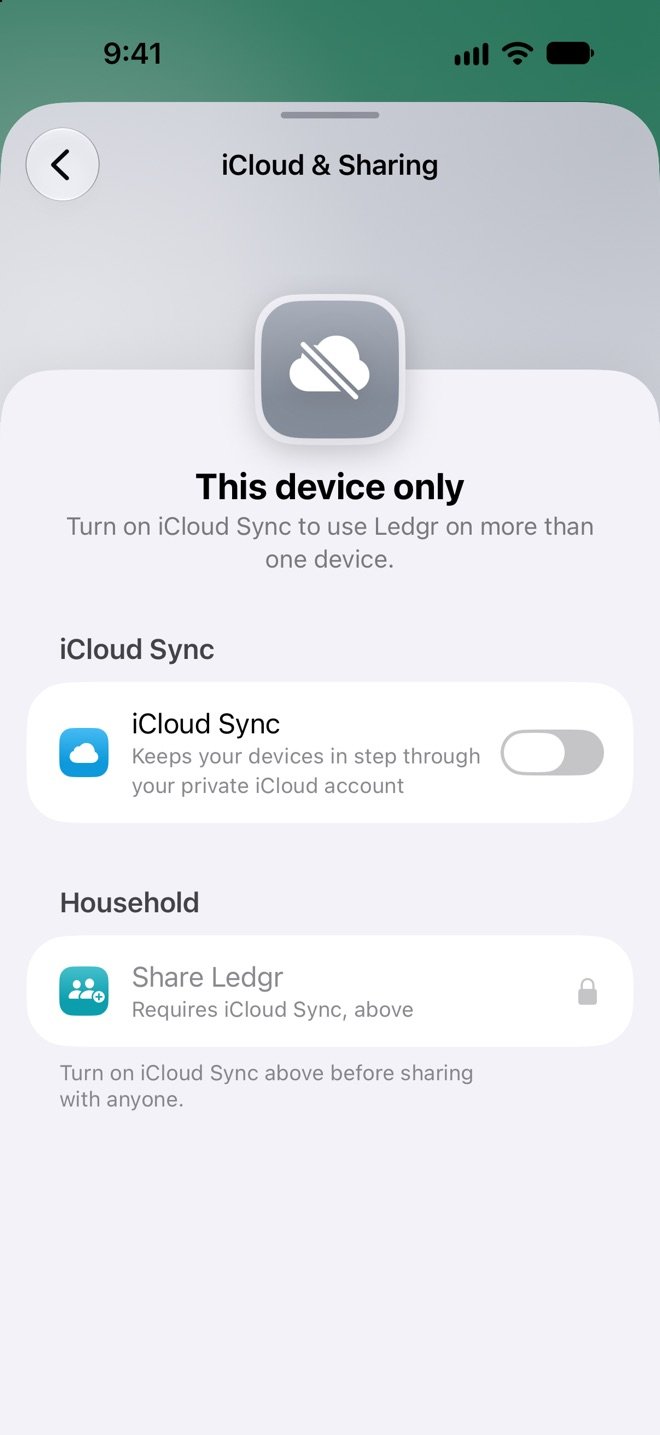
- Tap the sync caption on Home to open iCloud & Sharing. If it says "Household sync paused", it explains why.
- Look for a Waiting to Upload list. These are changes on this device that haven't reached the household yet. Ledgr keeps retrying, but you can tap Retry Now.
- If you use more than one device, one of them shares changes with the household for the others, and iCloud & Sharing names it. Open Ledgr on that device, or tap Sync on This Device to let this one take over.
- On a Mac, choose File › Sync Household Now, or press ⌘R.
Tip: sync needs an internet connection and can take a few minutes after a big change. Leaving Ledgr open for a moment on the device you changed helps.
Household invitation problems
The invite button is greyed out
- You need an iCloud account and iCloud Sync on. Share Ledgr says what's missing, for example "Requires iCloud Sync, above".
- If you've just turned on iCloud Sync, close and reopen Ledgr first.
- A household holds up to 6 people: you plus 5. If it's full, remove someone before inviting another person.
The other person can't join
- They need an iCloud account and iCloud Sync turned on in their own Ledgr, then they need to reopen Ledgr.
- Ask them to open the invitation on the device they use Ledgr on. Tapping it there opens Ledgr.
- If it still doesn't open, send a new one from Send an Invitation in Settings › iCloud & Sharing. Until they accept, they show as "Invitation pending".
Choosing Merge My Data or Start Fresh
When someone joins, Ledgr asks "What should happen to the bills and expenses already on this device?"
- Merge My Data brings the bills and expenses already on this device into the household.
- Start Fresh sets them aside and starts with only the household's data.
Either way, Ledgr keeps a Safety Copy of what was there before. If you picked the wrong one, restore it from Settings › Export & Import › Safety Copies. See the backups guide and the household guide.
Widgets not updating or not offering Mark Paid
A widget shows old information
- Open Ledgr. Widgets refresh when Ledgr's data changes, and the system decides exactly when they redraw.
- If you made the change on another device, wait for it to sync to this one first (see iCloud sync).
- If one widget seems stuck, remove it and add it again.
There's no Mark Paid button
- App Lock is on. The pay buttons are hidden on purpose so nobody can mark bills paid without unlocking. Tapping the widget opens Ledgr instead.
- Only Upcoming Bills has pay buttons. The other widgets are for reading.
The widget doesn't show amounts
Hide Amounts Outside Ledgr is on. Widgets then show names and dates only. More in the widgets & Siri guide.
Live Activity missing from the Lock Screen
- Check you're on iPhone or iPad. Macs don't have Live Activities.
- Go to Settings › Reminders and turn on Bills Due Today on Lock Screen.
- If the switch is greyed out and you see Live Activities Are Off, tap Open Settings (or go to the Settings app › Apps › Ledgr) and turn on Live Activities. Then return to Ledgr and turn the switch on.
- Check that a bill is actually due today or overdue. The Live Activity only appears when one is.
If it's there but has no Mark Paid checks, App Lock is on. That's by design.
Balances don't match the bank
Ledgr never connects to your bank, so balances only change when you record something in Ledgr. Drift usually comes from a payment or expense that wasn't logged, or one logged twice.
Check how a balance adds up
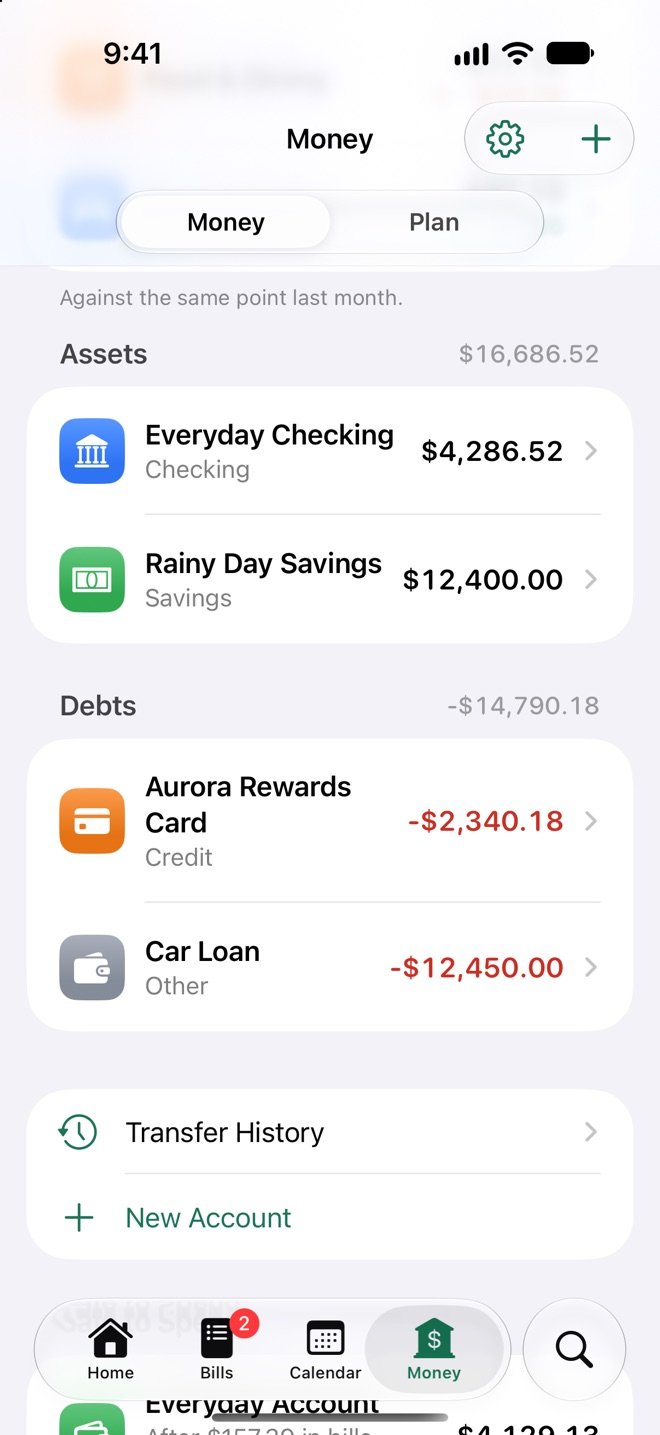
- On the Money tab, open the account's menu and choose Check Balance, or open the account and tap Check Balance.
- Ledgr compares the balance with all the activity recorded on the account. It says Balance Matches or Off by $X.
- If it's off, tap Fix Balance… and choose Set Balance to $X (match the activity) or Keep $Y as Correct (adjust the starting balance instead).
Match what your bank shows
- Open the account and edit it.
- Enter the balance your bank shows today and save.
- Ledgr records the difference as a "Balance adjusted" entry, so the history still adds up.
Also look in All Transactions for a bill marked paid twice or from the wrong account. The accounts & spending guide covers this in detail.
A bill marked paid by mistake
Straight away
Tap Undo on the banner that appears after you mark a bill paid.
Later
- Find the bill in Bills. It's under Paid This Cycle.
- On iPhone or iPad, swipe right and tap Undo, or touch and hold it and choose Undo Payment. On a Mac, right-click it and choose Undo Payment.
- You can also tap the day in the Calendar and choose Undo Payment there.
The paying bills guide covers partial payments and skipping too.
Calendar events
Bills don't appear in the Calendar app
- Add a single bill with Add to Calendar on its screen, or all bills with Add Bills to Calendar in Settings › Reminders.
- If you see Calendar Access Is Off, Ledgr isn't allowed to use your calendars. Turn access on for Ledgr in the Settings app (Privacy & Security › Calendars on a Mac).
- In the Calendar app, check that the calendar named Ledgr Bills is shown, not hidden.
Removing the events
- Go to Settings › Reminders and turn off Add Bills to Calendar.
- Ledgr asks "Remove Bills from Calendar?". Choose Remove Events to delete them, or Keep Events to leave them where they are.
Events don't show amounts if Hide Amounts Outside Ledgr is on. More in the calendar guide.
Locked out by Face ID or App Lock
- On the Ledgr Is Locked screen, tap Unlock, or Try Again if the first attempt failed.
- If Face ID or Touch ID still doesn't recognise you, enter your device passcode when it's offered. App Lock always accepts the same passcode that unlocks your device.
- On a Mac, use your login password if Touch ID doesn't work.
- Once you're in, you can change Require Unlock or turn off App Lock in Settings › Privacy & Security. Turning it off asks you to authenticate.
Can't turn App Lock on? It needs a device passcode, or a login password on a Mac. Set one in the Settings app first.
Restoring a backup
"Incorrect passphrase"
An Encrypted Backup only opens with the exact passphrase you chose. Check capital letters and spaces. The passphrase isn't stored anywhere and can't be recovered, by you or by me. If you've lost it, make a new backup from a device that still has your data.
"Couldn't Open File"
- Check you chose a Ledgr Full Backup or Encrypted Backup. CSV files and the Summary Report can't be restored as a backup. To bring in rows from a CSV file, use Import from CSV in Settings › Export & Import instead.
- If the file is in iCloud Drive, make sure it has finished downloading, then try again.
Restored the wrong thing
Before Replace All Data, Ledgr saves a Safety Copy. Go to Settings › Export & Import › Safety Copies and restore the copy from just before. The backups guide explains Import & Merge, Replace All Data and Safety Copies.
Amounts showing the wrong currency
- Go to Settings › Currency and pick the one you use. There are 41.
- Check your amounts. Changing currency only changes the symbol and format. It doesn't convert amounts, so $100 becomes €100, not its value in euros.
In a household, the currency is shared. Changing it changes it for everyone in the household.
Getting help
If you're still stuck, send me a message from inside Ledgr. It's the quickest way to get help.
- Go to Settings › Contact Support (under About; in the About pane on a Mac).
- Choose a topic: Question, Something's Not Working, iCloud & Sharing, Reminders & Notifications, Feature Idea or Something Else.
- Write your message. Replies come by email.
- Leave Include Diagnostics on if you can. It adds your app version, device, sync status and how many items you have, never amounts or names. Include Activity Log adds this session's app log, which helps with bugs. It can only be attached when Mail is set up.
- Tap Preview What's Sent to see exactly what's included.
- Tap Send to Support. Ledgr opens Mail with your message ready, or your own email app if Mail isn't set up. Send it from there.
You can also email hello@szymonstephansikora.com, or visit the support page.
Common questions
Does reinstalling Ledgr fix problems?
Rarely, and without iCloud Sync it deletes your data. Make a Full Backup first. With iCloud Sync on, Ledgr looks for your data when you reinstall and offers Keep My Data.
Why doesn't Mark as Paid on a notification do anything until I unlock my phone?
Recording a payment waits until your device is unlocked, so nobody can do it from a locked phone. With App Lock on, the button reads Mark as Paid in Ledgr and opens the app.
Why does Siri ask me to unlock?
App Lock is on. Every Siri and Shortcuts action then needs Face ID, Touch ID or your passcode.
Why isn't Ledgr in Spotlight?
While App Lock is on, nothing from Ledgr is in Spotlight. Turn App Lock off if you'd like Spotlight to find your bills (without amounts).
Still stuck?
Send a message from Settings › Contact Support in Ledgr, or email hello@szymonstephansikora.com. I read every message.