 Ledgr
- Guides
- Bills
The calendar
The Calendar tab puts every due date and payday on one month, so you can see busy weeks coming. You can pay, skip and add bills right from a day, and put your bills in the Calendar app too.
Read the month
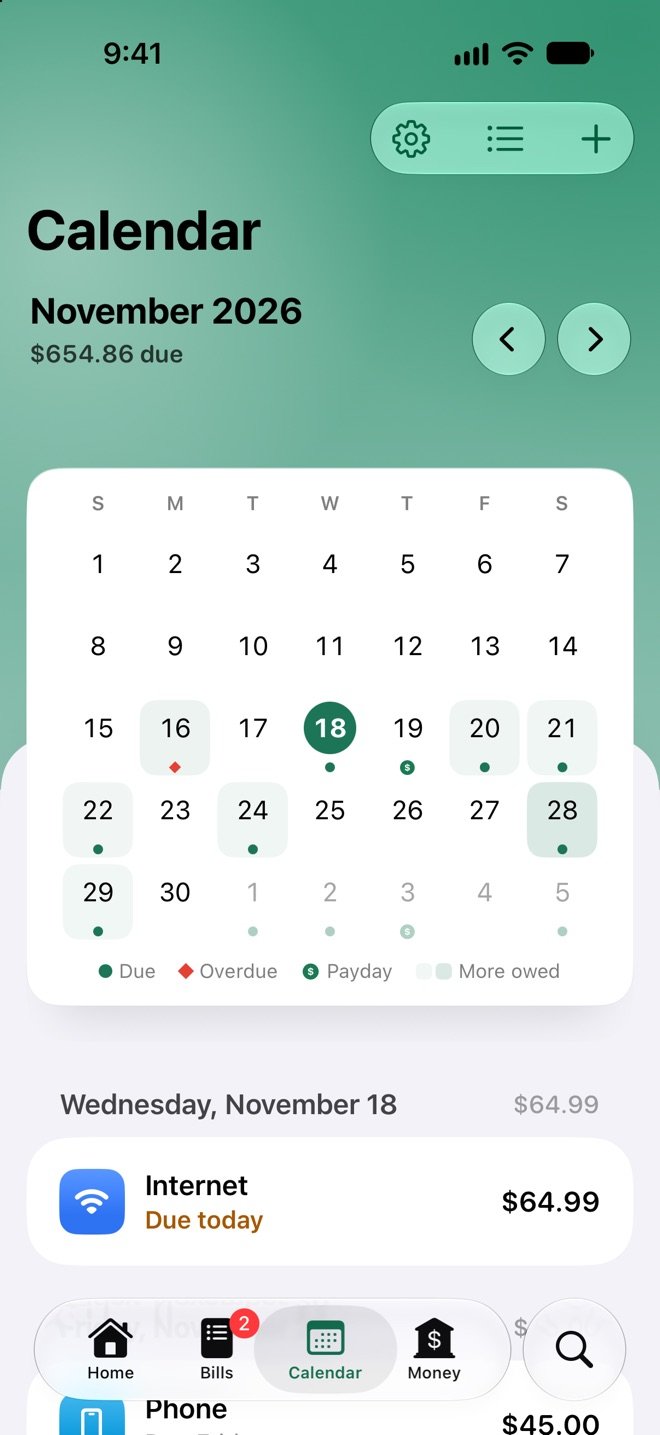
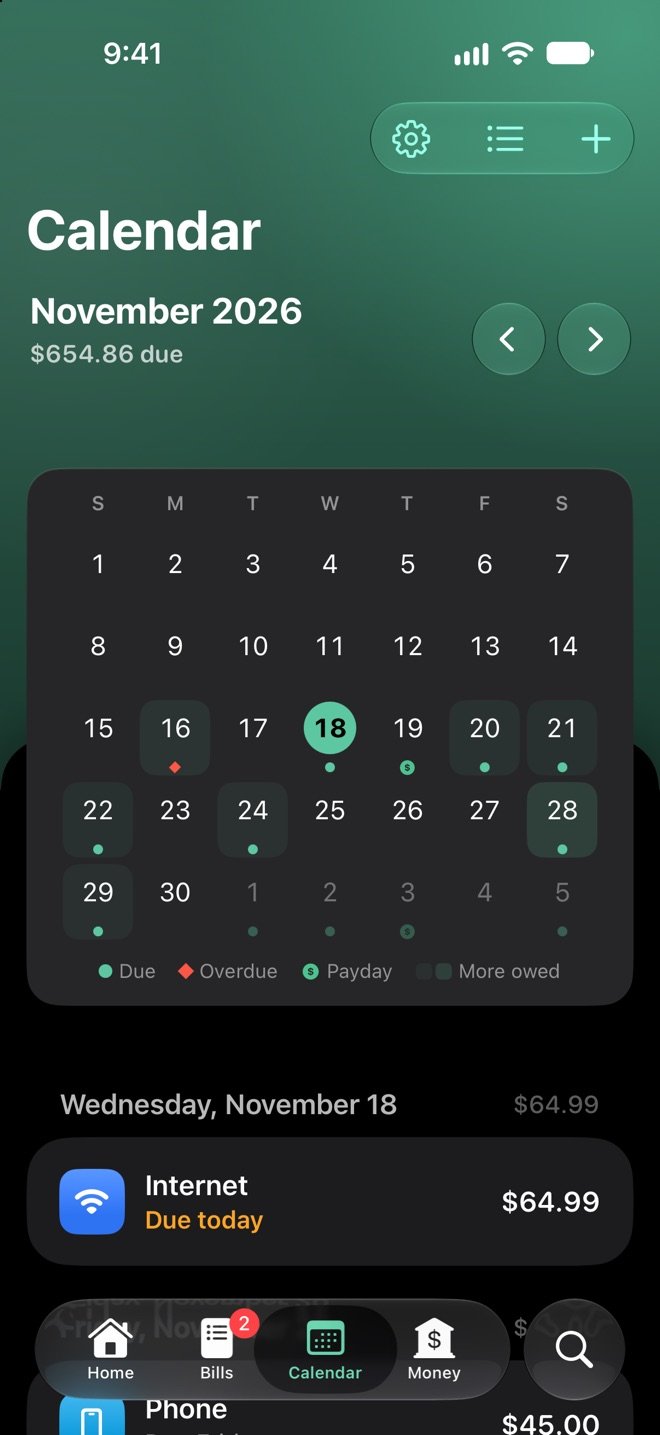
Open the Calendar tab. It shows the current month, with how much is due, and a mark on every day something happens. Each kind of mark has its own shape as well as its own colour, so you can tell them apart at a glance:
- Due: a dot in your app colour.
- Paid: a ring.
- Skipped: a faint ring with a slash through it.
- Overdue: a red diamond.
- Payday: a green mark, once you've added income.
A legend under the month explains the marks, in case you forget.
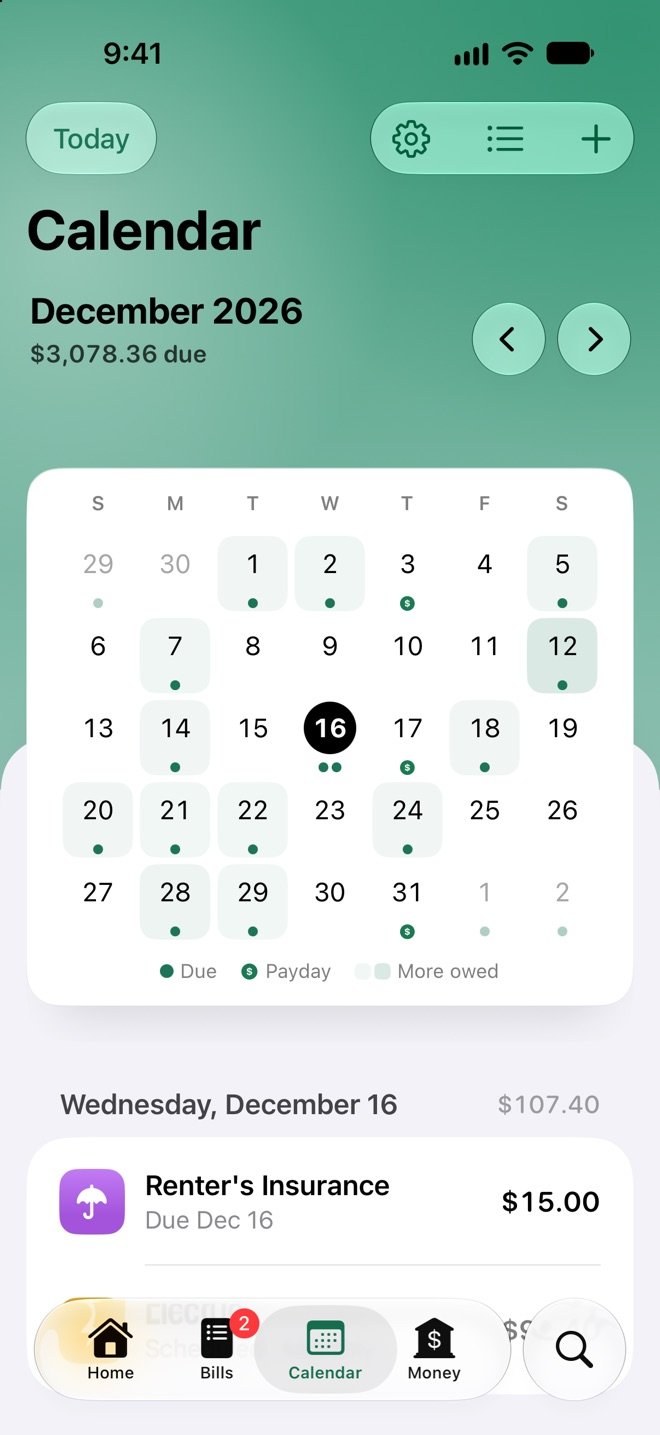
To move around, use Previous Month and Next Month, and tap Today to jump back to the current day. Repeating bills show on every date they're due, so you can look ahead to see a busy month coming.
See and pay a day's bills
Tap any day to see what's due then, with any payday listed below its bills. From the list you can act on each bill:
- Mark as Paid for a bill that's due or overdue.
- Pay Early for a bill's next payment that isn't due yet, when you've paid ahead of time.
- Change Amount Due… to set a different amount for that one payment.
- Skip This Payment to pass over that payment.
- Undo Payment for a bill you marked paid by mistake.
On iPhone and iPad, you can also swipe right on a bill in the day's list to pay it (or pay it early), or swipe left to snooze or skip it. Touch and hold it (right-click on a Mac) for the full menu, or tap it to open the bill.
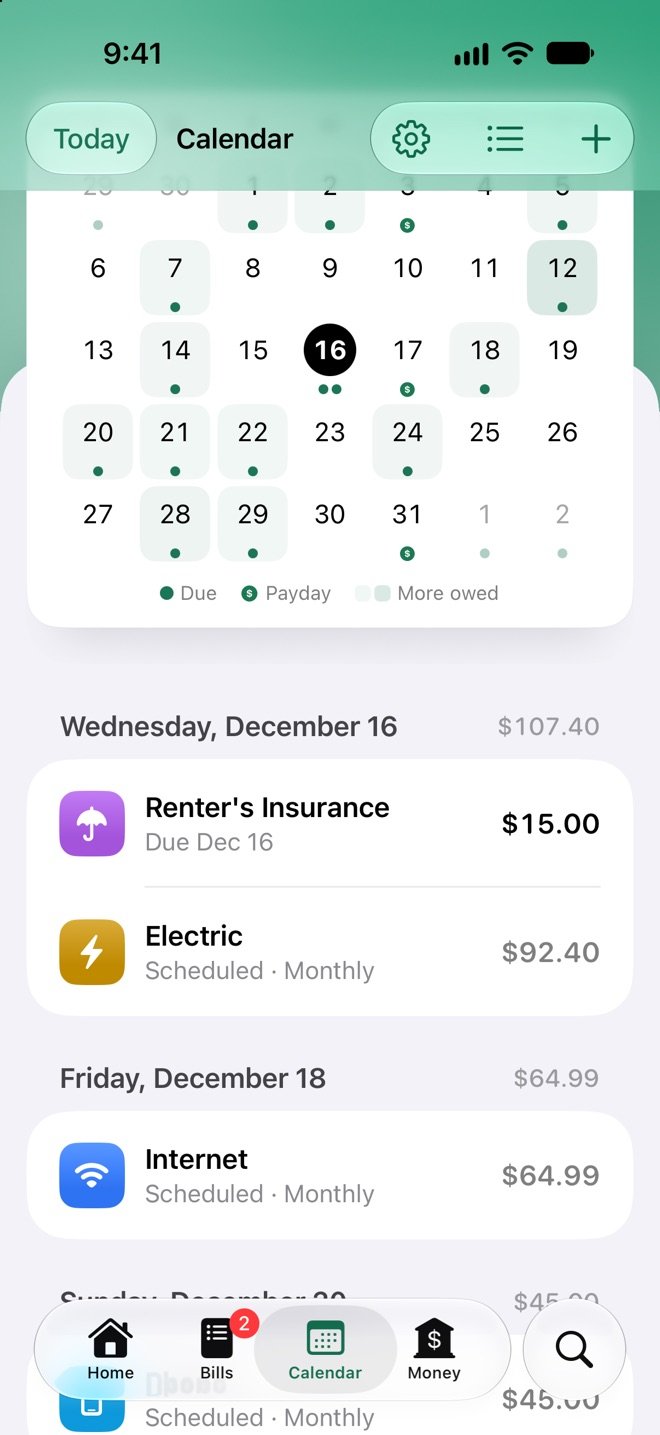
Paying from the Calendar works the same way as anywhere else in Ledgr: the payment is recorded, taken off the Pay From account, and you get an Undo banner. For a bill whose amount varies, Ledgr asks what you paid first. See Paying, snoozing & skipping.
Add a bill or income on a date
The Calendar is a quick way to add something on the right date.
- Touch and hold any date. On a Mac, Control-click it.
- Choose New Bill or New Income Source.
- The form opens with that date already filled in. Finish it and tap Add.
If the day already has bills to pay, the same menu also offers to mark each one paid. You can also tap + on the Calendar to add a bill on the day you've selected, or touch and hold it to add income there.
Tip: For income, a date that's already passed can't be the next payday, so the form picks the next one itself.
Put your bills in the Calendar app
Ledgr can add your bills to the Calendar app, so due dates sit next to the rest of your plans. They go in a calendar of their own, named "Ledgr Bills", which you can show, hide or colour in the Calendar app like any other.
One bill
- Open the bill.
- Tap Add to Calendar. Allow calendar access if Ledgr asks.
Once a bill is in the calendar, the button reads Update in Calendar. Tap it after changing the bill to bring the event up to date. The button doesn't appear for bills that are paused, archived or have ended.
Every bill
- Go to Settings › Reminders.
- Turn on Add Bills to Calendar.
To stop, turn it off again. Ledgr asks "Remove Bills from Calendar?". New bills won't be added any more either way:
- Remove Events takes down the events Ledgr already added.
- Keep Events leaves them where they are.
Calendar access off? If you said no when Ledgr asked, turn on calendar access for Ledgr in the Settings app (System Settings on a Mac).
Tip: With Hide Amounts Outside Ledgr on, in Settings › Privacy & Security, calendar events don't show amounts.
The calendar on iPad and Mac
On iPad, the month grid sits on the left with the bills by day in a column on the right.
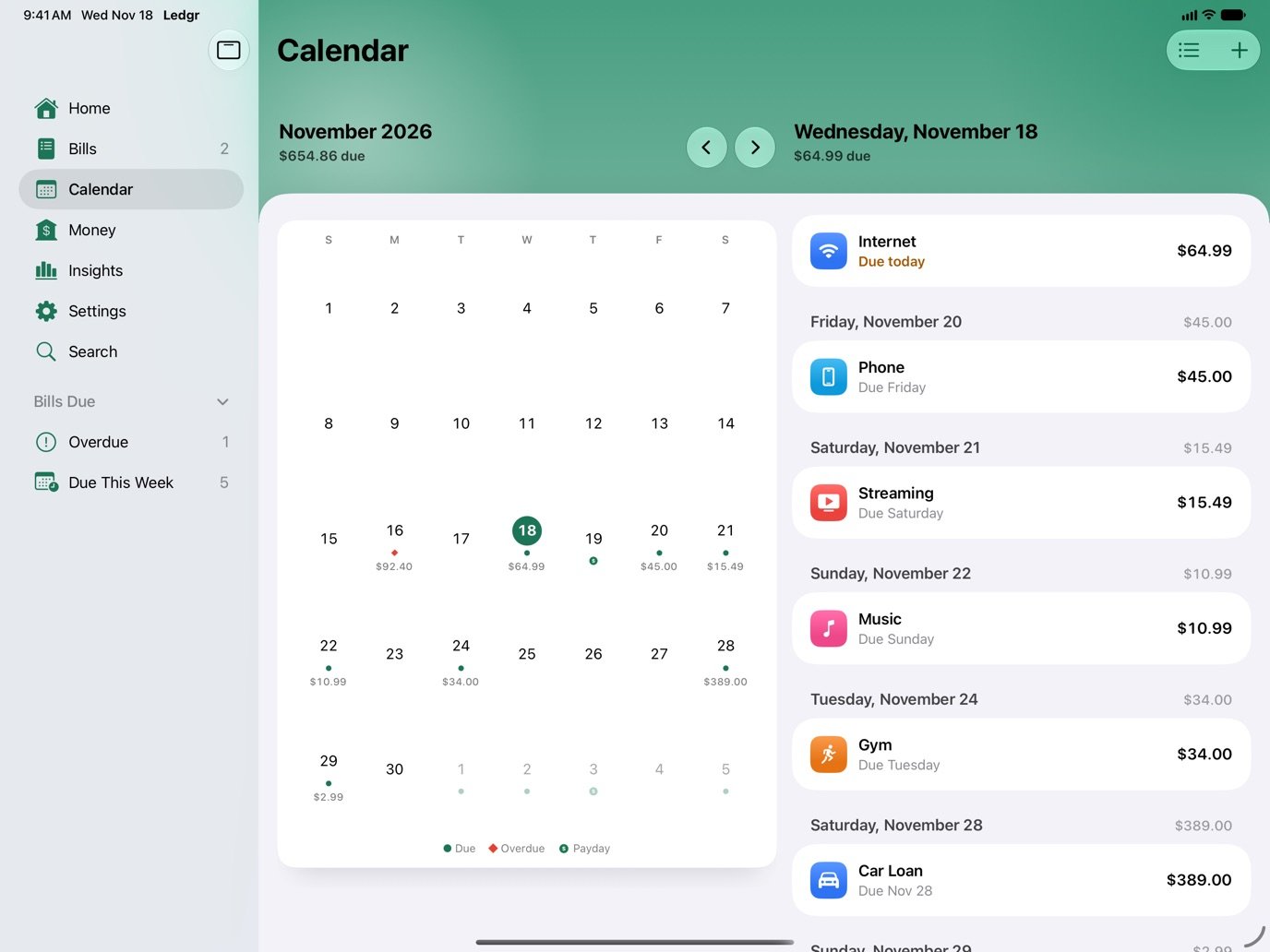
On a Mac, the calendar looks like the Calendar app, with each bill's name written in its day, and paydays marked. The selected day's list is on the right. Control-click a date to add a bill or income there, and right-click a bill for its actions. Press ⌘3 to jump to the Calendar from anywhere.

Common questions
Why don't I see paydays on the calendar?
Paydays come from your income. Add a paycheck or other income with + › New Income Source. See Income & paydays.
What's the difference between Mark as Paid and Pay Early?
Mark as Paid is for a payment that's due now or overdue. Pay Early records the next payment before it's due, for when you pay ahead.
I turned off Add Bills to Calendar, but the events are still there.
You probably chose Keep Events. You can delete those events, or the whole "Ledgr Bills" calendar, in the Calendar app.
Why doesn't a bill have Add to Calendar?
The button only appears for bills with payments still to come. Paused, archived and ended bills don't have it. A bill that was already in the calendar goes back there when you resume or restore it.
Still stuck?
Try Troubleshooting, send a message from Settings › Contact Support in Ledgr, or email hello@szymonstephansikora.com. I read every message.