 Ledgr
- Guides
- Money
Accounts & spending
The Money tab connects your bills to your real balances. Add your accounts, see what's safe to spend before payday, log what you spend, and keep it all in step with your bank.
You don't need the Money tab to track bills, but it makes them more useful. When a bill is paid from an account, its balance goes down. When you log a coffee or a grocery run, it shows up in your budgets. Ledgr never connects to your bank, so every balance is what you enter and what Ledgr records from there. This guide covers accounts, Safe to Spend, logging spending, receipts, the transaction list and transfers. Budgets and goals have their own guide.
The Money tab
Open Money from the tab bar on iPhone, or from the sidebar on iPad and Mac (⌘4 on a Mac). At the top are two segments:
- Money: your accounts, Safe to Spend, income, budgets and spending.
- Plan: Insights, goals, pay later plans and the tools (Debt Payoff Planner and Receipts & Tax).
The + button starts with Quick Add on both segments. On the Money segment it then offers Log Expense, Log Income, New Income Source, New Budget, New Account and Transfer Money. On the Plan segment it offers New Goal and New Pay Later Plan.
From top to bottom, the Money segment shows:
- Total balance, and how much you've spent this month compared with the same point last month.
- By Category: this month's spending in each category against the same point last month.
- Turn Recurring Expenses into Bills, only if you have expenses that repeat (see below).
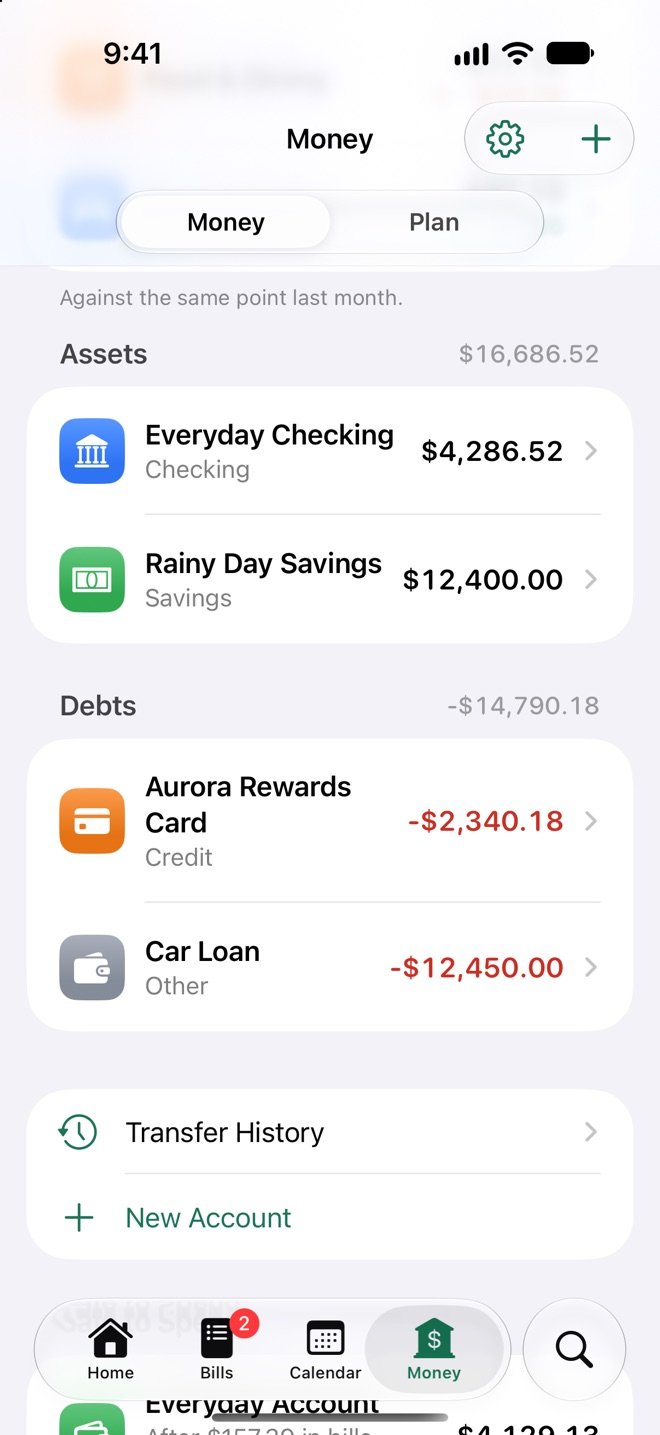
- Accounts, split into Assets and Debts once you owe something.
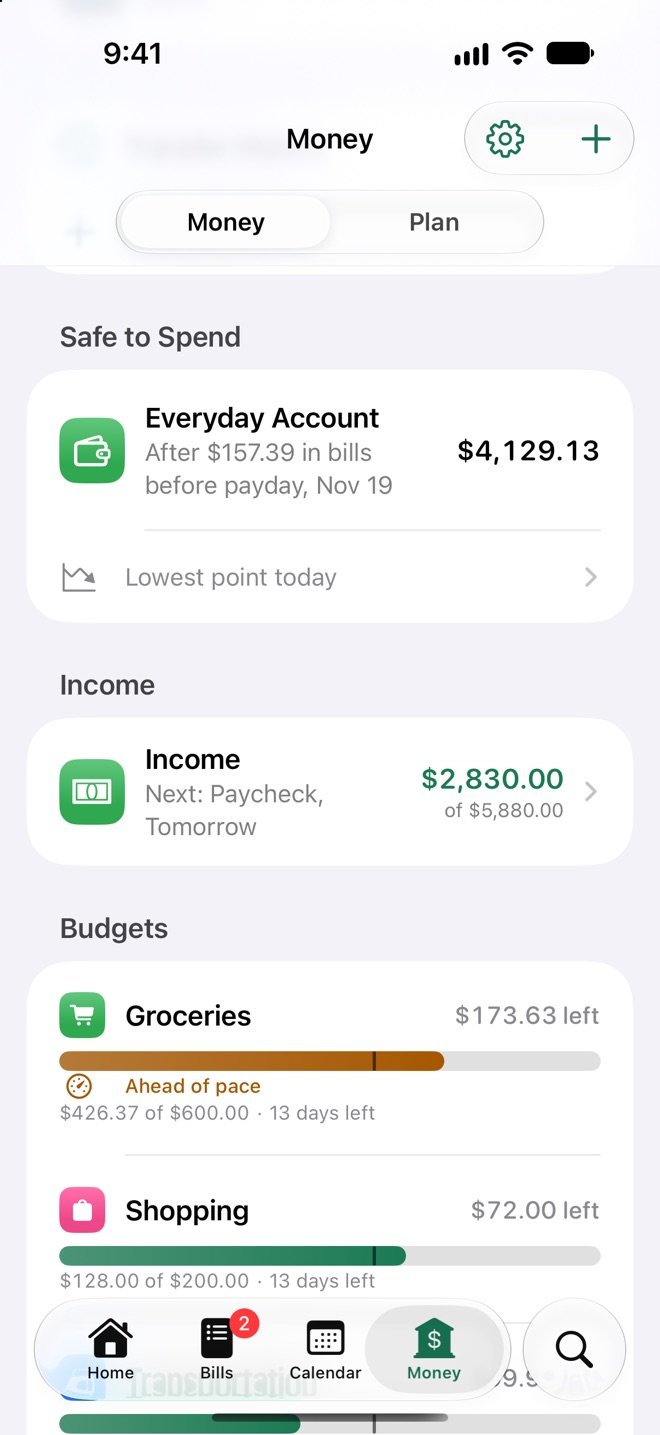
- Safe to Spend, once you have an everyday account and bills left to pay before payday (or this month, without a pay schedule).
- Income, covered in the income guide.
- Budgets, with Manage Budgets.
- Recent Expenses, and a link to All Transactions.
Accounts
Add an account
- On the Money tab, tap + and choose New Account.
- Type an Account Name, such as "Everyday Checking".
- Choose a Type (see the list below).
- Enter the Starting Balance: what the account holds today.
- For a credit card or loan, turn on This Is Money Owed, so the balance counts as negative. It turns on by itself when you pick Credit.
- If you share a household, decide whether to turn on Private.
- Tap Add.
The account types are:
- Checking: your everyday bank account. Counts towards Safe to Spend.
- Savings: money set aside. Not counted in Safe to Spend.
- Credit: a credit card or credit line. Always listed under Debts.
- Investment: not counted in Safe to Spend.
- Cash: money in your wallet. Counts towards Safe to Spend.
- Other: anything else. It counts towards Safe to Spend while it holds money. A loan is an Other account below zero, and it's listed under Debts.
Assets and debts
While nothing is owed, Money shows one Accounts list. Once an account is a Credit account or has a balance below zero, the list splits into Assets and Debts, each with its own subtotal. The total balance at the top then reads as your net worth: everything you have, less everything you owe.
Private accounts
In a household, Private keeps an account, its transactions and transfers to or from it out of everyone else's Ledgr. Saving asks you to confirm with Make Private or Share With Household. Private isn't hidden: it still syncs to your own devices through your private iCloud account. If you're not in a household yet, Private means the account stays out of one you join later. See Sharing a household.
An account's screen
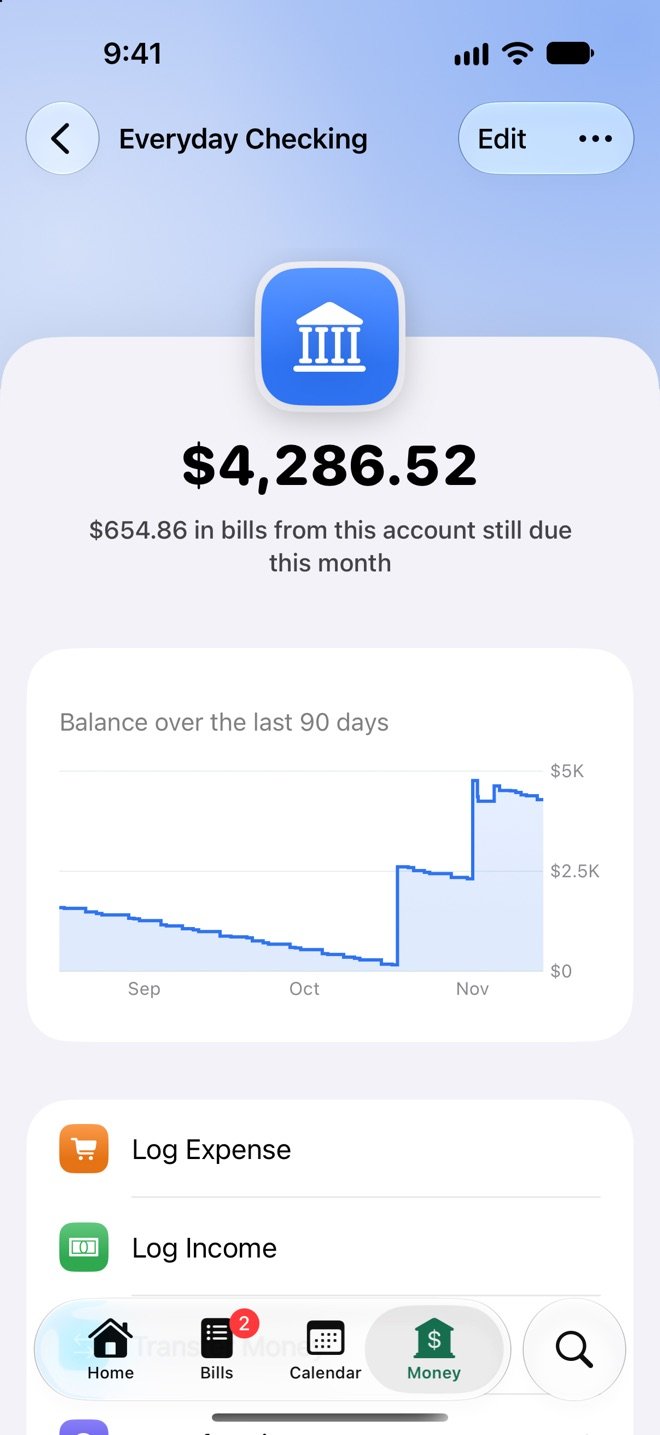
Tap an account to see its balance, what's still due from it this month, a balance chart for the last 90 days and its activity. It also has:
- Transfer Money and Transfer History, once you have two accounts.
- Check Balance (see below).
- Bills Paid From Here: every bill whose Pay From is this account.
Touch and hold an account in the list for Edit, Transfer Money, Check Balance and Reorder Accounts. Reorder Accounts lets you drag accounts into your own order.
Correcting a balance
If a balance has drifted from your bank's, edit the account and type the right figure in Current Balance. A Change row shows the difference before you save. Ledgr doesn't just overwrite the balance: it records a "Balance adjusted" entry in the account's activity, so the history and chart still add up. Adjustments don't count as spending. To undo one, open it and delete it, and the balance goes back.
How balances change
- Marking a bill paid takes it off the bill's Pay From account.
- An expense is deducted from its account. On a card, it's added to what's owed.
- Income is added to its account. On a card, it takes off what's owed.
- A transfer moves money from one account to another.
Deleting an account can't be undone. Its transactions stay, but no longer belong to an account, and bills paid from it will need a new account. Delete Account is in the account's ••• menu and at the bottom of its editor.
On a Mac: right-click (or Control-click) an account for the same menu that touch and hold gives you on iPhone and iPad.
Safe to Spend
Safe to Spend answers one question: how much can you spend now and still cover every bill until you're next paid? With a regular pay schedule (weekly to monthly, see Income & paydays), Ledgr follows your everyday balance day by day through the bills due before your next payday, and Safe to Spend is the lowest it gets. It reads "After $X in bills before payday", with the date. Without a pay schedule it looks to the end of the month instead, and reads "After $X in bills due this month". Either way, it's worked out like this:
Safe to Spend = everyday balance − bills still due before payday (or this month)
What counts as the everyday balance
- All your Checking and Cash accounts, even one that's overdrawn, because that shortfall is real.
- Other accounts with a positive balance.
- Not Savings or Investment accounts. Money you've set aside isn't money to spend.
- Not Credit accounts, or any account a bill pays down (a bill's Card or Loan Account). Counting those would take the debt off twice.
What counts as bills still due
- Every unpaid bill due before your next payday, or before the end of this calendar month without a pay schedule, including overdue ones.
- Each payment that falls in that time, so a weekly bill counts once for each week left.
- Not skipped payments.
- Bills paid from your everyday accounts, plus bills with no Pay From account. A bill paid from savings or charged to a card isn't subtracted, because it doesn't come out of everyday money.
- Split bills count in full or as your share, depending on Count Split Bills As (see Splitting bills).
For example, with $4,286.52 in Everyday Checking and $157.39 of bills due before tomorrow's payday, Safe to Spend is $4,129.13. Pay only counts from the day it's due, so a bill due before payday is always covered by what you have now. If your balance is headed below zero before payday, Money says on which day. The same figure is in the Safe to Spend widget and answers "What's safe to spend in Ledgr" in Siri (see Widgets, Siri & shortcuts).
Tip: If Safe to Spend doesn't appear, check that you have a Checking, Cash or Other account with money in it, and that you still have bills to pay before payday (or this month, without a pay schedule).
Check Balance
Check Balance makes sure an account's balance agrees with its own records. It adds the account's starting balance to every expense, income entry and transfer recorded on it, and compares the result with the balance shown.
- Open the account and tap Check Balance, or touch and hold it in the list and choose Check Balance.
- Read How It Adds Up: Starting Balance, Activity Since, Adds Up To and Balance Shown.
- If it says Balance Matches, you're done. If it says Off by $X, tap Fix Balance….
- Choose Set Balance to $X to make the balance match the activity, or Keep $Y as Correct to keep the balance and adjust the starting balance instead, so it stops showing as off.
If Ledgr didn't record what the account started with, it works one out from today's balance. Enter the real figure in Starting Balance (with Started as Money Owed for a card or loan) to check against it. In a household, everyone sees whichever balance you keep.
Tip: Check Balance compares the account with Ledgr's records, not with your bank. To match what your bank shows, edit the account's balance as described in Correcting a balance.
Logging expenses & income
Log one-off spending, such as groceries or fuel, so your balances and budgets stay current. Bill payments add themselves when you mark a bill paid, so you don't log those.
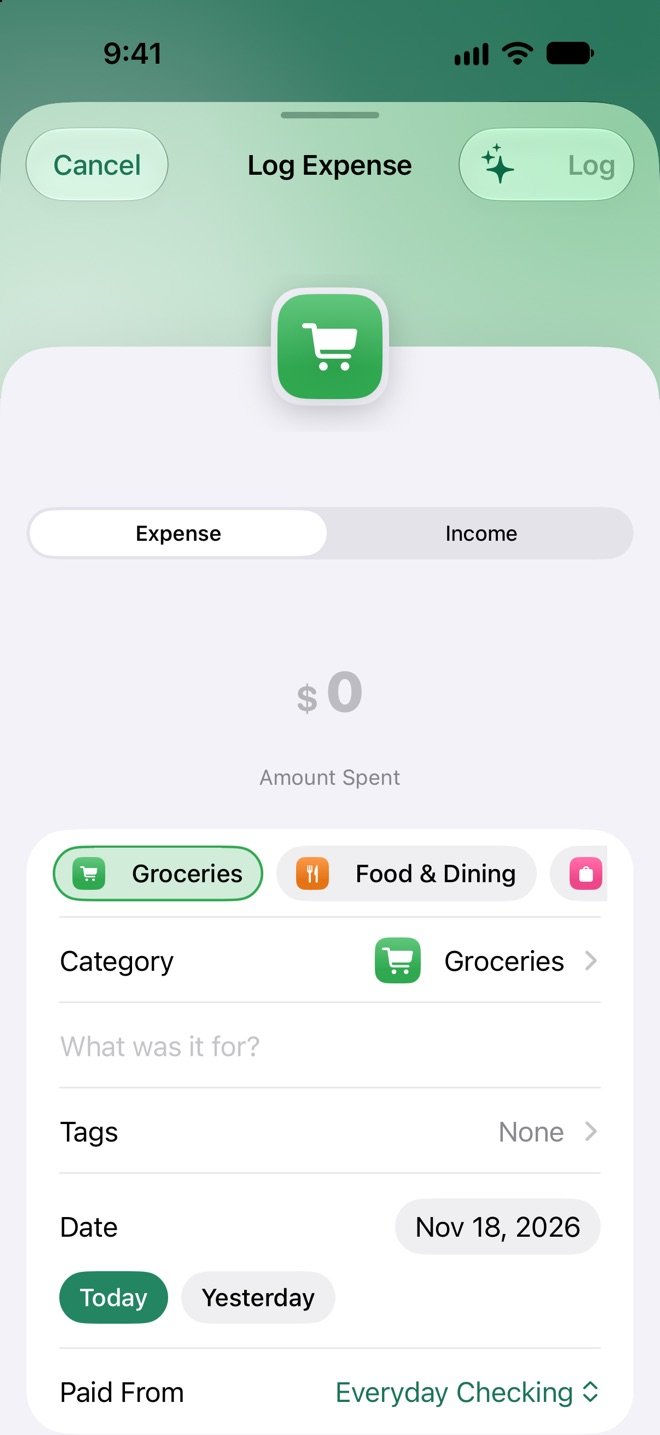
- On the Money tab, tap + and choose Log Expense.
- Enter the amount.
- Pick a Category. Your recent ones are shown as chips.
- Add a note under "What was it for?", and any Tags.
- Check the Date and the Account. Your usual account is already selected.
- Optionally turn on Tax-Deductible and add a receipt.
- Tap Log.
The switch at the top of the form changes between Expense and Income, and Log Income opens it on Income. Logged income is for one-off money in. For regular pay, add an income source instead (see Income & paydays).
Receipts
Under Receipts & Tax, tap Add Receipt and choose Choose Photo…, Scan Document or Choose File…. Photos and PDFs can be up to 10 MB each. Tap a receipt's thumbnail to preview it. Turn on Tax-Deductible and the expense is counted in Receipts & Tax (see Receipts & tax).
Letting Ledgr read the receipt
When you attach a receipt to an expense, Ledgr reads its text on your device. It uses the PDF's own text if it has some, or recognises the text in a photo. Nothing is sent anywhere. If it finds an amount, a date or a shop name, a From Receipt card appears with what it found, for example "$42.18 · Oct 14 · Trader Joe's".
- Fill In fills only the fields that are still empty: the amount, the date (while it's still on the day the form started with) and the note, which gets the shop's name.
- Replace is a menu for fields you've already filled. Choose Amount, Date or Note to swap just that one for what the receipt says.
- Dismiss Suggestion hides the card and changes nothing.
Nothing is ever filled in automatically. If the receipt has nothing Ledgr can use, no card appears, and the receipt is attached as normal.
Editing and deleting
Tap any entry to edit it. Delete Expense (or Delete Income) is at the bottom of the form. Any account balance it changed is restored, and an Undo banner appears for a few moments. A bill payment can't be deleted here. Undo it from its bill instead, so the bill's history stays right.
Repeating expenses and Turn Recurring Expenses into Bills
New expenses don't repeat. For anything regular, such as a subscription or a weekly class, add a bill: bills get reminders, history and calendar dates. See Adding bills.
An expense that already repeats, for example one restored from an older backup, shows Repeats in its editor (Never, Daily, Weekly, Every 2 Weeks, Monthly or Yearly). Ledgr adds it automatically each time it comes due. Tap Stop Repeating and save, and it won't be added again. Past transactions stay.
While you have repeating expenses, the Money tab shows Turn Recurring Expenses into Bills, with how many it found.
- Tap Turn Recurring Expenses into Bills.
- At "Convert to Bills?", tap Convert.
Each repeating expense becomes a bill on the same schedule, named after its note (or its category if it has no note), with the same amount and account. Any payments that had already come due are logged first, so nothing is lost. Past expenses are kept. Daily ones stay as they are, because bills can't repeat daily.
On a Mac: press ⇧⌘N to log an expense from anywhere. Scan Document isn't offered on the Mac, so use Choose File… for a PDF or photo.
Tip: On iPhone and iPad you can also log an expense from the Log Expense control in Control Center, the Home Screen quick action, or by saying "Log an expense in Ledgr".
All Transactions
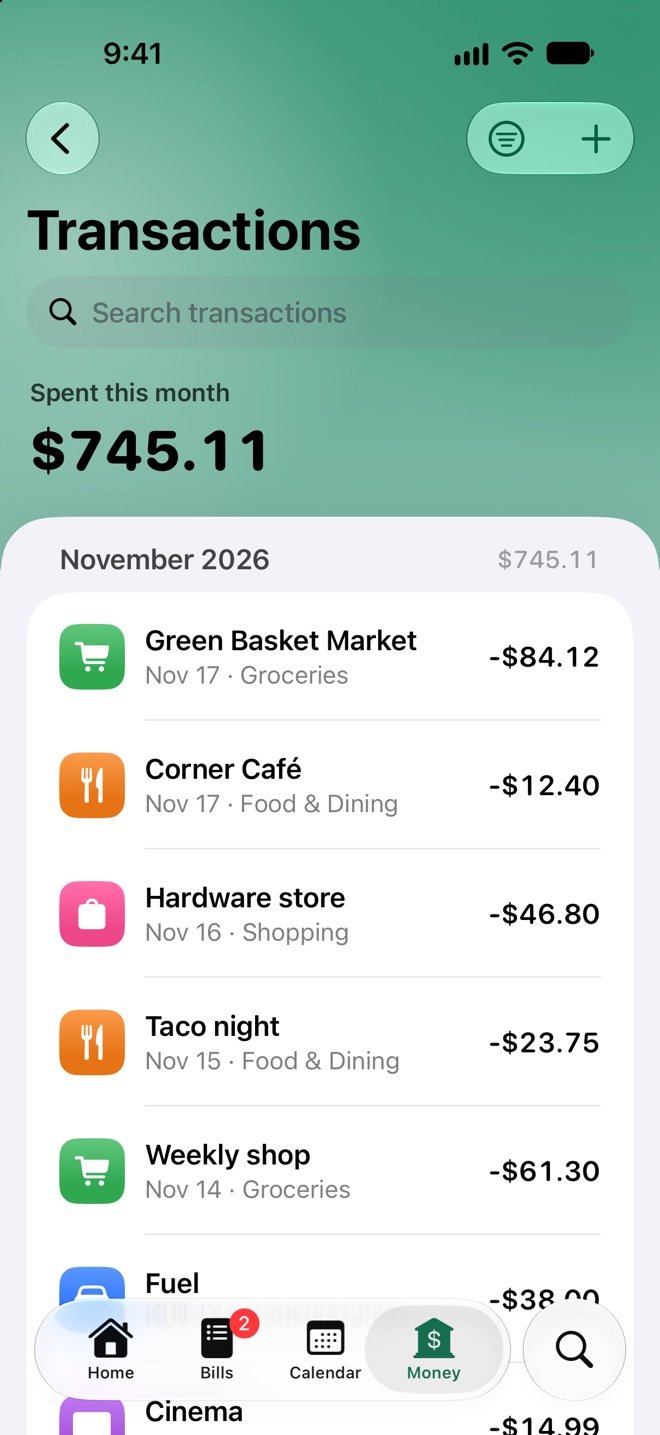
Tap All Transactions under Recent Expenses to see every expense, income entry and bill payment. The band at the top shows what you've spent this month, or what you've received or paid in bills when you filter by those. Use the "Search transactions" field to find an entry by its details.
Sort and Filter
The Sort and Filter menu in the toolbar has:
- Sort By: Newest First, Oldest First, Largest Amount, Smallest Amount or Name.
- Show: All, Expenses, Income or Bill Payments.
- Category: one category, or All Categories.
- Tag: one tag, or All Tags.
- Select: choose several entries to change at once.
Changing several entries at once
- Open the Sort and Filter menu and tap Select.
- Tap the entries you want.
- Use the bar at the bottom: Delete (N), the Category menu to move them to another category, or the Tag menu to Add Tag or Remove Tag.
- Tap Done when you've finished.
Category and tag changes offer Undo. Bill payments and balance adjustments in a selection are left as they were: bill payments change from their bill, and balance adjustments from their account.
Moving money between accounts
Use a transfer when money moves between your own accounts, such as topping up savings or paying off a card. Both balances stay right, and it isn't counted as spending. You need at least two accounts.
- Tap + and choose Transfer Money, or tap Transfer Money on an account's screen.
- Choose the From and To accounts. Swap flips them.
- Enter the Amount to Move. If it would take the From account below zero, Ledgr tells you what it would be left at.
- Optionally change the Date and add a Note.
- Tap Transfer.
Transfer History, on the Money tab and on each account, lists your transfers with how much was moved this month. Tap one to edit it. Deleting a transfer puts both balances back as they were before it, and offers Undo.
Common questions
Does Ledgr connect to my bank?
No. Ledgr never connects to your bank or moves money. Balances change only when you log something, mark a bill paid, record pay or edit them yourself.
Why isn't my savings account in Safe to Spend?
Safe to Spend only counts the money you spend from day to day: Checking, Cash and Other accounts with money in them. Savings and investments are left out on purpose, so the figure isn't inflated by money you've set aside.
My balance doesn't match my bank. What should I do?
Edit the account and enter the balance your bank shows. Ledgr records the difference as a "Balance adjusted" entry. If you think something was logged twice or missed, Check Balance shows whether the balance agrees with the account's own activity.
Can I set up a repeating expense?
Add a bill instead. Bills repeat weekly, every 2 weeks, monthly, quarterly or yearly, and come with reminders and history. Ledgr can also spot repeating charges in your logged spending and suggest them as bills (see Adding bills).
Is my receipt sent anywhere to be read?
No. Receipt text is read on your device, and nothing is filled in until you tap Fill In or Replace.
Still stuck?
Try Troubleshooting, send a message from Settings › Contact Support in Ledgr, or email hello@szymonstephansikora.com. I read every message.