 Ledgr
- Guides
- Money
Income & paydays
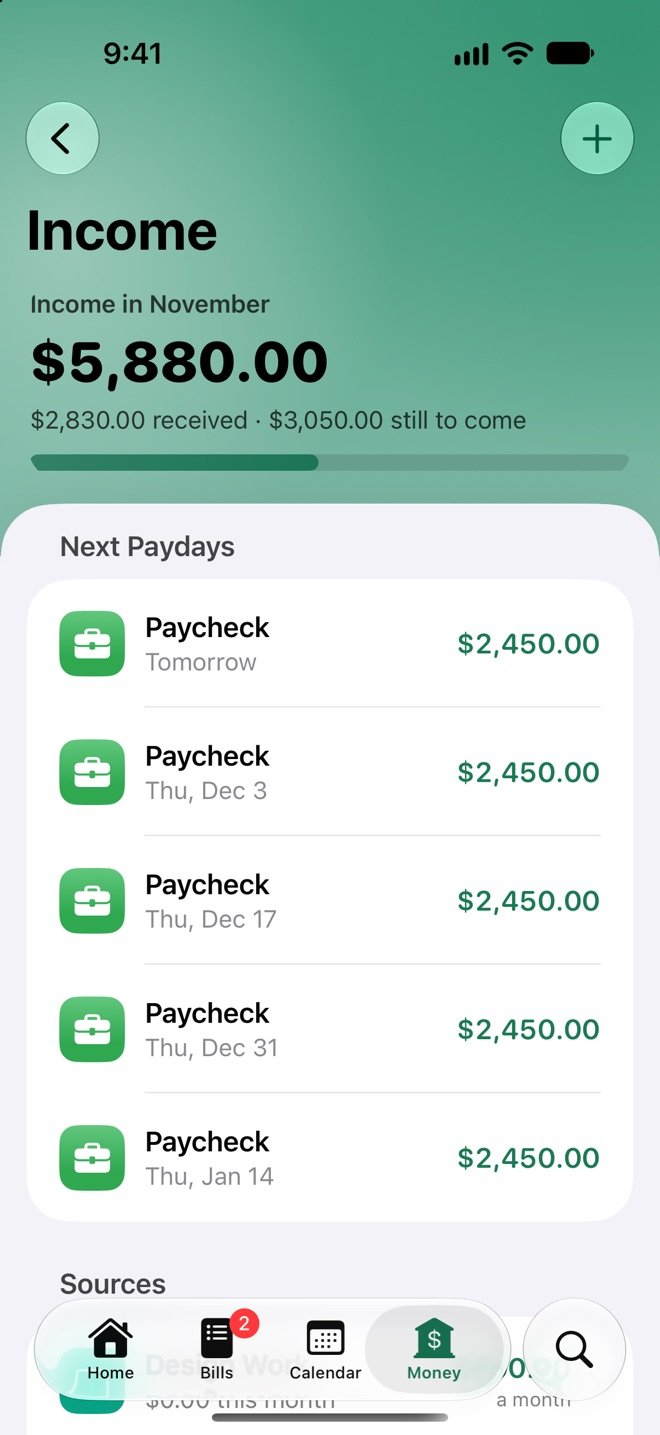
Tell Ledgr when you get paid, and it shows each payday ahead and which bills land before it. Confirm your pay when it arrives, and keep a running total of what you've set aside for tax.
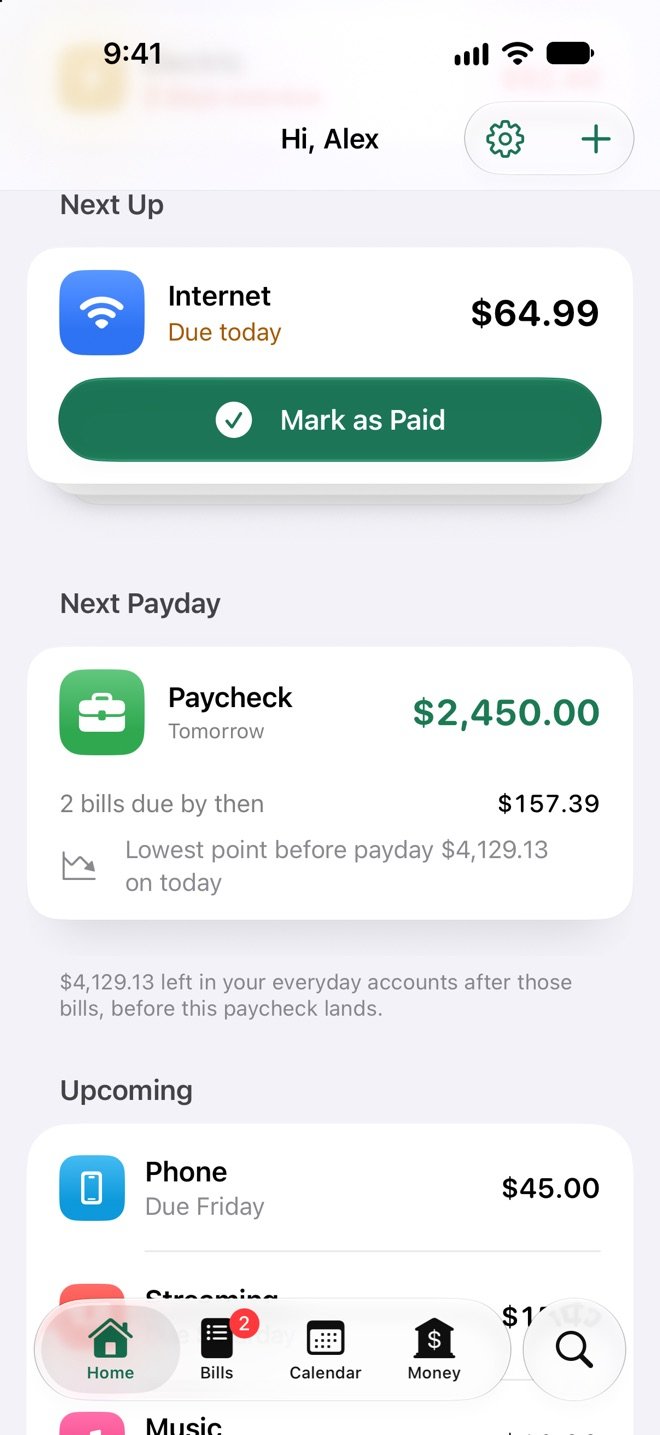
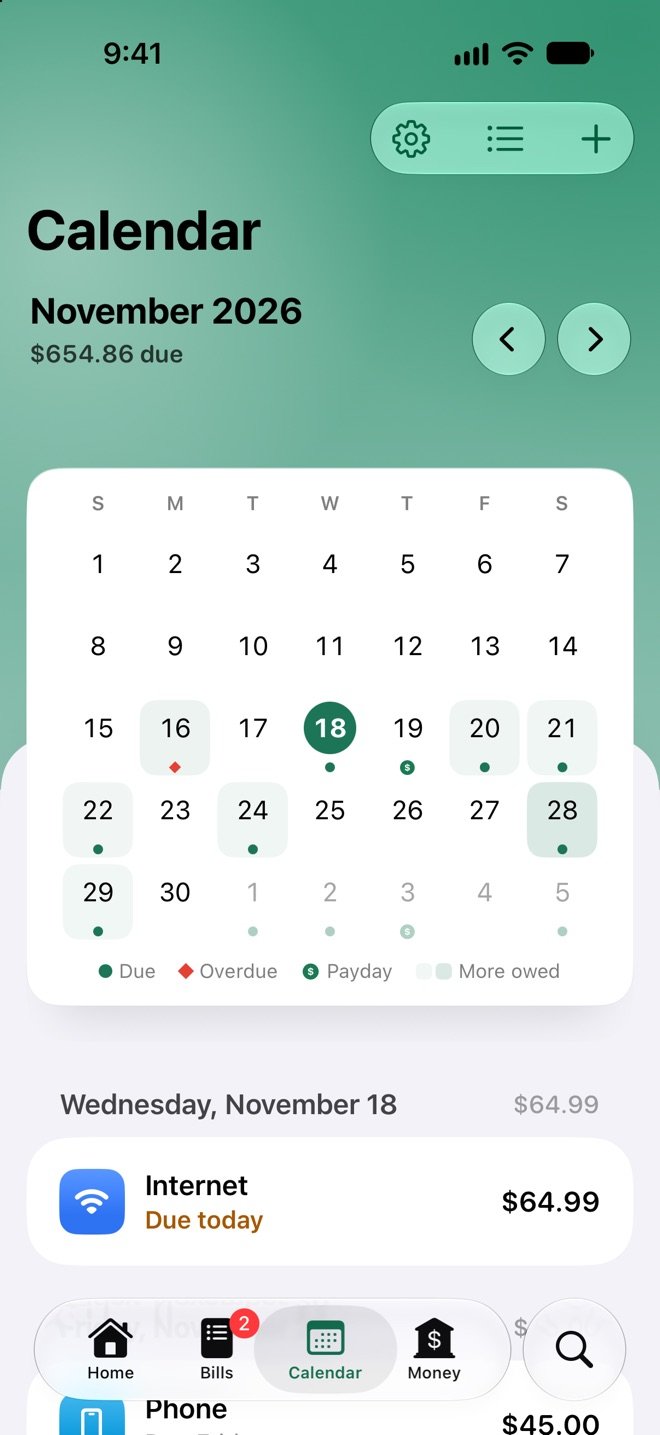
An income source is anything that pays you on a schedule, or now and then: a job, clients, benefits, rent from a tenant. Once you've added one, Home's Next Payday section shows when the next payment lands and what's due before it, and paydays get a green mark on the calendar. For a single amount of money in, like a refund or a gift, use Log Income instead (see Accounts & spending).
Adding an income source
- Tap + on Home and choose New Income Source. It's also in the Money tab's + menu.
- Choose a Type. It sets the starting schedule, tax set-aside and category, which you can change.
- Enter the amount, a name and who pays you.
- Set the schedule under Paid, and the Next Payday.
- Choose an account under Deposit To, and whether to Add Automatically on Payday.
- Tap Add.
The types, and what each starts with:
- Paycheck: from an employer, every 2 weeks.
- Independent Contractor: from clients, Irregular, with a share set aside for taxes.
- Gig Work: from a platform, Weekly, with a share set aside for taxes.
- Benefits & Pension: from an agency or plan, Monthly.
- Rental Income: from a property or tenant, Monthly. The tax section is shown up front, starting at 0%.
- Dividends & Interest: from a brokerage or bank, Quarterly.
- Child Support & Alimony: Monthly.
- Other Income: Monthly.
Pay schedules & weekends
Under Paid, choose how often the money comes:
- Weekly: the same day every week.
- Every 2 Weeks: every other week, 26 paychecks a year.
- Twice a Month: two set days each month, 24 paychecks a year. Pick a First Payday and Second Payday, such as the 15th and Last Day.
- Monthly: the same day every month. Turn on Always the Last Day of the Month if that's when you're paid.
- Quarterly: every three months.
- Yearly: once a year, like a bonus.
- Irregular: no set paydays. You record payments as clients pay you.
- One Time: a single payment on one date.
Below the schedule, Next Paydays previews the coming dates, with roughly what the income comes to a month and a year.
On Weekends
If a payday falls on a Saturday or Sunday, On Weekends decides which day Ledgr expects it. It's under More Options, and doesn't apply to Irregular income.
- Same Day: paid on the weekend day anyway.
- Friday Before: paid the business day before.
- Monday After: paid the next business day.
Next Paydays updates as you change it, so you can check the dates match your payslips.
How much you're paid
- Take-Home Pay: what lands in your account after tax and deductions. This is the figure Ledgr adds to your account.
- Amount Varies: for hourly shifts, tips or commission. The field becomes Typical Take-Home, and you confirm what actually arrived each payday.
- Expected per Month: for Irregular income, a rough monthly figure for planning. Log each payment as it arrives.
- Gross Pay (under More Options, for paychecks): your pay before deductions. Ledgr then shows about what share of each paycheck goes to tax and deductions.
Adding pay automatically or confirming it
Choose an account under Deposit To, and pay is added to its balance. Then decide how it gets there:
- Add Automatically on Payday on: like direct deposit. Each payday is added to the account without asking. With Amount Varies on, it adds the typical amount, and you can correct it afterwards.
- Add Automatically on Payday off: each payday, you confirm the money arrived and Ledgr adds it then. Until you do, the payday waits under Did Your Pay Arrive? on Home and on the income's screen.
Payday reminders
Turn on Payday Reminder (under More Options) for a notification on payday. When it arrives at your usual reminder time is set in Settings › Reminders under Payday Reminders: On Payday or 1 Day Before. From the notification you can choose:
- Record Pay, to record the expected amount without opening Ledgr. With App Lock on, it opens Record Pay instead.
- Record a Different Amount, to open Record Pay and type what arrived.
- Not Yet — Remind Me in 3 Hours or Not Yet — Remind Me Tomorrow.
Tip: Auto-add suits a salary that's always the same. Confirming suits pay that varies or sometimes runs late, because nothing is counted until you've seen it land.
See the reminders guide for the other notification settings.
Record Pay
Record Pay is where you confirm a payment. It opens from:
- Did Your Pay Arrive? on Home or on the income's screen, by tapping a payday's record button.
- The income's ••• menu, with Record Pay.
- A payday row: swipe right for Record Pay, or touch and hold it for Record Pay (Record Early on a payday that hasn't come yet) and Skip This Payday.
- For Irregular income, the + menu on the Income screen, under Record Pay.
- Check the Pay Received amount, and change it to what actually landed.
- Check the date it was Received and the Deposit To account. Add a note if you like.
- If the amount differs from what was expected and your pay has changed for good, turn on Make This My Typical Pay (Expect This From Now On for a fixed amount), so future paydays expect the new figure.
- Tap Record.
The form also shows how much of the payment to set aside for taxes, if you've chosen a percentage, and which account it's added to.
I Didn't Get Paid
If the money hasn't arrived, tap I Didn't Get Paid when you're confirming a payday that has come. "Pay Didn't Arrive" offers:
- Remind Me in 3 Hours or Remind Me Tomorrow: if it's just late. The payday stays on Home until you confirm it. (Without notification permission, you'll see Not Yet instead.)
- Skip This Payday: if it isn't coming, so it's no longer counted as expected. You can undo a skip from the payday's row.
Changing recorded pay
Tap a payment in the income's History to edit it. Delete Pay takes it back off the account it was added to, and the payday goes back to waiting.
Tip: Say "I got paid in Ledgr" or "Record income in Ledgr" to Siri. See Widgets, Siri & shortcuts.
Setting money aside for tax
If nobody takes tax out of some of your income, such as contract or gig work, Ledgr can earmark a share of each payment and keep a running total for the tax year.
- In the income source, find Set Aside for Taxes. It's shown up front for self-employment income, and under More Options for everything else.
- Use the stepper to choose a percentage, from 0% to 60%.
- Save. Each payment you record then earmarks that share.
The total set aside this tax year shows on the income's screen and at the bottom of the Income screen. It doesn't move any money: put the real amount aside yourself.
Tax Year Starts
Go to Settings › Income & Tax and set Tax Year Starts. Both the running total and Receipts & Tax follow it.
- 1 January (Calendar Year)
- 6 April (UK)
- 1 April (India, New Zealand)
- 1 July (Australia)
- Another Date, where you pick the month and day
Defaults for new income sources
The same screen sets where each new income source starts: Remind on Payday, Add Automatically on Payday, Keep Private and Set Aside for Taxes. The set-aside default starts at 25% and applies to self-employment income, like contract and gig work. You can change any of these as you add an income source.
The set-aside is a percentage you choose, not a calculation of the tax you owe. Ledgr doesn't know your tax situation. Check with a tax professional about what to put aside, and see the financial disclaimer.
On a Mac: Income & Tax is in the Preferences pane of the Settings window (⌘,).
Ending, pausing & privacy
- Ends (under More Options): for a contract or job that ends. Set the Last Payday, and no paydays are expected after it.
- Category and Note (under More Options): file the income where you like.
- Paused (when editing): a paused income expects nothing and adds nothing. Use it for unpaid leave or a client between projects. Pause and Resume are also in the income's ••• menu.
- Keep Private (in a household): only you see this income and its paydays. Money it adds to a shared account still shows there, as "Private income". Without it, everyone in the household sees the income and when it's paid, but only you can record its pay or change it.
- Delete Income Source: at the bottom of the editor and in the ••• menu.
Tap an income source to see its screen: anything waiting under Did Your Pay Arrive?, what you've received this month and this year, the next paydays and its history.
Common questions
Should I enter my pay before or after tax?
After. Enter what lands in your account. For a paycheck you can add your Gross Pay under More Options too.
My pay arrived but Ledgr didn't add it. Why?
Add Automatically on Payday is probably off, so Ledgr waits for you to confirm. Look for the payday under Did Your Pay Arrive? on Home and tap to record it. Also check that the income has a Deposit To account.
What happens if I'm paid on a bank holiday?
On Weekends only moves paydays that fall on a Saturday or Sunday. If your pay arrives on a different day, record it with the date it was received.
Does the tax set-aside tell me what I owe?
No. It's a percentage you choose, totalled for the year. It's a way to keep track, not tax advice.
Can my partner see my income?
In a household, yes, unless you turn on Keep Private. Only you can record pay for your income sources.
Still stuck?
Try Troubleshooting, send a message from Settings › Contact Support in Ledgr, or email hello@szymonstephansikora.com. I read every message.