 Ledgr
- Guides
- Money
Budgets & goals
Budgets put a limit on a category, like groceries or eating out, and warn you before you reach it. Goals track what you've put aside for something, and how much a month gets you there on time.
Both live on the Money tab. Budgets are on the Money segment, under your accounts and income. Goals are on the Plan segment. Neither moves any money: a budget watches what you log and pay, and a goal records what you've set aside. If you haven't set up the Money tab yet, start with Accounts & spending.
How budgets work
A budget is a limit for one category over one period. Ledgr adds up everything filed under that category in the current period and shows what's left.
- What counts: every expense in the category, including bill payments filed under it. Balance adjustments and payments towards a card or loan don't count, because they aren't spending.
- The period: this calendar week, month, quarter or year. A monthly budget starts again on the 1st.
- One per category and period: you can have a monthly Groceries budget and a yearly one, but not two monthly ones.
Tip: Budgets work best with categories you log regularly. If you rarely log spending by hand, a budget will only see your bill payments.
Creating a budget
- On the Money tab, tap + and choose New Budget.
- Pick a Category.
- Choose a Period: Weekly, Monthly, Quarterly or Yearly.
- Enter the limit. The field is named for the period, such as Monthly Limit.
- Set Warn at and choose whether to Roll Over Unused Amount (both explained below).
- Tap Add.
As you fill it in, the form helps you pick a sensible limit:
- A suggested limit. If you've spent in that category over the last three full months, Ledgr offers Use $X, "Based on your [category] spending over the last 3 months". If the category only started more recently, it names the months it averaged. Tap it to use that figure.
- Spent so far. A line shows what you've already spent in the category this period, with a bar against the limit you're typing.
You can also start a budget from Manage Budgets, which has its own New Budget button.
Reading your budgets
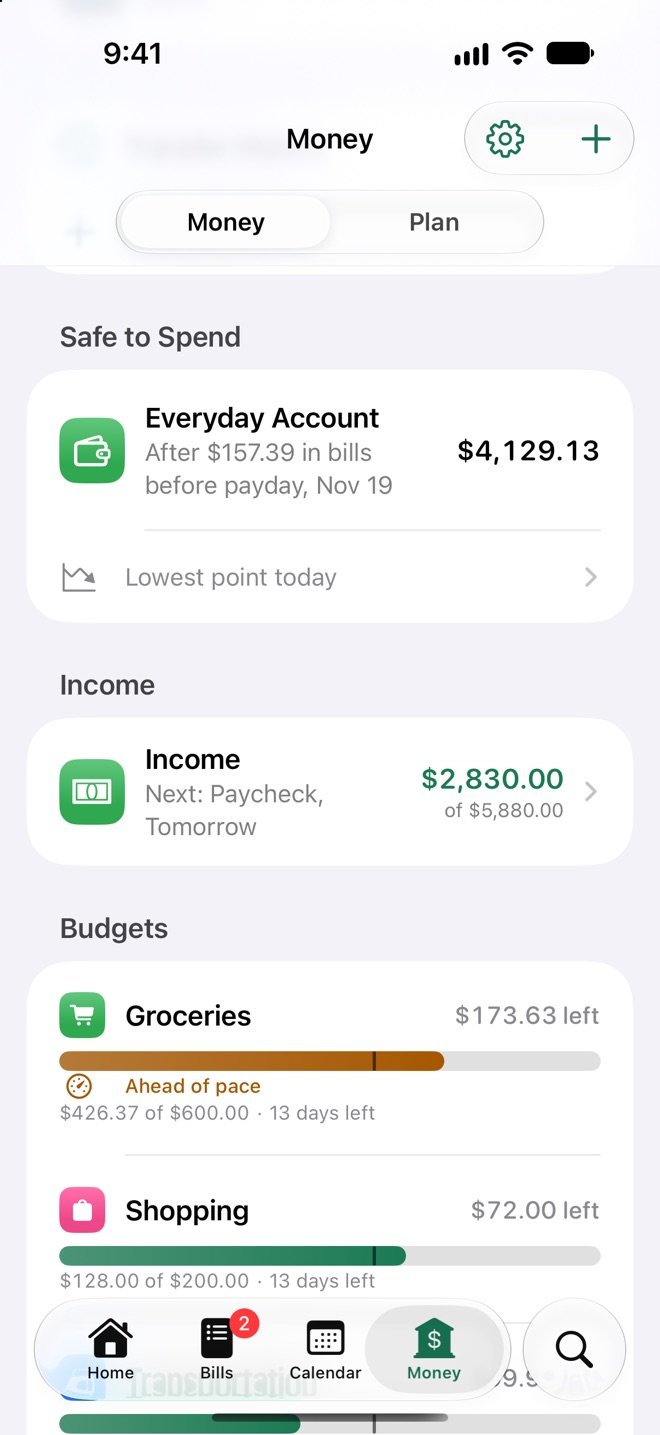
The Money segment shows your top budgets, each with what's left and a progress bar. Tap Manage Budgets (or All N Budgets if you have more) to see them all, with the total left across all budgets at the top. When budgets have different periods, that total is shown per month.
A budget can show one of three statuses, in words and a symbol as well as colour:
- Ahead of pace: you're spending faster than the period is passing.
- Near limit: you've reached your Warn at percentage.
- Over limit: you've spent more than the limit.
Editing and deleting
- Edit: tap a budget to open it. Change anything and tap Save.
- Delete: swipe left on a budget, or touch and hold it and choose Delete. An Undo banner appears for a few moments. Delete Budget is also at the bottom of its editor.
Deleting a budget doesn't delete any spending. Its expenses stay where they are.
On a Mac: right-click (or Control-click) a budget for Edit and Delete.
Rolling over what's left
Turn on Roll Over Unused Amount if you want an underspent period to give you more room in the next one. There are two ways it can work:
- Roll Over Unused Amount on its own adds what you didn't spend last period to this one. Only the last period carries over.
- Keep Stacking Rollover (shown once rollover is on) lets whatever's left keep adding up, period after period, until you spend it.
For example, take a $400 monthly Groceries budget with $350 spent in September. October's limit is $450. Now say you spend $420 in October:
- With plain rollover, November gets only what October's own $400 limit left over. You spent more than that, so November starts at $400.
- With stacking, November gets the $30 left of October's $450, so it starts at $430.
A carryover never goes below zero, so overspending one period doesn't shrink the next. A new budget starts carrying over once it has run for a whole period.
Tip: Stacking suits things you save up for in a lumpy way, like clothes or gifts. Plain rollover suits everyday categories, where you don't want months of leftovers to build up.
Early warnings and alerts
Warn at
Warn at N% is a slider from 50% to 100% in 5% steps. When spending reaches that share of the limit, the budget shows Near limit. Set it lower if you like an early nudge.
Budget Alerts
Go to Settings › Reminders and turn on Budget Alerts ("When a budget is nearly spent"). You'll get one of two notifications:
- [Category] Overpacing: spending is well ahead of the pace for the period, so you're on course to go over. It only starts once at least a quarter of the period has passed, so one big payment early in the month doesn't set it off.
- [Category] Over Budget: you've gone past the limit, with how much you're over by.
See the reminders guide for the rest of the notification settings.
Budgets elsewhere
- Ask Siri "How much is left in my [budget] budget in Ledgr" or "Check a budget in Ledgr". See Widgets, Siri & shortcuts.
- Export your budgets for a spreadsheet with Budgets (CSV) in Settings › Export & Import. See Backups & your data.
Saving towards goals
A goal is something you're saving for: a holiday, a new car or an emergency fund. You set a target and record what you put aside, and Ledgr shows how far you've got.
- On the Money tab, switch to Plan.
- Tap + and choose New Goal.
- Enter the Target: the amount you want to reach.
- Type a Goal Name and choose a Type: Savings, Debt Payoff, Emergency Fund or Other.
- If you've already saved some, enter it in Saved So Far.
- To aim for a date, turn on Target Date and set Reach It By. The form shows how much that is a month.
- Optionally add a note, and open Appearance to choose a Color and Icon.
- Tap Add.
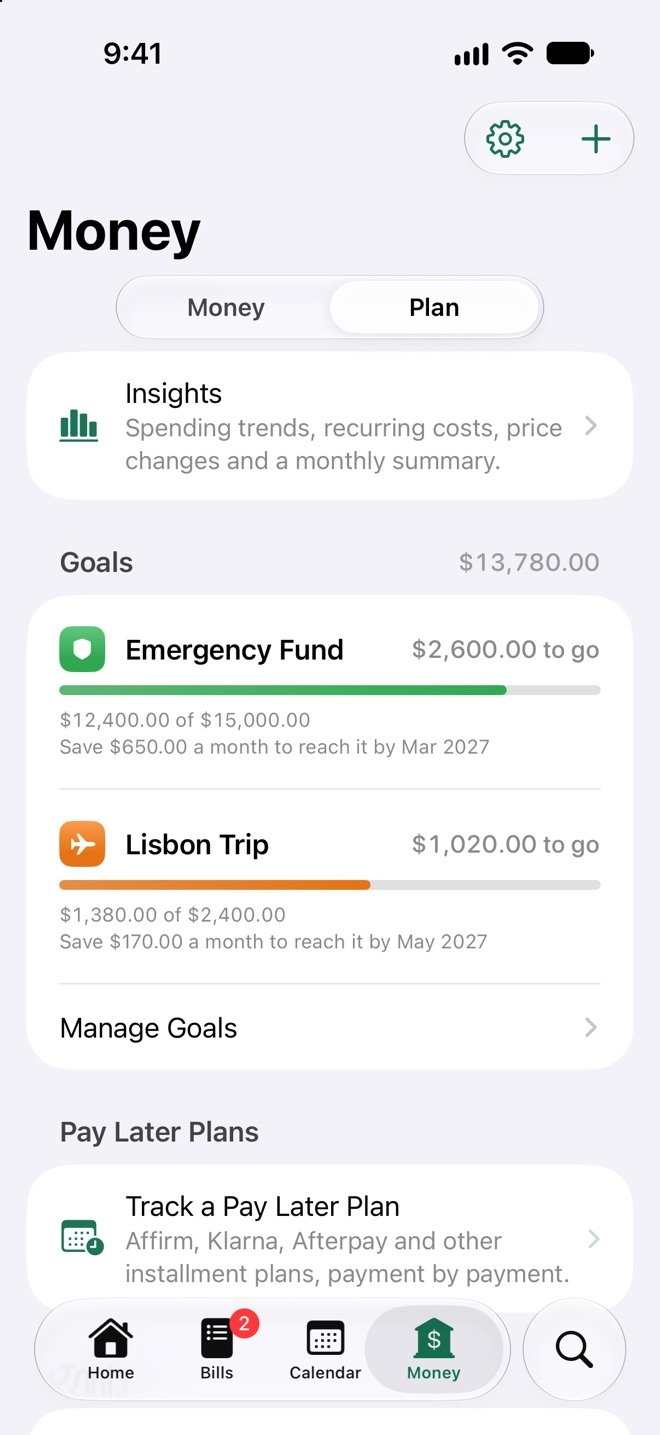
Goals with a date show "Save $X a month to reach it by…" under their progress, so you know what to put aside each month to stay on track.

Adding and taking out money
- Swipe right on a goal and tap Add Money, or touch and hold it and choose Add or Take Out Money.
- Choose Add Money or Take Out at the top.
- Enter the amount. When you're close, Use $X to Finish It fills in exactly what's left.
- Tap Add (or Take Out).
This records what you've put aside. Your account balances stay as they are, so move the real money yourself, or record a transfer to your savings account if you track it in Ledgr (see Moving money between accounts).
- Reaching a goal: when the total reaches the target, you'll see "Goal Reached!" (with confetti, unless Reduce Motion is on), and the goal moves to Reached on the Goals screen.
- The Goals screen: tap Manage Goals (or All N Goals) to see goals under Saving For and Reached, with the total saved across all goals.
- Order: touch and hold a goal and choose Reorder Goals. The Money tab shows them in the same order.
- Deleting: swipe left on a goal, or use Delete Goal in its editor. The goal and what you recorded towards it go, but your account balances aren't affected. Deleting from the list offers Undo.
Tip: Add the Goal Progress widget to your Home Screen or Mac desktop and pick a goal to keep it in view. See Widgets, Siri & shortcuts.
On a Mac: right-click a goal for Add or Take Out Money, Edit, Reorder Goals and Delete.
Common questions
Do my bill payments count towards a budget?
Yes, if the bill is in the budget's category. A payment towards a card or loan account doesn't count, because the purchases on the card were the spending.
Can I budget for a week or a year instead of a month?
Yes. Choose Weekly, Monthly, Quarterly or Yearly under Period. Each runs with the calendar, so a weekly budget starts again each week.
Does adding money to a goal take it out of my account?
No. Goals record what you've set aside without touching balances. If you move money into a savings account, record that as a transfer so both accounts stay right.
Why didn't I get a budget alert?
Check that Budget Alerts is on in Settings › Reminders and that Ledgr is allowed to send notifications. Overpacing alerts wait until at least a quarter of the period has passed. See Troubleshooting if notifications don't arrive at all.
Still stuck?
Try Troubleshooting, send a message from Settings › Contact Support in Ledgr, or email hello@szymonstephansikora.com. I read every message.