 Ledgr
- Guides
- Privacy & data
Backups & your data
Your Ledgr data belongs to you. You can save a copy of everything, lock it with a passphrase, open your bills in a spreadsheet, take it all to a new device, or wipe it and start again.
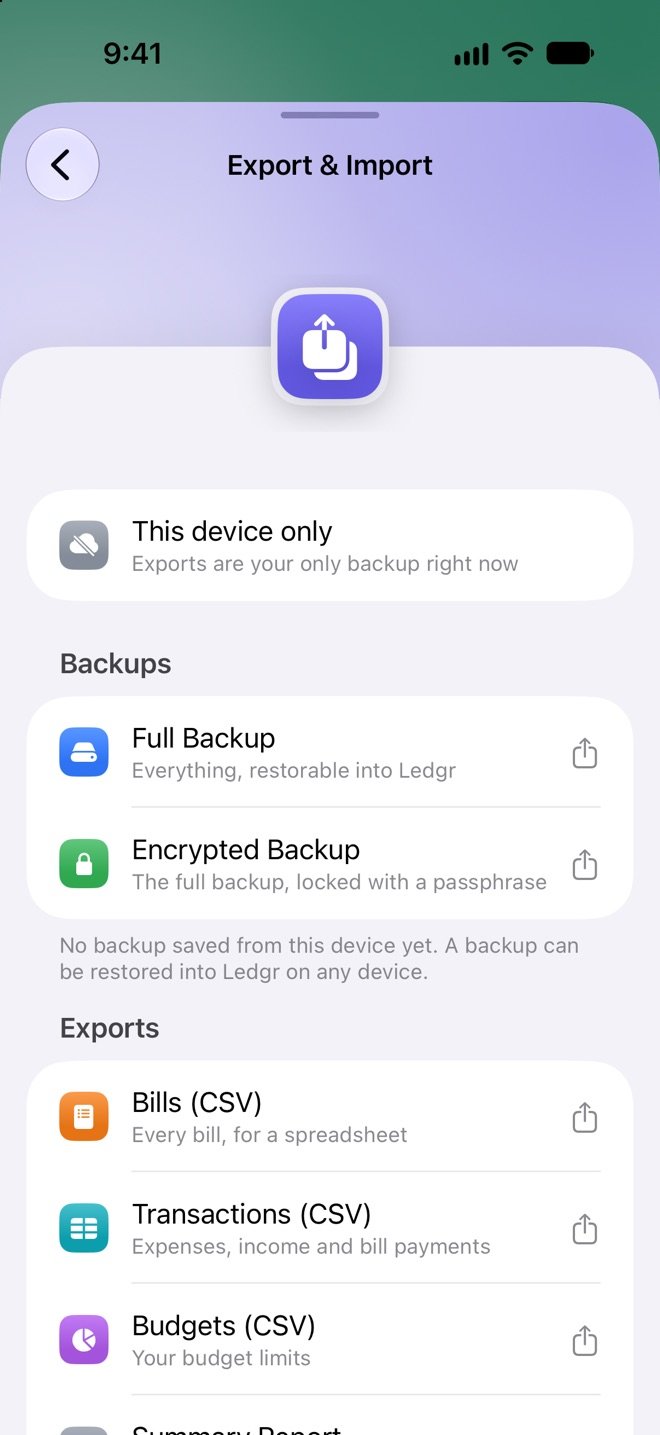
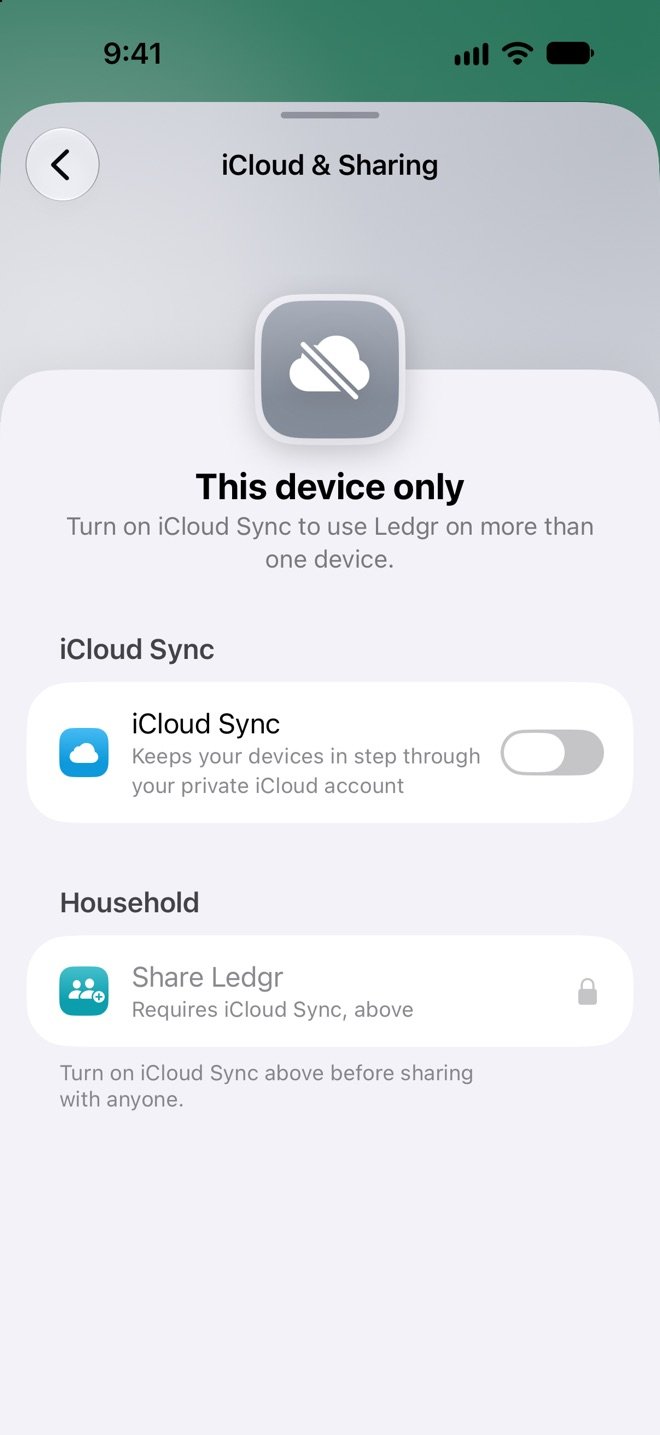
Everything in this guide starts in Settings › Export & Import. On iPhone, open Settings from the gear on Home. On iPad, it's in the sidebar. On a Mac, open the Settings window with ⌘, and choose the Data pane. If iCloud Sync is on, your data already has a copy in your iCloud, and the top of this screen says so. If it's off, the screen reminds you that exports are your only backup.
Making a backup
There are two kinds of backup. Both hold everything in Ledgr, including receipts and attached documents, and both can be restored into Ledgr later.
- Full Backup: "Everything, restorable into Ledgr". It's a JSON file. It isn't encrypted, so anyone who gets the file can read it. Keep it somewhere private.
- Encrypted Backup: "The full backup, locked with a passphrase". The file is encrypted with AES-256-GCM, using a key made from your passphrase with PBKDF2-HMAC-SHA256 and 210,000 rounds. Without the passphrase, the file can't be opened.
Make a Full Backup
- Go to Settings › Export & Import.
- Under Backups, tap Full Backup. If App Lock is on, Ledgr asks you to authenticate first.
- The share sheet opens. Choose where the file goes, for example Save to Files, AirDrop to another device, or Mail.
Make an Encrypted Backup
- Go to Settings › Export & Import and tap Encrypted Backup.
- Enter a passphrase of at least 8 characters, and type it again under Confirm passphrase. Tap the eye button to see what you've typed.
- Tap Encrypt. Ledgr encrypts the backup, then opens the share sheet so you can choose where to save or send it.
Write your passphrase down. Ledgr never stores it, and nobody, including me, can recover it. If you forget it, that encrypted backup can't be opened. Make a new one from a device that still has your data.
Tip: Back up before big changes, such as joining a household, restoring an old backup or resetting Ledgr. It takes a few seconds.
Spreadsheets and the Summary Report
The rows under Exports are for reading, not for restoring. Open the CSV files in Numbers, Excel or Google Sheets.
- Bills (CSV): every bill, for a spreadsheet.
- Transactions (CSV): expenses, income and bill payments.
- Budgets (CSV): your budget limits.
- Summary Report: a plain text file of what's due and what's paid, at a glance. Handy for sharing with someone who doesn't use Ledgr.
- PDF Report: a Monthly Statement or Yearly Summary, with totals, bills paid, spending by category and every transaction. Choose the month or year, then tap Share PDF or Print.
Tap any of them to export it. If there's nothing to export yet, the row is greyed out and says so, for example "No bills to export yet".
Tax time: for deductible items and their receipts, use Export Tax Pack in Receipts & Tax instead. The receipts & tax guide explains it.
Restoring and importing
Under Import there are two ways to bring a backup in. Both accept a Full Backup or an Encrypted Backup.
- Import & Merge: "Adds anything missing, without deleting or duplicating". Use it to combine a backup with what's already here, or to bring data from an old device into a new one that already has some bills.
- Replace All Data: "Swaps everything here for a backup". Use it to put Ledgr back exactly as it was when the backup was made.
Import from CSV, in the same list, brings in expenses, income or bills from a spreadsheet or another app's export instead. You choose which column is which before anything is added.
Import & Merge
- Go to Settings › Export & Import and tap Import & Merge.
- Choose the backup file.
- Ledgr adds what's missing and tells you how many records it added.
Replace All Data
- Tap Replace All Data. If App Lock is on, authenticate with Face ID, Touch ID or your passcode.
- Choose the backup file.
- Ledgr shows what it's about to swap: how many items are here now and how many are in the backup, with its date. Tap Replace to go ahead.
Before replacing, Ledgr saves a Safety Copy of your current data on this device, so you can go back.
In a household: Replace All Data also removes, for everyone in the household, anything that isn't in the backup. Ledgr warns you about this before you confirm.
Restoring an Encrypted Backup
Choose the encrypted file with Import & Merge or Replace All Data. Ledgr opens Restore Encrypted Backup and asks for the passphrase you chose when you made it. If it says "Incorrect passphrase", check for typos and capital letters. There's no other way in.
Safety Copies
Ledgr saves a Safety Copy of your data automatically before anything replaces or clears it:
- before Replace All Data
- before Start Fresh when you join a household
- before you start fresh after reinstalling
- before restoring another Safety Copy
- before Reset Ledgr erases everything
The newest 3 of each kind are kept. They stay on this device only and aren't synced.
- Go to Settings › Export & Import and tap Safety Copies. The row only appears once there's at least one.
- Tap a copy (click it on a Mac) to restore it. What's in Ledgr now is saved as a Safety Copy first.
To delete one, choose to delete it from the list. Ledgr asks "Delete This Safety Copy?", and it can't be recovered afterwards.
Moving to a new device
With iCloud Sync (easiest)
- On your old device, check that iCloud Sync is on in Settings › iCloud & Sharing, and give it a moment to finish syncing. The caption at the top of Home should say "Synced just now" or similar.
- On the new device, sign in to the same Apple Account and install Ledgr.
- Open Ledgr. It shows "Looking for your Ledgr data in iCloud…". When it finds your data, choose Keep My Data.
Your bills, accounts, budgets and settings come across. Your profile photo stays on the device you set it on, so add it again if you like.
With a backup file
- On the old device, make a Full Backup or an Encrypted Backup.
- Move the file to the new device, for example with AirDrop, iCloud Drive or Files.
- On the new device, finish or skip setup, then go to Settings › Export & Import.
- Tap Import & Merge (or Replace All Data for an exact copy) and choose the file.
Moving between iPhone, iPad and Mac works the same way. See the iPad & Mac guide for using several devices at once.
Starting over with Reset Ledgr
Reset Ledgr erases everything and takes you back to the start of setup. You'll find it at the bottom of Settings (on a Mac, at the bottom of the Data pane).
- Tap Reset Ledgr.
- Ledgr asks "Reset Ledgr?" with three choices: Erase Everything, Export Backup First and Cancel. Choose Export Backup First if you might want your data back.
- If App Lock is on, confirm with Face ID, Touch ID or your passcode.
A reset clears your bills, money, settings, reminders, Ledgr's calendar events, widgets, Spotlight entries and Safety Copies. Just before erasing, Ledgr saves one Safety Copy of your data, which stays in Safety Copies for 30 days in case the reset was a mistake.
With iCloud Sync on, a reset erases your data on all your devices, not just this one. If you're in a household, Ledgr leaves it first (or stops sharing, if you created it). Household members keep their own copies of what was shared with them.
Common questions
Do I need backups if I use iCloud Sync?
iCloud Sync keeps a copy in your iCloud, but it also syncs deletions and resets everywhere. A backup file is a snapshot you control, so it's worth making one from time to time.
I forgot my encrypted backup's passphrase. Can you help?
No, and nobody can. The passphrase is never stored, which is what keeps the backup secure. Make a new backup from a device that still has your data.
Will Import & Merge create duplicate bills?
No. It only adds what's missing, without deleting or duplicating anything.
Can I open a Full Backup in a spreadsheet?
It's a JSON file, made for restoring into Ledgr. For a spreadsheet, export Bills (CSV), Transactions (CSV) or Budgets (CSV).
How is my data handled?
See the App Lock & privacy guide, the Privacy & Security page and the Privacy Policy.
Still stuck?
Try Troubleshooting, send a message from Settings › Contact Support in Ledgr, or email hello@szymonstephansikora.com. I read every message.