 Ledgr
- Guides
- Money
Receipts & tax
Mark the bills and expenses you might claim as tax-deductible, keep their receipts with them, and Ledgr gathers them by tax year. At year end, export a Tax Pack with a spreadsheet and every receipt, ready for you or your accountant.
This is useful if you work for yourself, rent out a room, or just want one tidy place for receipts. Ledgr keeps the records. It doesn't decide what you can deduct, so check with a tax professional about what applies to you, and see the financial disclaimer.
Marking items tax-deductible
An expense
- Log the expense from + › Log Expense, or tap an existing one to edit it.
- In the Receipts & Tax section, turn on Tax-Deductible. The footer confirms it's counted in Receipts & Tax on the Money tab.
- Add a receipt if you have one (see below), then tap Log or Save.
A bill
- Open the bill and tap Edit.
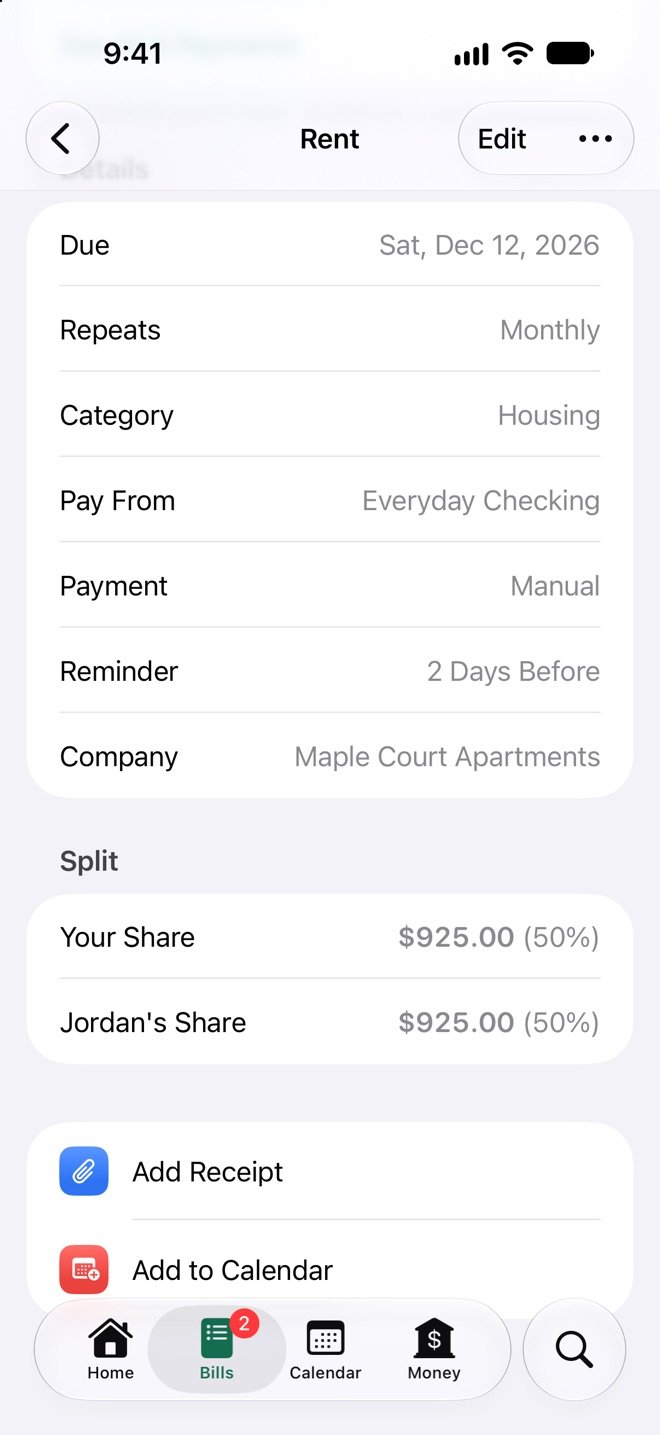
- Tap More Options and turn on Tax-Deductible. Once it's on, the toggle shows in the Details section.
- Tap Save.
A deductible bill counts through its payments: each payment you make in the tax year is one deductible item, with any receipt attached to that payment. The expense entries those payments create aren't counted again, so nothing is counted twice.
In a household: on a shared deductible bill, only the payments you made count in your Receipts & Tax, so two people don't claim the same money.
Tip: To keep one kind of deductible item together, give it a tag like "Work". In All Transactions you can tag several entries at once with Select. Receipts & Tax can then be filtered by that tag.
Keeping receipts
Receipts can be photos or PDFs, up to 10 MB each. You can attach them in three places:
- On an expense: in the expense's Receipts & Tax section, tap Add Receipt and choose Choose Photo…, Scan Document or Choose File…. Ledgr can also read the receipt and offer to fill in the amount, date and shop (see Accounts & spending).
- On a payment: when you use Log Payment on a bill, tap Attach Receipt…. That receipt belongs to that payment.
- On a bill: on the bill's screen, under Notes & Receipts, tap Add Receipt and choose Choose Photo…, Scan Document… or Choose File…. Documents on a deductible bill go in the Tax Pack too.
On a Mac: there's no Scan Document. Use Choose File… to attach a PDF or image, or Choose Photo… for your Photos library.
The Receipts & Tax screen
- On the Money tab, switch to Plan.
- Under Tools, tap Receipts & Tax.
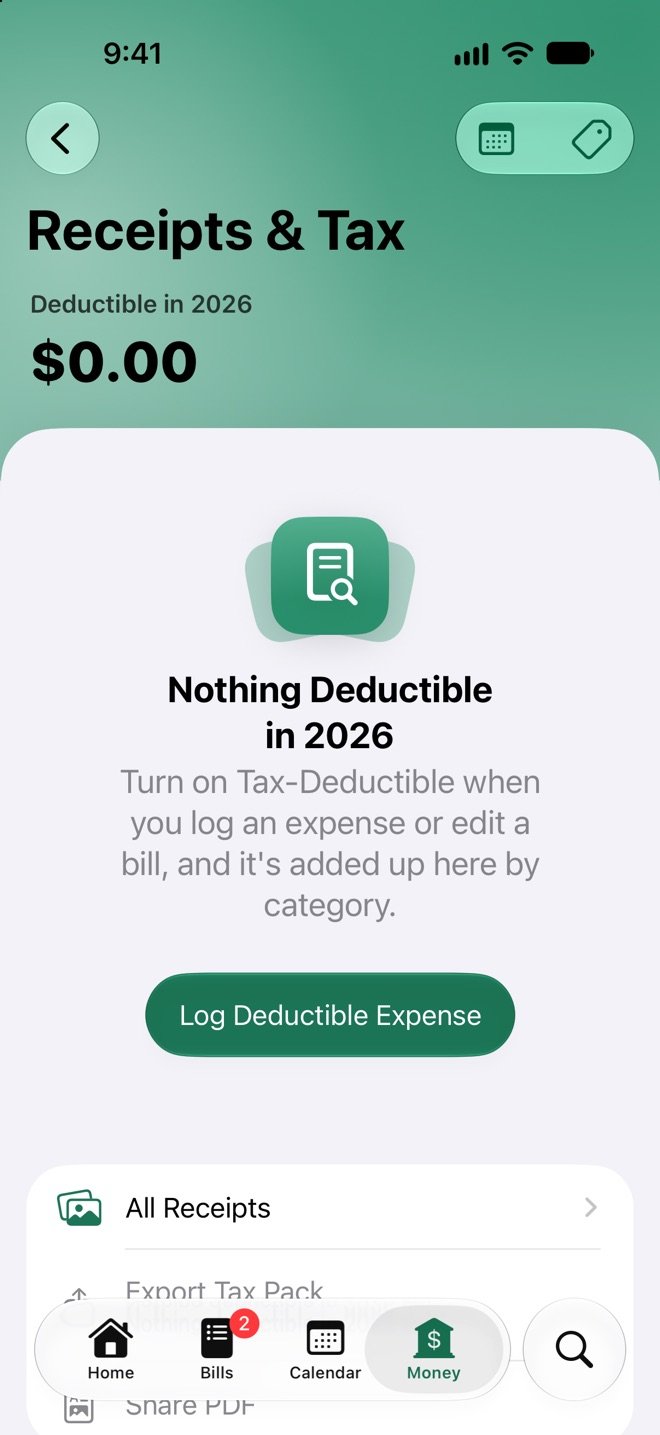
The screen shows the total deductible in the tax year at the top, then:
- By Category: the year's deductible items totalled by category. Tap a category to show only its items, and tap it again to show them all.
- Deductible Items: every item, newest first, with how many receipts it has or "No receipt". A note counts the items without a receipt, and Missing Receipts Only shows just those. Swipe an item and tap Attach Receipt to add one (on a Mac, right-click it or drop a photo or PDF on it).
- All Receipts: a grid of every receipt filed in the year. Tap one to preview it.
- Export Tax Pack (see below), and Share PDF for the year's deductible items as a PDF report.
In the toolbar:
- Tax Year switches between years.
- Filter by Tag narrows everything to one tag's items, such as "Work". The totals and the Tax Pack follow the filter.
Before you've marked anything deductible, the screen reads "Nothing Deductible in [year]", with a Log Deductible Expense button to get started.
Your tax year
Receipts & Tax groups items by your tax year, not just the calendar year. To set it, go to Settings › Income & Tax and choose Tax Year Starts:
- 1 January (Calendar Year)
- 6 April (UK)
- 1 April (India, New Zealand)
- 1 July (Australia)
- Another Date, where you pick the month and day
A tax year that doesn't start on 1 January is shown across two years, such as 2026–27. The running total of tax set aside from your income follows the same year (see Income & paydays).
On a Mac: Income & Tax is in the Preferences pane of the Settings window (⌘,).
Export Tax Pack
- Open Receipts & Tax and choose the Tax Year.
- If you only want some items, use Filter by Tag. Only items with that tag go in the pack.
- Tap Export Tax Pack. Ledgr shows "Preparing Tax Pack…" while it gathers everything.
- Choose where to send or save the zip from the share sheet: Files, Mail, AirDrop or another app.
The pack is one zip file. Inside is a folder named "Ledgr Tax [year]" with:
- Deductible Expenses [year].csv, a spreadsheet with one row per item and these columns:
- Date: when it was paid, as year-month-day.
- Description: what it was.
- Category: its category.
- Amount.
- Source: Expense, or Bill for a bill payment.
- Receipts: the file names of its receipts in the Receipts folder.
- Tags: its tags (a bill payment carries its bill's tags).
- Receipts, a folder with every receipt the spreadsheet lists, plus documents attached to deductible bills.
If some receipts haven't finished downloading from iCloud yet, Ledgr tells you how many under "Some Receipts Aren't Included". Wait a moment and try again to include them, or tap Share Without Them.
Export Tax Pack is greyed out while there's nothing deductible in the year (or nothing with the chosen tag).
Tip: The Tax Pack is separate from your backups. To keep a full copy of your data, use Settings › Export & Import (see Backups & your data).
Common questions
Does Ledgr work out what I can deduct?
No. Ledgr only records what you mark and gathers the receipts. Check with a tax professional about what you can deduct.
Why isn't my deductible bill in this year's list?
A bill counts through its payments, so it appears once you've paid it in that tax year. Check that the payment's date falls in the year you're looking at, and that your Tax Year Starts setting is right.
Can my accountant open the spreadsheet?
Yes. It's a standard CSV file that opens in Numbers, Excel or Google Sheets, with the receipts in a folder beside it.
Can I mark logged income as deductible?
No. Tax-Deductible is for expenses and bills. You can still attach receipts to logged income.
Still stuck?
Try Troubleshooting, send a message from Settings › Contact Support in Ledgr, or email hello@szymonstephansikora.com. I read every message.