 Ledgr
- Guides
- Together
Sharing a household
A household lets you and up to five other people see and edit the same bills, payments, accounts and budgets over iCloud. Everyone stays up to date, and you can see who paid what, so nobody pays a bill twice.
Use a household if you share bills with a partner, family or roommates. Everything goes through iCloud, so there's no Ledgr account to create. If you just want your own iPhone, iPad and Mac to stay in step, you don't need a household at all (see Syncing only your own devices). To divide individual bills between people, see Splitting bills.
Before you start
- An iCloud account: everyone needs to be signed in to iCloud on their device.
- iCloud Sync on: in Settings › iCloud & Sharing, turn on iCloud Sync. The change applies the next time Ledgr opens, so close and reopen the app afterwards.
- Up to six people: you plus five others.
- One household at a time: if you own a household, stop sharing it before joining someone else's.
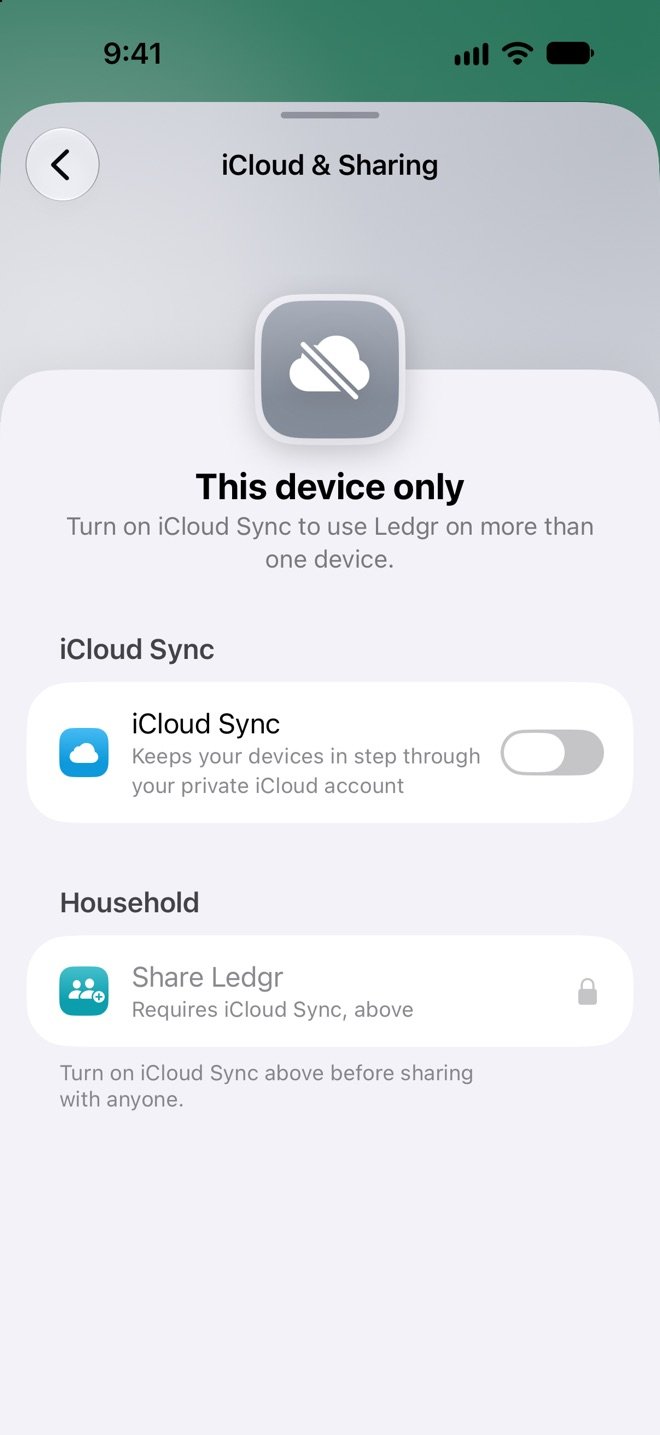
On a Mac: open Settings with ⌘, and choose the Data pane, then iCloud & Sharing. On iPhone, Settings opens from the gear on Home. On iPad it's in the sidebar.
Creating a household and inviting
- Go to Settings › iCloud & Sharing.
- Tap Share Ledgr. This creates your household, and you become its owner. If App Lock is on, Ledgr asks for Face ID, Touch ID or your passcode first.
- In the invitation sheet, choose how to send it: Messages, Mail or AirDrop.
- To invite more people later, tap Send an Invitation on the same screen.
The screen lists everyone in the household with their role: Owner, Can edit or View only. Someone who hasn't accepted yet shows as "Invitation pending". A view-only member sees every change, but edits they make on their device are undone.
Tip: If you said you split bills with someone during setup, Settings shows a Share Ledgr with [name] row under You, which takes you straight here.
Joining a household
- Make sure Ledgr is installed and iCloud Sync is on.
- Open the invitation you were sent, on your iPhone, iPad or Mac. Ledgr opens.
- Ledgr asks "What should happen to the bills and expenses already on this device?" and you choose one of the options below.
- Merge My Data: adds everything on this device to the household. Nothing is deleted, and everyone will see your existing bills and history.
- Start Fresh: replaces what's on this device with the household's data. Ledgr asks you to confirm with Clear and Join. Your categories are kept.
- Don't Join: leaves without joining. Nothing on this device is shared or cleared, and you'll need a new invitation to join later.
If you choose Start Fresh, Ledgr first keeps a Safety Copy of what was on the device, which you can restore from Settings › Export & Import › Safety Copies (see Backups & your data).
Joining during setup: if you open an invitation while setting up Ledgr for the first time, the Account, Income and Bills pages are skipped, because you'll get the household's.
Day to day in a household
Recent Activity
In Settings › iCloud & Sharing, Recent Activity lists what others in the household have added, paid or changed, with a count of new items. Clear (then Clear Activity) empties the list on this device only. Nothing in the household changes.
When Someone Pays a Bill
Turn on When Someone Pays a Bill on the same screen to get a notification when someone else marks a bill paid, so nobody pays it twice.
Who pays which bill
Each bill's editor has Who Pays: Anyone, Me, or a member. With Anyone, everyone is reminded. With one person chosen, only they get its reminders, and everyone else hears about it only if it goes overdue. In the Bills tab's Sort and Filter menu, Only Bills I Pay shows just yours. See Splitting bills.
Keeping in sync
- Changes sync on their own. Pull down on Home or Bills to sync now, or on a Mac choose File › Sync Household Now (⌘R).
- The caption at the top of Home shows the sync status, such as "Synced just now", "Offline" or "Household sync paused". Tap it to open iCloud & Sharing.
- If some changes haven't reached the household yet, they're listed under Waiting to Upload, with Retry Now.
- If you use Ledgr on more than one device, one of them shares changes with the household for the others. On the others, Sync on This Device lets that device take over. It also takes over on its own once the sharing device has been put down for half an hour.
Removing, leaving and stopping
- Remove a member (owner): tap the remove button beside their name, or swipe left on it, then confirm. They stop sending and receiving changes right away. Whatever is already on their device stays there.
- Leave Household (members): in iCloud & Sharing. The household's data stays on your device, but you stop sending and receiving changes.
- Stop Sharing (owner): ends the household. Everyone keeps the copy already on their device, but no further changes are shared. You can start a new household later.
In every case, everyone keeps a copy of what was shared. Nothing is deleted from anyone's device. From then on, each copy changes separately.
Removing someone, leaving and stopping sharing take effect straight away. To share again, you'll need to start a new household or be sent a new invitation.
The big-deletion safeguard
If a large number of items disappear from your devices at once, which usually means a reset or a restore, Ledgr doesn't pass that on to everyone. It asks "Remove N items for everyone?" first. Nothing has been removed from the shared household yet.
- Keep Household Copy puts the items back on your device from the household.
- Remove for Everyone deletes them for the whole household.
On a Mac: right-click a member's name for Remove.
Syncing only your own devices
To keep your iPhone, iPad and Mac in step without sharing with anyone:
- On each device, go to Settings › iCloud & Sharing.
- Turn on iCloud Sync ("Keeps your devices in step through your private iCloud account").
- Close and reopen Ledgr to apply it.
Your data syncs through your own private iCloud account, and nobody else sees it. When you turn it on, Ledgr copies your current data aside as a safety net before anything is uploaded.
Tip: If sync seems stuck, check you're signed in to iCloud and look for anything under Waiting to Upload. The troubleshooting guide has more fixes.
Common questions
Does everyone need their own iCloud account?
Yes. Each person uses their own Apple Account. Ledgr shares the household's data between them through iCloud.
Can I keep my own account balance out of the household?
Yes. Edit the account and turn on Private. Do the same for income with Keep Private.
What happens to our data if we stop sharing?
Everyone keeps a copy of what was shared. It's no longer kept in step, so changes from then on stay on each person's devices.
Someone reset Ledgr on their phone. Will it wipe the household?
Not without asking. A large deletion like that brings up "Remove N items for everyone?", and you can keep the household copy.
Can I be in two households?
No, one at a time. Joining another household leaves the one you're in.
Still stuck?
Try Troubleshooting, send a message from Settings › Contact Support in Ledgr, or email hello@szymonstephansikora.com. I read every message.