 Ledgr
- Guides
- Together
Splitting bills
Split a bill between you and the people you share it with, set your share, and see what each person pays. In a household, choose who's responsible for each bill, and count only your share in your totals if you like.
Splitting works whether or not you share a household. On your own, you type the names of the people you split with, and the split is just for your records. In a household, members are offered by name, and everyone sees the same split. Ledgr doesn't collect or send money between people: it keeps track of who owes what so you can settle up your own way. To set up a household first, see Sharing a household.
Turning on Split Bills
If you chose With Someone during setup, this is already on. Otherwise:
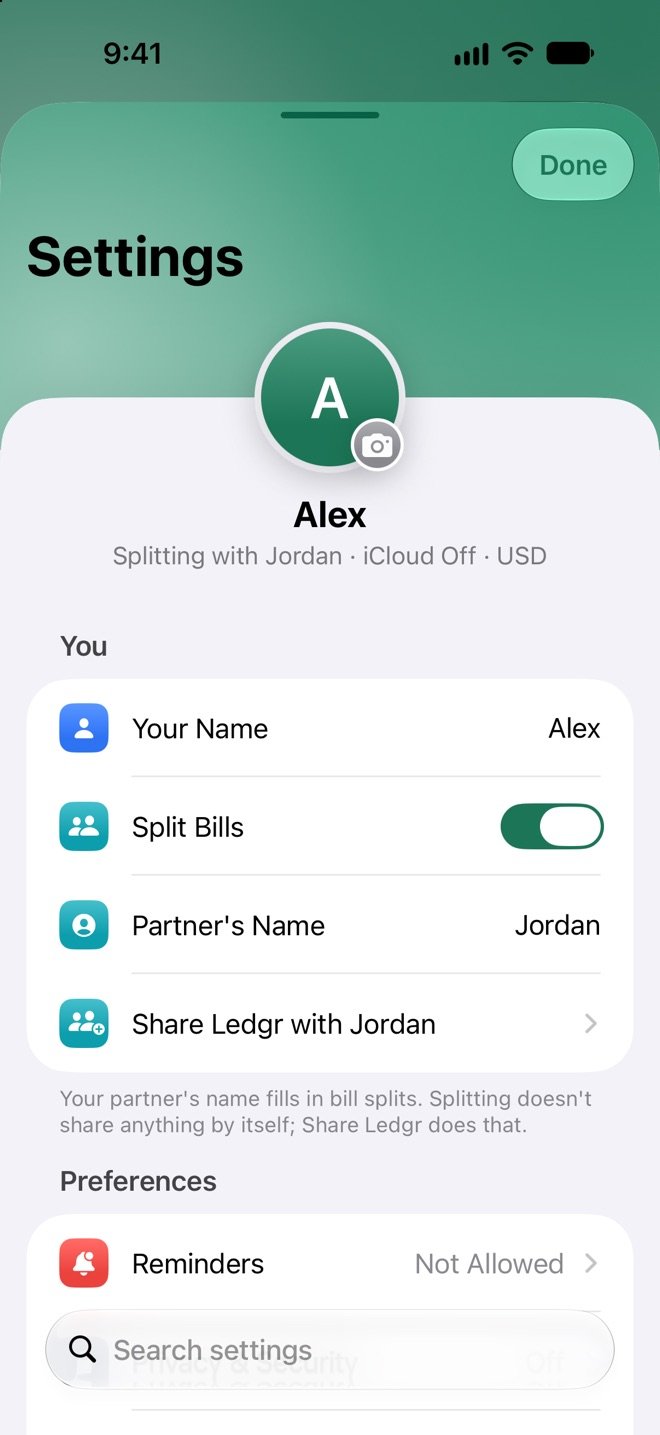
- Open Settings. On iPhone, tap the gear on Home. On iPad, choose Settings in the sidebar.
- Under You, turn on Split Bills.
- Type the person's first name in Partner's Name. New splits start with this name.
With Split Bills on, every bill's editor shows a Split section of its own, and Count Split Bills As appears in Settings. With it off, you can still split a bill: the Split section is under More Options.
In a household, there's no Split Bills switch. Settings shows Splitting With and the household's members instead, because they're who you split with.
Below Partner's Name, Share Ledgr with [name] takes you to iCloud & Sharing if you'd like to share a household with them.
On a Mac: open Settings with ⌘,. Split Bills and Partner's Name are in the You pane, and Count Split Bills As is in the Preferences pane.
Splitting a bill
- Open the bill and tap Edit. For a new bill, tap All Details in New Bill.
- In the Split section, turn on Split This Bill.
- Choose who you're splitting with (see below).
- Drag the Your Share slider to your percentage, or tap Split Evenly.
- Check the summary line, then tap Save.
Choosing people
- On your own: type names in Split With (Comma Separated), such as "Jordan, Sam". It starts with your Partner's Name, if you've set one.
- In a household: tap members' name chips to include them. Everyone else in the household is selected to start with. Add anyone outside the household in Anyone Else (Comma Separated).
Setting shares
- Your Share: N% is a slider from 5% to 95% in 5% steps. Everyone else divides the rest evenly.
- Split Evenly sets an equal share for everyone, including amounts the slider can't land on, like a third. It's shown whenever your share isn't already even.
- When you include a whole household, the split starts even.
Under the slider, a line shows the result in money, such as "You pay $925.00 · Jordan pays $925.00", or what each of the others pays when there are several. If you turn on Split This Bill without anyone to split with, the form reminds you to add who you're splitting it with.
What a split bill shows
Open a split bill to see its Split section, with Your Share and each person's share, in money and as a percentage.
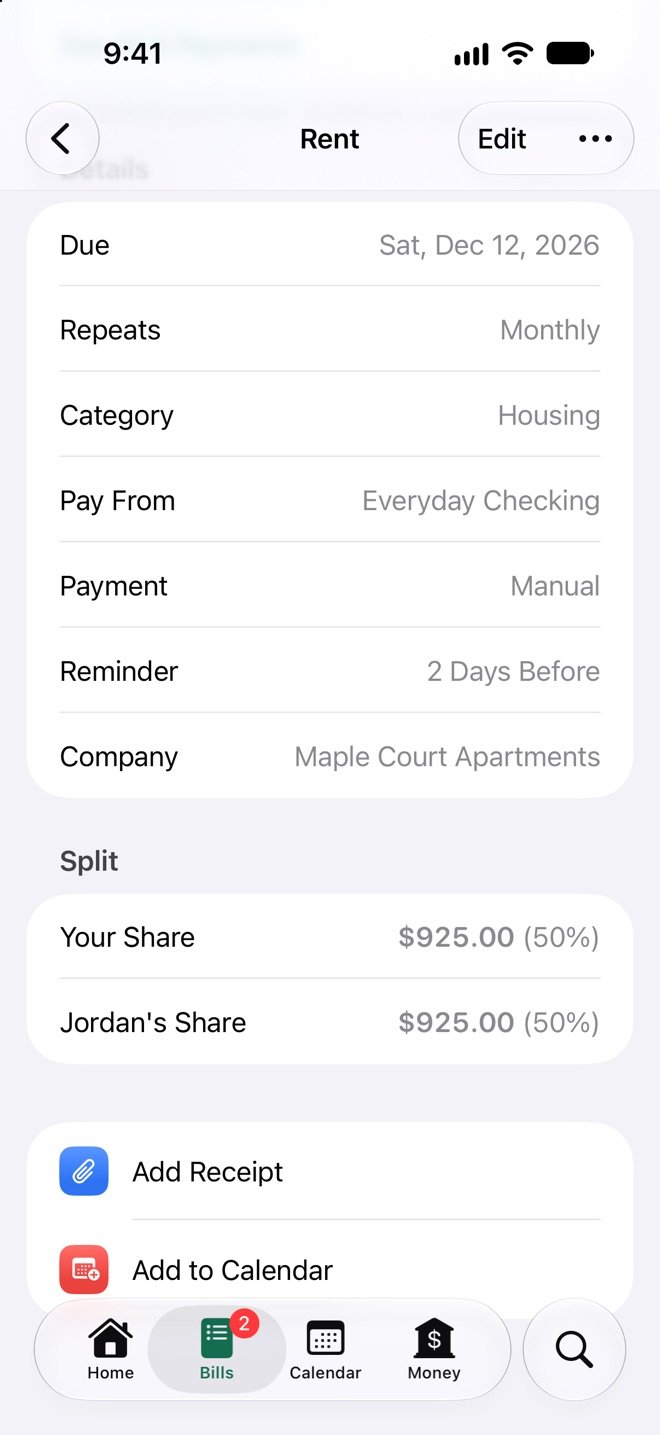
In a household, a split someone else set up is shown from your side too, so your share reads as yours on your device.
Tip: Splitting and Who Pays are separate. Splitting says how the cost is shared. Who Pays says who actually pays the company. A rent split 50/50 can still be paid by one person, who's then owed half.
Who Pays
In a household, every bill's editor has Who Pays, right after the essentials. It decides who's responsible for paying the bill, and who gets its reminders.
- Anyone: everyone in the household is reminded about the bill.
- Me: only you get reminders. Everyone else hears about it only if it goes overdue.
- A member: only they get reminders. You'll hear about it only if it goes overdue.
- Former member: shown if the person chosen has since left the household. Pick someone else.
- Open the bill and tap Edit.
- Choose a person under Who Pays.
- Tap Save.
To see only your own bills, open the Bills tab's More (•••) menu and turn on Only Bills I Pay. To hear when someone else pays a bill, turn on When Someone Pays a Bill in Settings › iCloud & Sharing. See the reminders guide for how bill reminders and overdue follow-ups work.
Count Split Bills As
Once you split bills, Settings › Count Split Bills As ("In totals: the whole bill or just your share") decides how a split bill counts in your totals.
- Full Amount (the default): split bills count in full, as if you pay them and settle up separately.
- My Share: split bills count only your part.
The setting applies across Ledgr, including:
- "Left to pay in [Month]" and what's been paid this month, on Home and Bills.
- Safe to Spend on the Money tab (see Accounts & spending).
- Bill rows, the calendar and a bill's history chart.
- Marking a split bill paid: with My Share, it offers your share as the amount, so only that comes off your account.
Changing a bill's amount still means the whole bill's amount, not your share. Ledgr reminds you of this when you change one payment's amount.

Tip: Choose My Share if each person pays their own part directly. Choose Full Amount if one person pays the whole bill and the others pay them back.
Common questions
Do I need a household to split bills?
No. You can split any bill and type the names yourself. A household adds name chips, Who Pays, and the same split on everyone's devices.
Can I give someone a bigger share?
Yes. Set your share with the slider, and everyone else divides the rest evenly. Shares can't be set separately for each of the others.
Does Ledgr send my partner a request for their half?
No. Ledgr doesn't move money or send payment requests. It keeps track of the split so you can settle up however you usually do.
Why don't I see Count Split Bills As in Settings?
It only appears once you split bills: with Split Bills turned on, or in a household.
Still stuck?
Try Troubleshooting, send a message from Settings › Contact Support in Ledgr, or email hello@szymonstephansikora.com. I read every message.