 Ledgr
- Guides
- Everywhere
Widgets, Siri & shortcuts
You don't have to open Ledgr to see what's due or to tick a bill off. Widgets, the Lock Screen, Control Center, Siri and Spotlight bring your bills to wherever you already are.
This guide covers every place Ledgr shows up outside the app: Home Screen and Lock Screen widgets, the Live Activity on the Lock Screen, controls for Control Center and the Action button, quick actions on the app icon, Siri and Shortcuts, and Spotlight. Widgets, controls, Siri, Shortcuts and Spotlight work on iPhone, iPad and Mac. Lock Screen widgets, Live Activities and Home Screen quick actions are iPhone and iPad only.
Adding widgets
On iPhone or iPad
- Touch and hold an empty spot on your Home Screen until the apps jiggle.
- Tap Edit, then Add Widget.
- Search for Ledgr, or scroll to it in the list.
- Swipe through the widgets to pick one and a size, then tap Add Widget.
- Drag it where you want it and tap Done.
To add one to the Lock Screen, touch and hold the Lock Screen, tap Customize, choose the Lock Screen, then tap the widget area and pick a Ledgr widget.
Some widgets have options. Goal Progress asks which goal to show. Touch and hold the widget and choose Edit Widget to change it.
On a Mac
Right-click the desktop and choose Edit Widgets, or click the date in the menu bar and choose Edit Widgets at the bottom of Notification Center. Search for Ledgr, pick a widget and a size, and drag it where you want it. The Mac has the same widgets in small, medium and large sizes, but no Lock Screen widgets. See Ledgr on iPad & Mac.
Every widget and its sizes
Ledgr has five widgets. Sizes are small (S), medium (M) and large (L), plus the Lock Screen shapes.
| Widget | What it shows | Sizes |
|---|---|---|
| Upcoming Bills | What's due next, with a tap to mark it paid. | S, M, L, and Lock Screen inline, circular and rectangular |
| Monthly Overview | How much of this month's bills you've paid, and what's left. | S, M, and Lock Screen circular and rectangular |
| Bill Calendar | Which days have bills due, at a glance: this week and next (M) or the whole month (L). | M, L |
| Safe to Spend | What's left in your everyday accounts after the bills before payday (or this month's, without a pay schedule), and how your budgets are going. | S, M, and Lock Screen rectangular and inline |
| Goal Progress | How close you are to a savings goal. You pick the goal. | S, M |
Widgets follow your settings. If Hide Amounts Outside Ledgr is on, they leave amounts out and show the bill names and dates only. See the App Lock & privacy guide.
Tip: Safe to Spend works best once you've added your everyday accounts and income. The accounts & spending guide explains how it's worked out.
Marking bills paid from a widget
The Upcoming Bills widget has a check button beside each bill. Tap it and Ledgr records the payment, just as if you'd tapped Mark as Paid in the app. The bill drops off the widget and the next one moves up.
- Tap the check to mark that bill paid.
- Tap anywhere else on a bill to open it in Ledgr.
- If you tapped the wrong one, open the bill in Ledgr and use Undo Payment. The paying bills guide covers undoing.
On a Mac: the check button needs macOS 27 or later. Before that, tapping a bill on the widget opens it. You can also mark a bill paid in Ledgr with Bill › Mark as Paid (⌘↩), or from its reminder in Notification Center.
With App Lock on: the pay buttons are hidden on every widget. The widgets still show your bills, and tapping one opens Ledgr, which asks you to unlock first.
Bills on the Lock Screen (Live Activity)
On iPhone and iPad, Ledgr can keep a Live Activity on the Lock Screen and in the Dynamic Island listing the bills due today and any that are overdue. Each bill has a Mark Paid check, so you can clear it without unlocking Ledgr. It only appears while something is due today or overdue.
- Open Ledgr and go to Settings › Reminders. On iPhone, Settings opens from the gear on Home. On iPad, it's in the sidebar.
- Under Lock Screen, turn on Bills Due Today on Lock Screen.
You can also turn it on during setup, on the Stay on Top page.
If the switch is greyed out
When Live Activities are turned off for Ledgr in the system, the switch can't be turned on and a row reads Live Activities Are Off. To fix it:
- Tap Open Settings on that row, or open the Settings app yourself and tap Apps, then Ledgr.
- Turn on Live Activities.
- Go back to Ledgr. The switch in Settings › Reminders is now available. Turn it on.
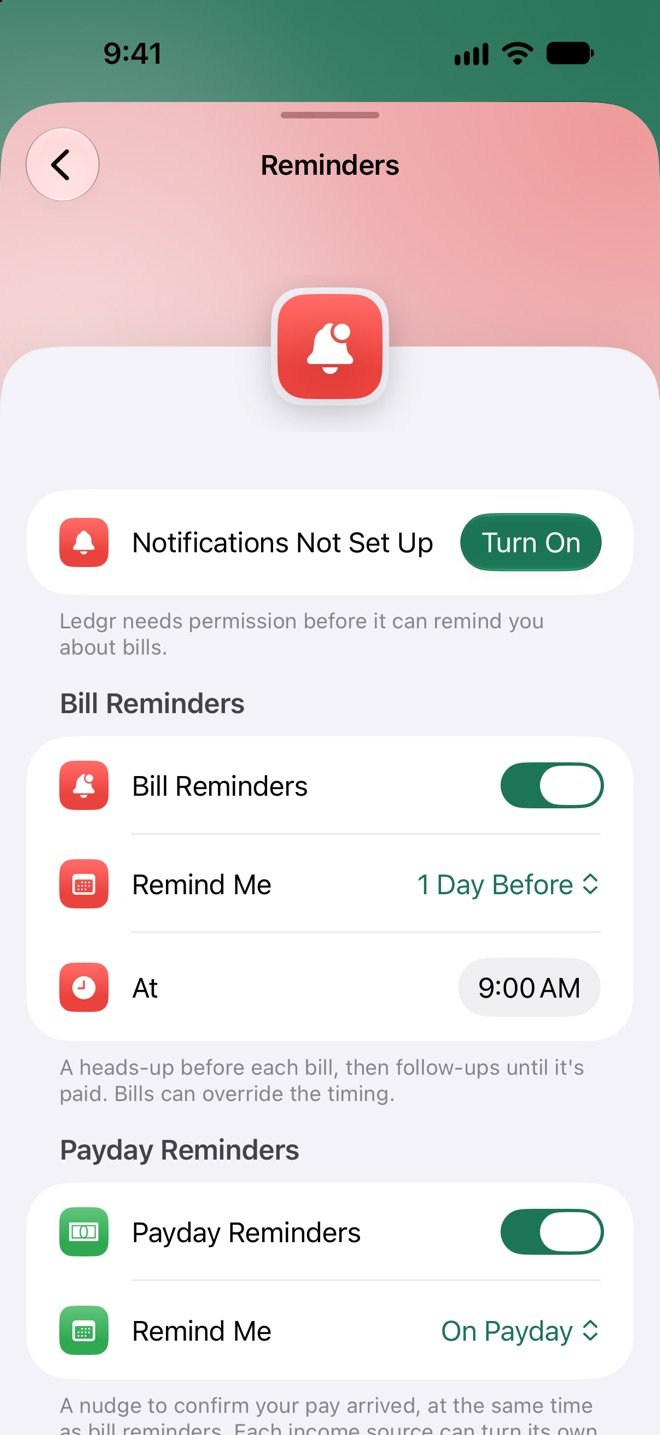
Tip: the Live Activity follows Hide Amounts Outside Ledgr, so it can list your bills without showing what they cost.
On a Mac: there's no Live Activity. Reminders arrive in Notification Center instead, with actions such as Mark as Paid.
Controls and Home Screen quick actions
Control Center, Lock Screen and the Action button
Ledgr offers three controls you can place in Control Center, at the bottom of the Lock Screen, or on the Action button. On a Mac, they go in Control Center or the menu bar:
- New Bill opens Ledgr straight to a new bill.
- Bills opens your Bills list.
- Log Expense asks how much you spent and logs it from your usual account, without opening Ledgr. On a Mac, it opens the expense form.
- Control Center: open Control Center, touch and hold an empty area (or tap +), tap Add a Control, then search for Ledgr.
- Lock Screen: touch and hold the Lock Screen, tap Customize, choose the Lock Screen, then tap one of the controls at the bottom to swap it for a Ledgr control.
- Action button: in the Settings app, open Action Button, swipe to Controls, then choose a Ledgr control.
Home Screen quick actions
Touch and hold the Ledgr icon on your Home Screen to see:
- Quick Add, to type a bill, expense or income in your own words.
- New Bill, to add a bill.
- Log Expense, to record something you spent.
- What's Due, to jump to the bills that need you.
On a Mac: the same jobs live in the menu bar. File › New Bill is ⌘N and File › Log Expense is ⇧⌘N. See Ledgr on iPad & Mac for every shortcut.
Siri and Shortcuts
Ledgr's actions work with Siri on every device, and appear in the Shortcuts app so you can build your own automations. You don't need to set anything up. Say any of these:
Check what's due
- "What's due in Ledgr"
- "What bills are due in Ledgr"
- "Check my bills in Ledgr"
Siri shows your bills with a Mark as Paid button for each.
Pay a bill
- "Pay a bill in Ledgr"
- "Mark a bill paid in Ledgr"
- "I paid a bill in Ledgr"
Siri then asks which bill. Answer with its name, for example "Rent".
Open a bill
- "Open [bill] in Ledgr"
- "Show [bill] in Ledgr"
Log money in and out
- "Log an expense in Ledgr"
- "Add an expense to Ledgr"
- "I got paid in Ledgr"
- "Record income in Ledgr"
Check your spending room
- "What's safe to spend in Ledgr"
- "How much can I spend in Ledgr"
- "How much is left in my [budget] budget in Ledgr"
- "Check a budget in Ledgr"
Using them in Shortcuts
- Open the Shortcuts app and create a new shortcut.
- Tap Add Action and search for Ledgr.
- Pick an action, such as logging an expense, and fill in any details it asks for.
With Hide Amounts Outside Ledgr on, Siri leaves amounts out of what it says and shows.
Spotlight
Swipe down on your Home Screen (or press ⌘Space on a Mac) and type the name of a bill, account, budget, goal or income source. Ledgr's matches appear in the results, and choosing one opens it in Ledgr.
- Spotlight never holds amounts, only names and details such as a bill's category and company.
- While App Lock is on, nothing from Ledgr is in Spotlight at all.
To search inside Ledgr itself, with amounts, notes and tags, use the Search tab. The getting started guide shows where it is.
How App Lock changes all this
If you turn on App Lock in Settings › Privacy & Security, Ledgr makes sure nobody can change your bills from outside the app without unlocking it:
- Widgets still show your bills, but the pay buttons are hidden. Tapping a widget opens Ledgr, which asks you to unlock.
- The Live Activity still lists today's bills, but you can't mark them paid from it.
- Notifications: Mark as Paid becomes Mark as Paid in Ledgr, which opens the app so you can unlock first.
- Siri and Shortcuts can't pay, add or change anything, and ask you to open Ledgr instead. What's Due only says how many bills there are.
- Spotlight holds nothing from Ledgr.
- Amounts: Hide Amounts Outside Ledgr turns on automatically with App Lock, unless you've set it yourself.
Controls and quick actions still open Ledgr, and Ledgr asks you to unlock as usual. The App Lock & privacy guide has the full picture.
Common questions
Why doesn't my widget show a pay button?
App Lock is on. It hides the pay buttons on purpose, so nobody can mark bills paid without unlocking Ledgr. Tapping a bill opens Ledgr instead.
Why don't I see the Live Activity?
It only shows while a bill is due today or overdue, and only on iPhone and iPad. Check that Bills Due Today on Lock Screen is on in Settings › Reminders, and that Live Activities are allowed for Ledgr in the Settings app.
My widget shows a bill I've already paid. What's wrong?
Widgets refresh on a schedule the system controls. Opening Ledgr refreshes them. If it keeps happening, see Troubleshooting.
Do I have to say the phrases exactly?
Use the phrases above as written for the most reliable results. You can also run every action from the Shortcuts app without speaking.
Still stuck?
Try Troubleshooting, send a message from Settings › Contact Support in Ledgr, or email hello@szymonstephansikora.com. I read every message.