 Ledgr
- Guides
- Everywhere
Ledgr on iPad & Mac
Ledgr on iPad and Mac has the same bills, money and settings as on iPhone, laid out for a bigger screen. This guide shows where things live, how to work quickly with menus and the keyboard, and what's different.
The Mac app is a native Mac app, not an iPad app running on a Mac, so it has a proper menu bar, a Settings window and keyboard shortcuts. Ledgr needs iPadOS 26.6 or macOS 26.6 or later. If you use more than one device, turn on iCloud Sync and everything stays the same everywhere.
Ledgr on iPad
The sidebar
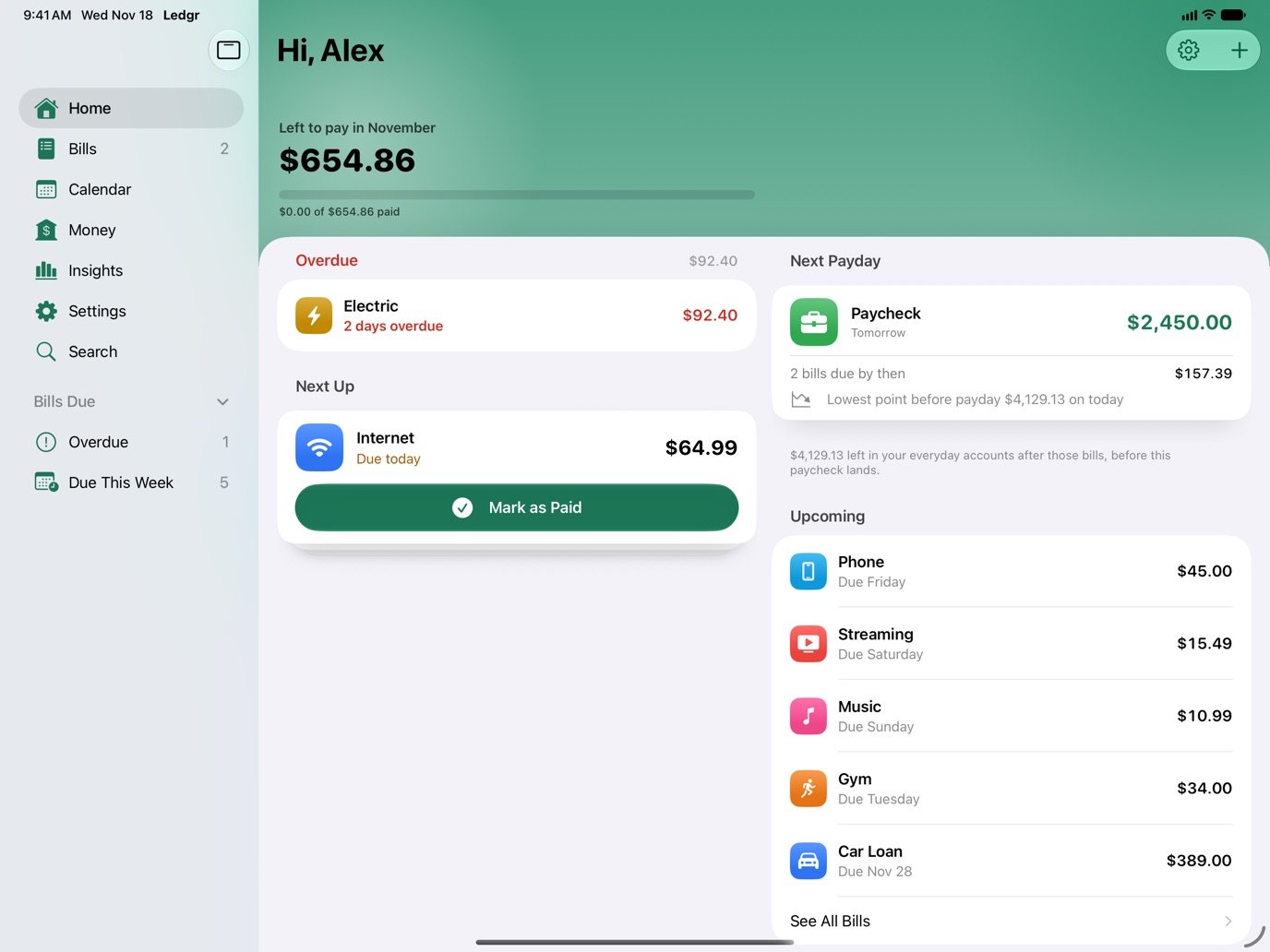
On iPad, Ledgr's sections sit in a sidebar on the left: Home, Bills, Calendar, Money, Insights, Settings and Search. Under Bills Due, Overdue and Due This Week list just those bills, with a count. Tap one to switch to it.
- Sidebar or tab bar: you can switch the sidebar to a tab bar along the top if you'd rather have more room. Use the sidebar button at the top of the screen to switch between the two.
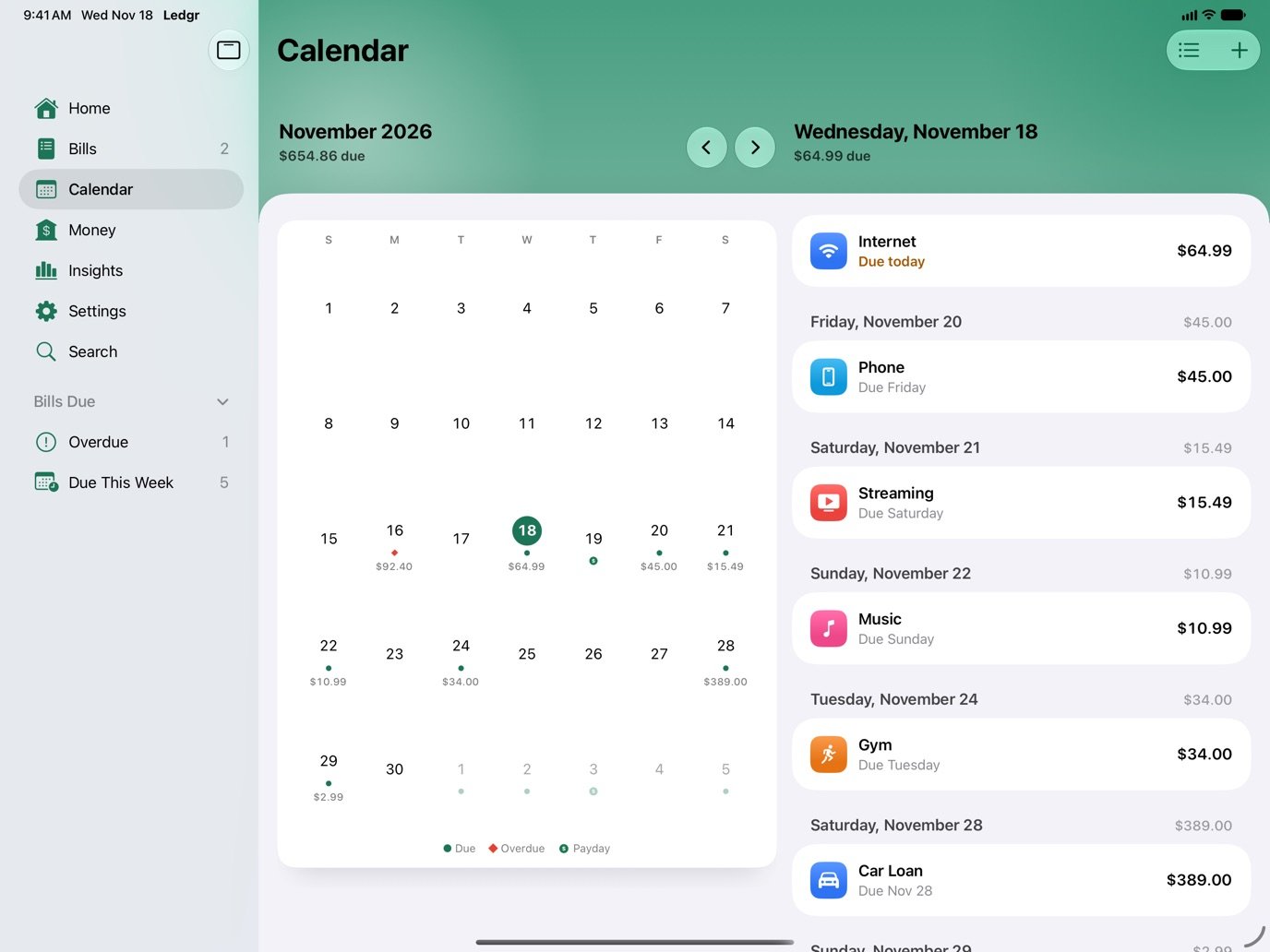
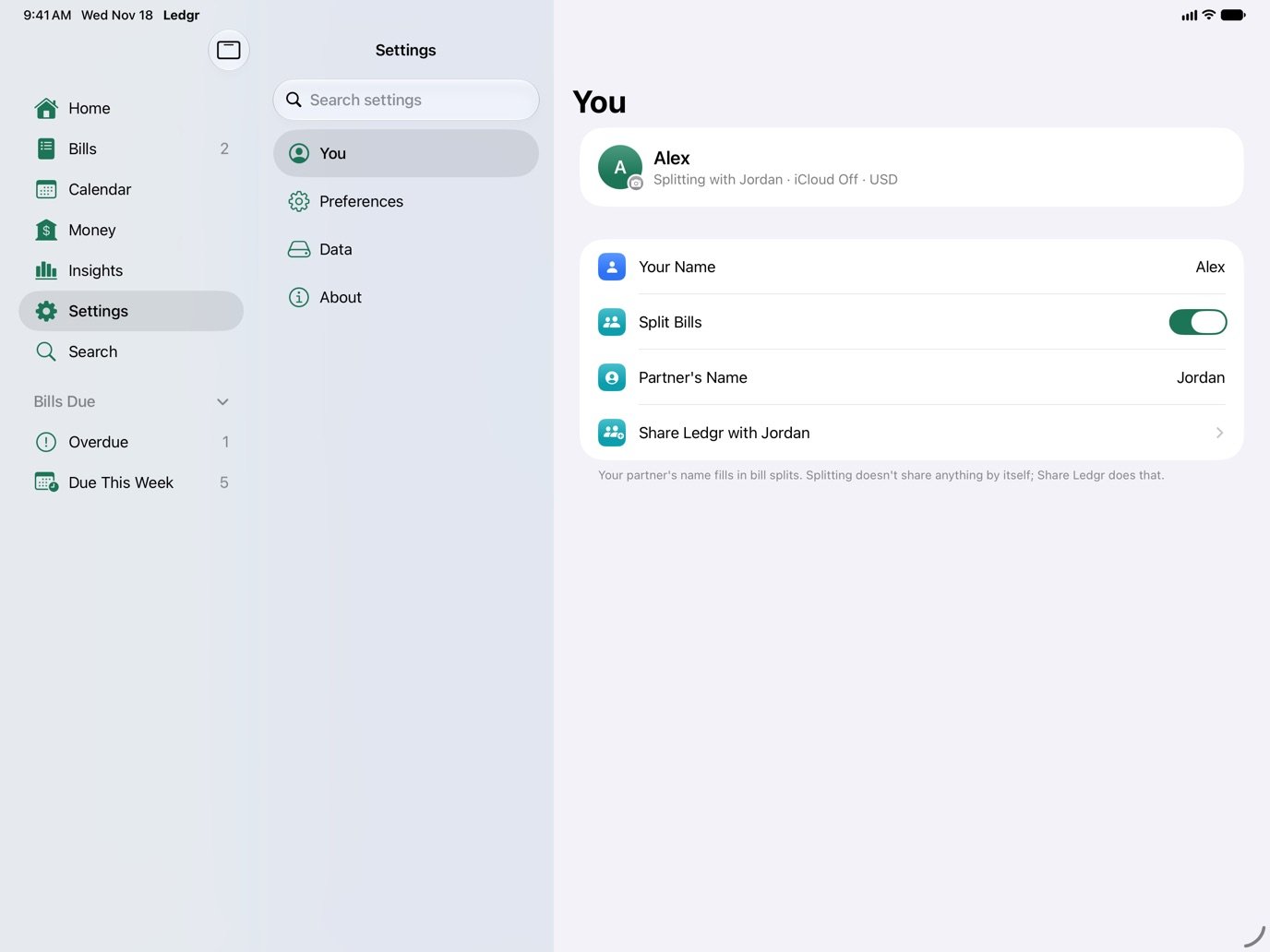
- Settings in the sidebar: unlike iPhone, Settings has its own place in the sidebar. It also still opens from the gear on Home.
Bills side by side
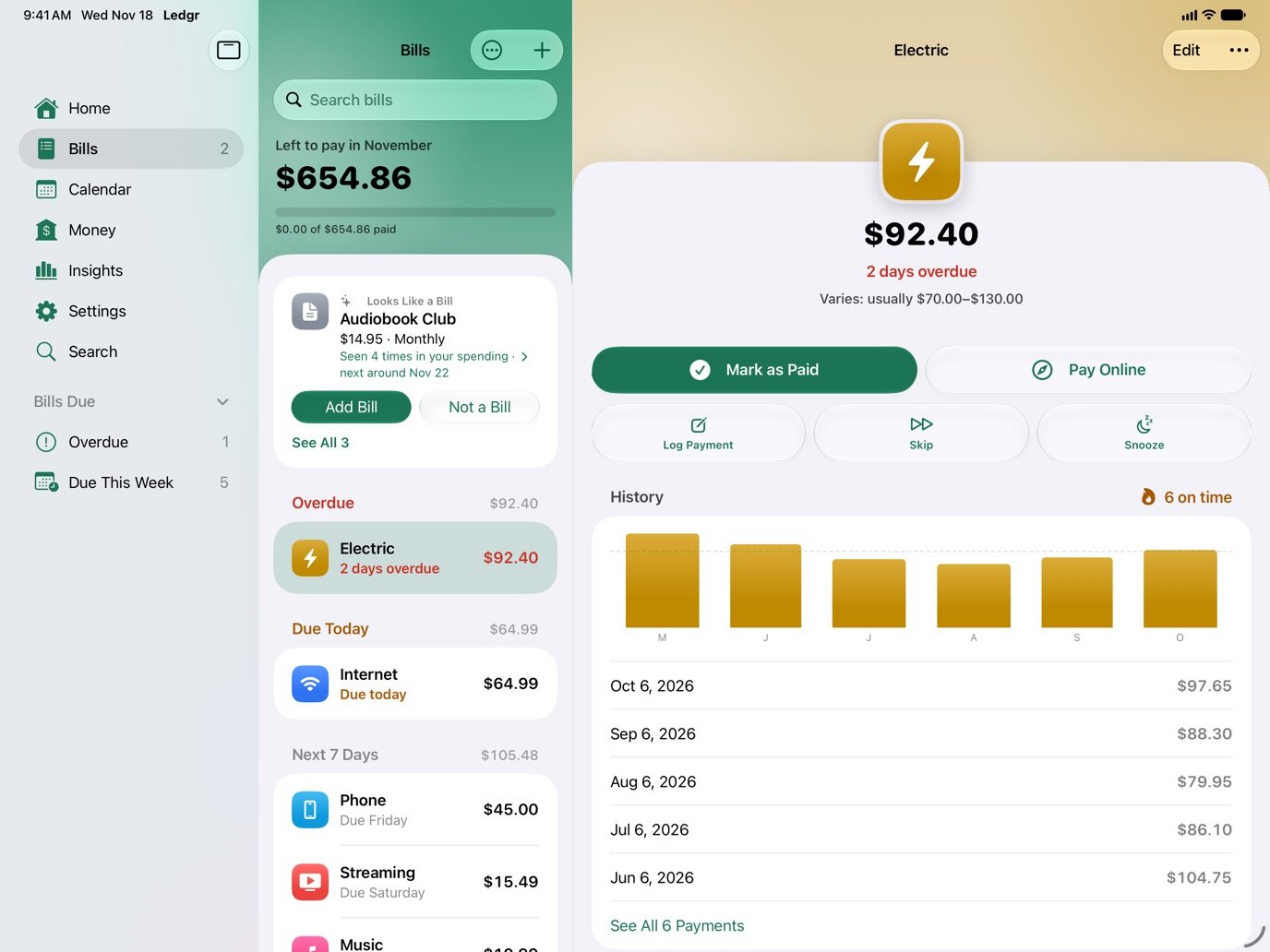
The Bills section shows your list on the left and the selected bill on the right, so you can work down the list without going back and forth. Until you choose a bill, the right side says No Bill Selected. Everything you can do on a bill's own screen on iPhone is there: Mark as Paid, Log Payment, Skip, Snooze, Pay Online, the history chart and receipts.
Split View and smaller windows
You can run Ledgr next to another app in Split View or in a Stage Manager window. When Ledgr's window gets narrow, it adapts to the space it has, and tapping a bill opens it on its own, as on iPhone. Widen the window again and the list and detail come back side by side.
Swipes, menus and the calendar
- Swipe right on a bill for Mark Paid, or left for Snooze, Skip and Call, as on iPhone.
- Touch and hold a bill for its full menu, including Open in New Window to give it a window of its own. With a trackpad or mouse, you can also right-click.
- Touch and hold any date in the Calendar to add a bill or income on that day.
Settings on iPad
Live Activities on iPad
iPad supports the Live Activity too. Turn on Bills Due Today on Lock Screen in Settings › Reminders to see today's and overdue bills on the iPad Lock Screen, each with a Mark Paid check. The widgets & Siri guide has the details.
Ledgr on Mac
The main window
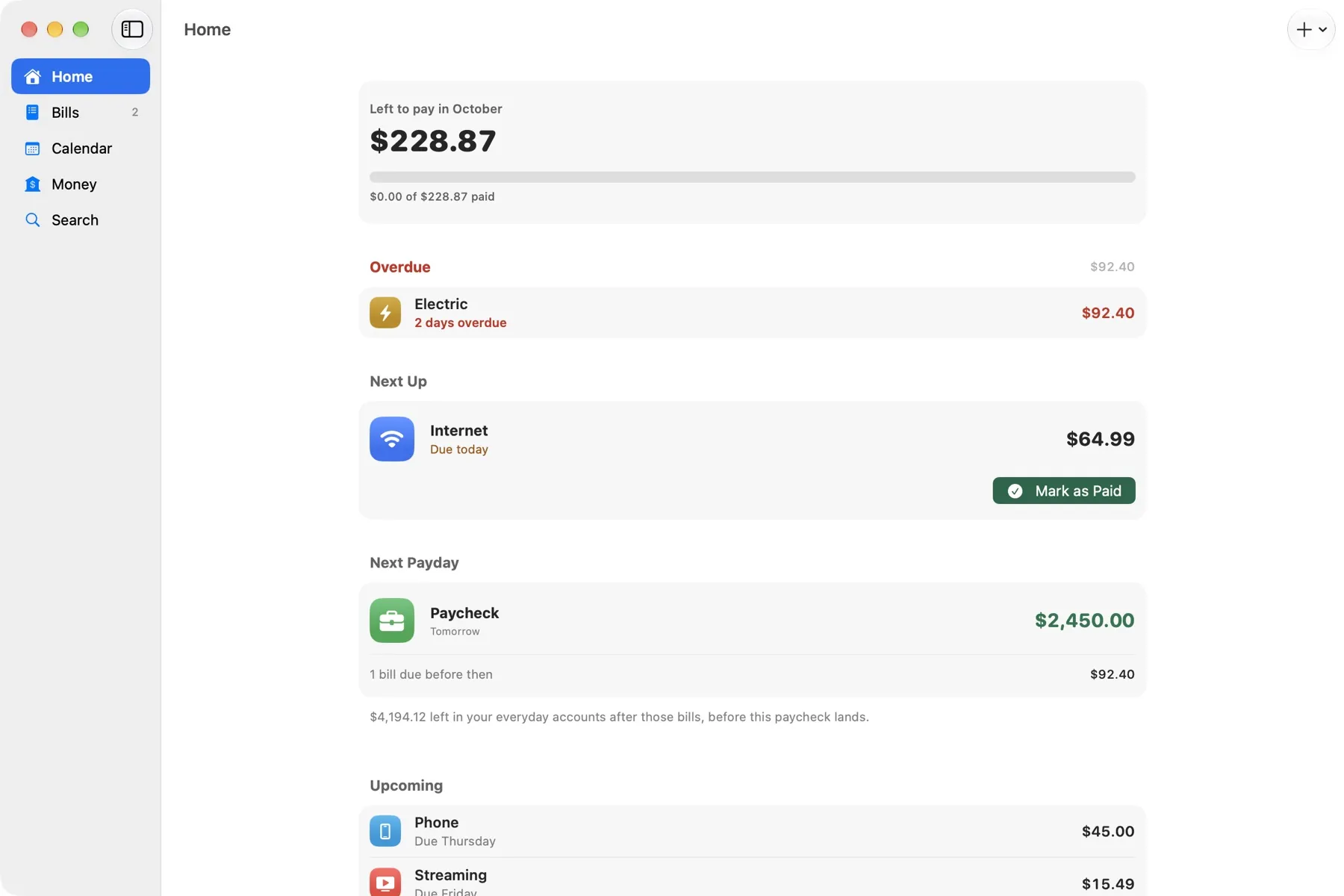
The sidebar lists Home, Bills, Calendar, Money, Insights, Overdue and Due This Week (under Bills Due) and Search. Home is titled "Home" rather than "Hi, [name]". You can resize the window down to 960 by 560 points; it opens at 1100 by 760. To hide the sidebar for more room, choose View › Hide Sidebar or press ⌃⌘S.
The Bills list and a bill
Click a bill to open it. Its action bar has Mark as Paid, Pay Online, Log Payment, Skip and Snooze, above the history chart and the list of payments.

The calendar
The Mac calendar looks like the Calendar app, with bill names written in each day, and the selected day's bills listed on the right. Control-click any date to mark its bills paid or add a New Bill or New Income Source on that day, or double-click it to add a bill. Drag a bill onto another day to move this payment there.

The Settings window
On a Mac, Settings is its own window. Choose Ledgr › Settings… or press ⌘,. It has four panes:
- You: your name, Split Bills, Partner's Name and sharing with your partner.
- Preferences: Reminders, Privacy & Security, Appearance, Currency, Income & Tax and Count Split Bills As, then Show in Menu Bar, with Organize (Categories and Tags) at the bottom.
- Data: iCloud & Sharing and Export & Import, with Reset Ledgr at the bottom.
- About: What's New, Show Tips Again, Rate Ledgr, Contact Support, Privacy Policy and Terms of Service.

Menus, right-click and the Bill menu
Right-click a bill
On a Mac there are no swipes. Right-click a bill (or Control-click it) for the same menu you get by touching and holding on iPhone:
- Mark as Paid, or Confirm Autopay for an autopay bill
- Undo Payment, once it's paid
- Edit, Open in New Window, and Pay Online if the bill has a website
- Call, for an overdue bill with a phone number
- Snooze ›: Cancel Snooze, 1 Day, 3 Days, 1 Week
- Change Amount Due… and Skip This Payment
- Pause for a Month or Resume
- Duplicate, and Archive or Restore
Delete isn't in this menu. Use the bill's ••• menu, its editor, or Bill › Delete Bill….

The Bill menu
The Bill menu in the menu bar acts on the bill you have open:
- Mark as Paid (⌘↩)
- Log Payment… (⇧⌘↩), for a partial or extra payment
- Skip This Payment
- Snooze ›: Cancel Snooze, 1 Day, 3 Days, 1 Week
- Edit Bill… (⌘E)
- Delete Bill… (⌘⌫), which asks first
Other menus
- File: Quick Add…, New Bill, Log Expense, Record Income…, Transfer…, Sync Household Now, Print…, Export PDF Report… and Export Backup….
- Edit › Find: Search Ledgr and Find Bills.
- View: Show Sidebar / Hide Sidebar.
- Go: Home, Bills, Calendar, Money, Insights and Search.
- Window: Ledgr brings the main window back if you closed it.
- Help: Ledgr Guide opens the online guide, and Ledgr Support opens the support page.

Keyboard shortcuts
Every shortcut in Ledgr for Mac:
| Shortcut | Action | Menu |
|---|---|---|
| ⌘K | Quick Add… | File |
| ⌘N | New Bill | File |
| ⇧⌘N | Log Expense | File |
| ⌥⌘N | Record Income… | File |
| ⌘R | Sync Household Now | File |
| ⌘P | Print… (this month's statement) | File |
| ⇧⌘P | Export PDF Report… | File |
| ⌘F | Search Ledgr | Edit › Find |
| ⌥⌘F | Find Bills | Edit › Find |
| ⌃⌘S | Show or Hide Sidebar | View |
| ⌘1 | Home | Go |
| ⌘2 | Bills | Go |
| ⌘3 | Calendar | Go |
| ⌘4 | Money | Go |
| ⌘5 | Insights | Go |
| ⇧⌘F | Search | Go |
| ⌘↩ | Mark as Paid (the open bill) | Bill |
| ⇧⌘↩ | Log Payment… | Bill |
| ⌘E | Edit Bill… | Bill |
| ⌘⌫ | Delete Bill… | Bill |
| ⌘0 | Ledgr (the main window) | Window |
| ⌘, | Settings… | Ledgr |
Tip: ⌘F searches everything (bills, accounts, income, goals, budgets and transactions). ⌥⌘F jumps to Bills with its search field ready, when you only want a bill.
What's different from iPhone
On iPad
- A sidebar (or a tab bar) instead of the iPhone tab bar, with Settings in it.
- Bills shows the list and the selected bill side by side.
- Everything else works as on iPhone: swipes, Live Activities, Lock Screen widgets, Control Center controls, Home Screen quick actions and Match App Icon.
On Mac
- Right-click instead of swipes. Right-click (or Control-click) a bill for its menu.
- Control-click a calendar date to add a bill or income there, instead of touching and holding. Double-click a date to add a bill.
- Windows and the menu bar. Open a bill in its own window with Open in New Window. Ledgr's menu bar item shows Safe to Spend and what's due.
- Settings is a window (⌘,), not a sheet or a sidebar item.
- Menus and shortcuts for the common jobs, including the Bill menu.
- Not on Mac: Live Activities, Lock Screen widgets, Home Screen quick actions, Match App Icon and haptics.
- Reminders arrive in Notification Center, with the same actions, such as Mark as Paid and Snooze 1 Hour.
Widgets and App Lock on Mac
Widgets
Ledgr's desktop widgets work on the Mac too: Upcoming Bills, Monthly Overview, Bill Calendar, Safe to Spend and Goal Progress. Add them to the desktop or Notification Center. On macOS 27 or later, Upcoming Bills can mark a bill paid; on macOS 26 it's for reading. Reminders arrive in Notification Center, with actions such as Mark as Paid and Snooze 1 Hour.
The menu bar item
Ledgr puts an item in the menu bar. Click it to see Safe to Spend and the bills that are due. Click a bill to open it in its own window, or click its check to mark it paid. Open Ledgr, New Bill and Log Expense are at the bottom. To hide it, turn off Show in Menu Bar in the Settings window's Preferences pane. The Dock icon's menu also lists the next bills due, with Open in New Window and Mark Paid.
App Lock with Touch ID or your password
App Lock works on the Mac too. In the Settings window, open Preferences › Privacy & Security and turn on App Lock. Ledgr then asks for Touch ID, or your Mac login password if your Mac has no Touch ID, whenever it opens. Require Unlock sets how soon it locks again. App Lock needs a login password; if you don't have one, set one in System Settings first.
See the App Lock & privacy guide for what App Lock changes.
Keeping devices in step
To use Ledgr on your iPhone, iPad and Mac with the same data, turn on iCloud Sync on each one:
- Sign in to the same Apple Account (iCloud) on each device.
- In Ledgr, open Settings › iCloud & Sharing. On a Mac, it's in the Settings window's Data pane.
- Turn on iCloud Sync.
- Close and reopen Ledgr. The change applies the next time Ledgr opens.
The sync status caption at the top of Home shows how it's going, for example "Synced just now". Click or tap it to open iCloud & Sharing. On iPad, pull down on Home or Bills to sync. On a Mac in a household, choose File › Sync Household Now (⌘R).
To share bills with other people rather than just your own devices, see the household guide.
Common questions
Do I have to buy Ledgr again for Mac or iPad?
No. Ledgr is free, and the same app runs on iPhone, iPad and Mac.
Where's Settings on my Mac?
It's a separate window. Choose Ledgr › Settings… in the menu bar, or press ⌘,.
How do I swipe on a Mac?
You don't need to. Right-click (or Control-click) a bill for every swipe action and more, or use the Bill menu for the bill you have open.
Can I add Ledgr widgets to my Mac?
Yes. Add them to the desktop or Notification Center, as with any Mac widget. You can also mark a bill paid with Bill › Mark as Paid (⌘↩), from the menu bar item, or from its reminder in Notification Center.
Why does my iPad look like an iPhone?
Ledgr's window is narrow, for example in Split View. Make the window wider, or use Ledgr full screen, to get the list and detail side by side.
Still stuck?
Try Troubleshooting, send a message from Settings › Contact Support in Ledgr, or email hello@szymonstephansikora.com. I read every message.