 Ledgr
- Guides
- Privacy & data
App Lock & privacy
Your bills and balances are personal. Ledgr can lock itself behind Face ID or Touch ID, keep amounts off your Lock Screen and widgets, and blank out numbers when someone's looking over your shoulder.
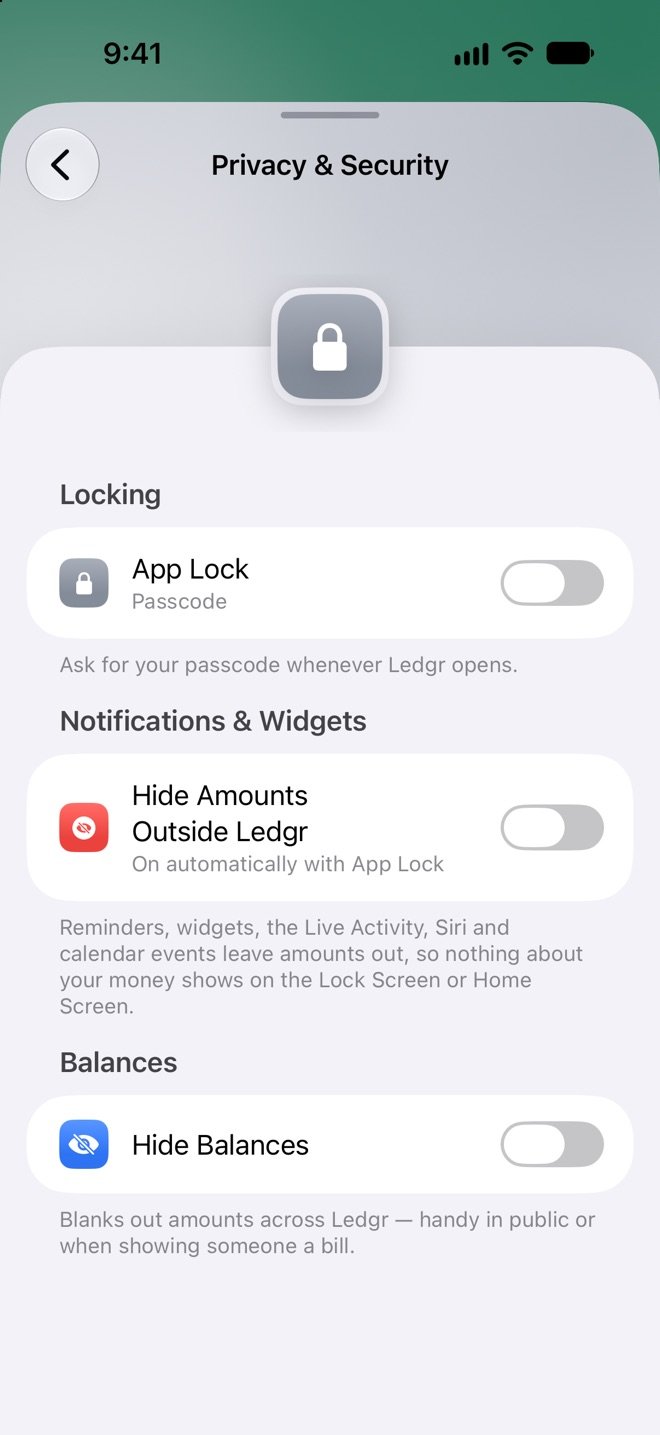
All of these settings live in one place: Settings › Privacy & Security. On iPhone, open Settings from the gear on Home. On iPad, it's in the sidebar. On a Mac, open the Settings window with ⌘, and choose the Preferences pane. Each setting is separate, so you can use any mix of them.
Turning on App Lock
App Lock asks you to prove it's you before Ledgr shows anything. On iPhone and iPad it uses Face ID, Touch ID or Optic ID, with your device passcode as a fallback. On a Mac it uses Touch ID or your login password.
- Go to Settings › Privacy & Security.
- Turn on App Lock. Ledgr asks you to authenticate once, to make sure you can get back in.
- Choose how soon it locks again under Require Unlock.
The Require Unlock options are:
- Immediately: Ledgr locks every time you leave it.
- After 1 Minute, After 5 Minutes or After 15 Minutes: you can switch away briefly, for example to check your banking app, and come back without unlocking.
Whichever you choose, Ledgr always locks after it's been closed. When it's locked you see Ledgr Is Locked with an Unlock button. If Face ID or Touch ID doesn't recognise you, tap Try Again, or enter your passcode.
With App Lock on, a few sensitive actions ask you to authenticate again even while Ledgr is open: exporting your data, inviting someone to your household, and erasing your data with Reset Ledgr. Turning App Lock off also asks first, so someone holding your unlocked phone can't simply switch it off.
No passcode? App Lock can't be turned on without a device passcode (or a login password on a Mac). Set one in the Settings app, or System Settings on a Mac, then come back.
Hide Amounts Outside Ledgr
Ledgr shows up in lots of places outside the app. Hide Amounts Outside Ledgr keeps the numbers out of all of them, while still telling you which bill is due:
- Reminders and other notifications name the bill without its amount.
- Widgets show bill names and dates, but no amounts.
- The Live Activity on the Lock Screen and in the Dynamic Island (iPhone and iPad) lists bills without amounts.
- Siri leaves amounts out of what it says and shows.
- Calendar events in the Ledgr Bills calendar leave out the amount.
- Go to Settings › Privacy & Security.
- Under Notifications & Widgets, turn on Hide Amounts Outside Ledgr.
It turns on automatically when you turn on App Lock, and the row says On automatically with App Lock. If you then turn App Lock off, it goes off again too. If you set it yourself, it stays the way you left it.
Tip: If you share a calendar with others, turn this on before you use Add Bills to Calendar, so the events in the Ledgr Bills calendar don't show what you pay. The calendar guide explains the calendar options.
Hide Balances
Hide Balances blanks out amounts across Ledgr itself. It's handy in public, or when you want to show someone a bill without showing your balances.
- Go to Settings › Privacy & Security.
- Under Balances, turn on Hide Balances.
With App Lock on, turning it off to show the amounts again asks for Face ID, Touch ID or your passcode (or your password on a Mac), so someone else can't reveal them.
The app switcher
When you leave Ledgr or open the app switcher, a privacy screen covers Ledgr, so your bills and balances never show in the row of open apps or in screenshots the system takes of it. This is always on. There's nothing to set.
What App Lock changes
App Lock also closes the side doors into Ledgr, so nobody can change your bills or read your data without unlocking:
- Spotlight: nothing from Ledgr is in Spotlight while App Lock is on. When it's off, Spotlight holds bill, account, budget, goal and income names, and your most recent expenses and income entries, never amounts.
- Widgets: your bills still show, but the pay buttons are hidden. Tapping a widget opens Ledgr, which asks you to unlock.
- The Live Activity (iPhone and iPad): its Mark Paid buttons are removed.
- Notification actions: Mark as Paid becomes Mark as Paid in Ledgr, which opens the app so you can unlock first. Snoozing still works from the notification.
- Siri and Shortcuts: every action asks you to authenticate before it runs.
- Amounts: Hide Amounts Outside Ledgr turns on with it, unless you've set it yourself.
The widgets, Siri & shortcuts guide covers each of these in more detail.
What Ledgr never asks for
- No bank login. Ledgr never connects to your bank, card or loan accounts. You enter balances and payments yourself, so there are no bank passwords to hand over.
- No Ledgr account. There's nothing to sign up for. Your data stays on your device, or in your own private iCloud account if you turn on iCloud Sync.
- No analytics, ads or tracking. Ledgr has no third-party analytics, advertising or crash-reporting tools.
- No Photos or Location access. Adding a receipt uses the system photo picker, the document scanner or a file, and photo location data is stripped.
What Ledgr does ask for, and why:
- Notifications, for reminders. All of them are created on your device.
- Calendars, only if you use Add to Calendar or Add Bills to Calendar. Ledgr only touches its own events.
- Camera, only to scan a document.
- Face ID, only for App Lock. Ledgr never sees your face or fingerprint data; the system just tells it whether you passed.
Ledgr never asks for your email address. If you contact support, the message goes from your own email app, so I can reply there. Read more on the Privacy & Security page and in the Privacy Policy.
Common questions
Face ID keeps failing. How do I get in?
Tap Try Again, or use your device passcode when it's offered. App Lock uses the same passcode that unlocks your device, so you can't be locked out of Ledgr while you know it. On a Mac, use your login password.
Can someone mark my bills paid from the Lock Screen?
Not with App Lock on. The pay buttons on widgets and the Live Activity are hidden, and the notification's Mark as Paid in Ledgr opens the app, which asks you to unlock.
Does App Lock hide my bills from widgets?
No. Widgets still show your bill names and dates so they stay useful. With Hide Amounts Outside Ledgr on, they don't show amounts.
Does the developer see my data?
No. Your data stays on your devices and in your own iCloud. The only time anything reaches me is when you send a message from Settings › About › Contact Support, and you can see exactly what's included with Preview What's Sent first.
Still stuck?
Try Troubleshooting, send a message from Settings › Contact Support in Ledgr, or email hello@szymonstephansikora.com. I read every message.