 Ledgr
- Guides
- Bills
Reminders & notifications
Decide when Ledgr tells you about each bill, and deal with it straight from the notification. If a bill slips past its due date, Ledgr keeps following up until it's paid or skipped.
Turn on bill reminders
Bill reminders give you a heads-up before each bill is due, then follow up until it's paid. You can turn them on during setup, or at any time:
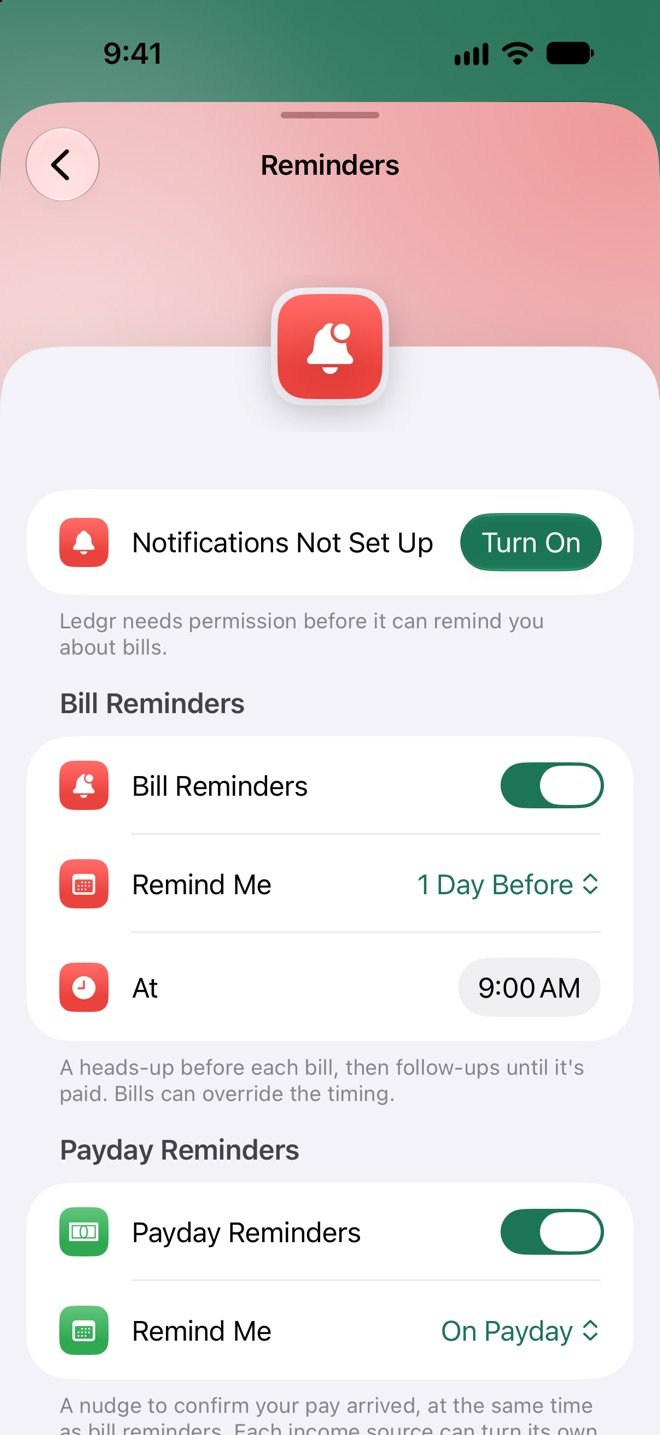
- Open Settings (the gear on Home on iPhone, the sidebar on iPad, or ⌘, on a Mac) and go to Settings › Reminders.
- Check the row at the top. If it says "Notifications Not Set Up", tap Turn On and allow notifications.
- Turn on Bill Reminders.
- Under Remind Me, choose how early you hear about each bill: On the Day, 1 Day Before, 2 Days Before, 3 Days Before, 1 Week Before or 2 Weeks Before.
- Under At, choose the time of day the reminder arrives.
That's the timing for every bill, unless you give a bill its own (see the next section).
The row at the top always tells you whether reminders can reach you:
- Notifications Not Set Up: Ledgr hasn't asked yet. Tap Turn On.
- Notifications Are Off: notifications for Ledgr are turned off on this device. Tap Open Settings and allow them.
- Delivered Quietly: reminders go to Notification Center without a banner or sound. Tap Turn On Banners.
Tip: Tap Send a Test Reminder to check everything works. It "Arrives in about 5 seconds".
Give a bill its own timing
Some bills need more notice than others. Rent might need a week; a streaming subscription might not need a reminder at all.
- Open the bill and tap Edit.
- In the Reminder section, turn Remind Me off to silence this bill, or leave it on.
- Under When, choose Default to follow Settings › Reminders, or pick this bill's own: On the Day, 1, 2, 3 or 5 Days Before, 1 Week Before or 2 Weeks Before.
- Save the bill.
The reminder still arrives at the time set under At in Settings › Reminders.
In a household: if a bill's Who Pays is set to one person, only they get its reminders. Everyone else hears about it only if it goes overdue. See Sharing a household.
Act from the notification
You don't need to open Ledgr to deal with a reminder. Touch and hold the notification (on a Mac, use the notification's Options) to see its actions:
- Mark as Paid records the payment straight away.
- Snooze 1 Hour brings the reminder back in an hour.
- Snooze Until Tomorrow brings it back tomorrow.
- Pay Online opens the bill's payment website. It only appears if the bill has one.
If several bills are due at the same time, they arrive together as one notification rather than one each.
With App Lock on: the action reads Mark as Paid in Ledgr, and it opens the app so you can unlock it first. See App Lock & privacy.
Overdue follow-ups
If a bill's due date passes and you haven't marked it paid or skipped it, Ledgr keeps reminding you:
- Once a day for the first 7 days it's overdue.
- Then once a week, until it's paid or skipped.
- Not at all during a bill's grace period, if it has one. Set a Grace Period under More Options when you edit the bill.
When Ledgr knows them, the follow-up mentions the bill's late fee and the account's standing (such as 30 Days Past Due). Add these in the bill's Debt section.
Ledgr's app icon also shows a badge with the number of bills that need your attention.
Tip: To stop follow-ups for a bill you've dealt with outside Ledgr, mark it paid or skip it. Snoozing only puts them off for a while. See Paying, snoozing & skipping.
Paydays, budgets and money alerts
The same Settings › Reminders screen has a few more kinds of notification. Turn on the ones you want.
Payday Reminders
Appears once you've added income. Choose On Payday or 1 Day Before. When the reminder arrives, you can answer it from the notification:
- Record Pay records the pay as expected.
- Record a Different Amount lets you type what actually arrived.
- Not Yet — Remind Me in 3 Hours or Not Yet — Remind Me Tomorrow asks again later.
See Income & paydays for more.
Budget Alerts
"When a budget is nearly spent". Ledgr tells you when a budget reaches its warning level, goes over, or is being spent faster than the period allows. See Budgets & goals.
Money Alerts
"When your money needs a look". These cover:
- low balances
- large payments
- price rises on a bill
- bills an account may not cover
- spending spikes
- free trials ending
- interest building up
- accounts that are past due
When Someone Pays a Bill
In a shared household, turn this on in Settings › iCloud & Sharing to hear when someone else pays a bill, "so nobody pays it twice".
Lock Screen, calendar and privacy
Bills Due Today on Lock Screen
On iPhone and iPad, turn on Bills Due Today on Lock Screen in Settings › Reminders. Bills due today, and any that are overdue, then appear as a Live Activity on the Lock Screen and in the Dynamic Island, each with a check to mark it paid. If the switch won't turn on, allow Live Activities for Ledgr in the Settings app.
On a Mac: Live Activities aren't available. Reminders arrive as normal Mac notifications.
Add Bills to Calendar
Also in Settings › Reminders, Add Bills to Calendar puts every bill in the Calendar app, so due dates sit next to your other plans. See The calendar.
Keep amounts private
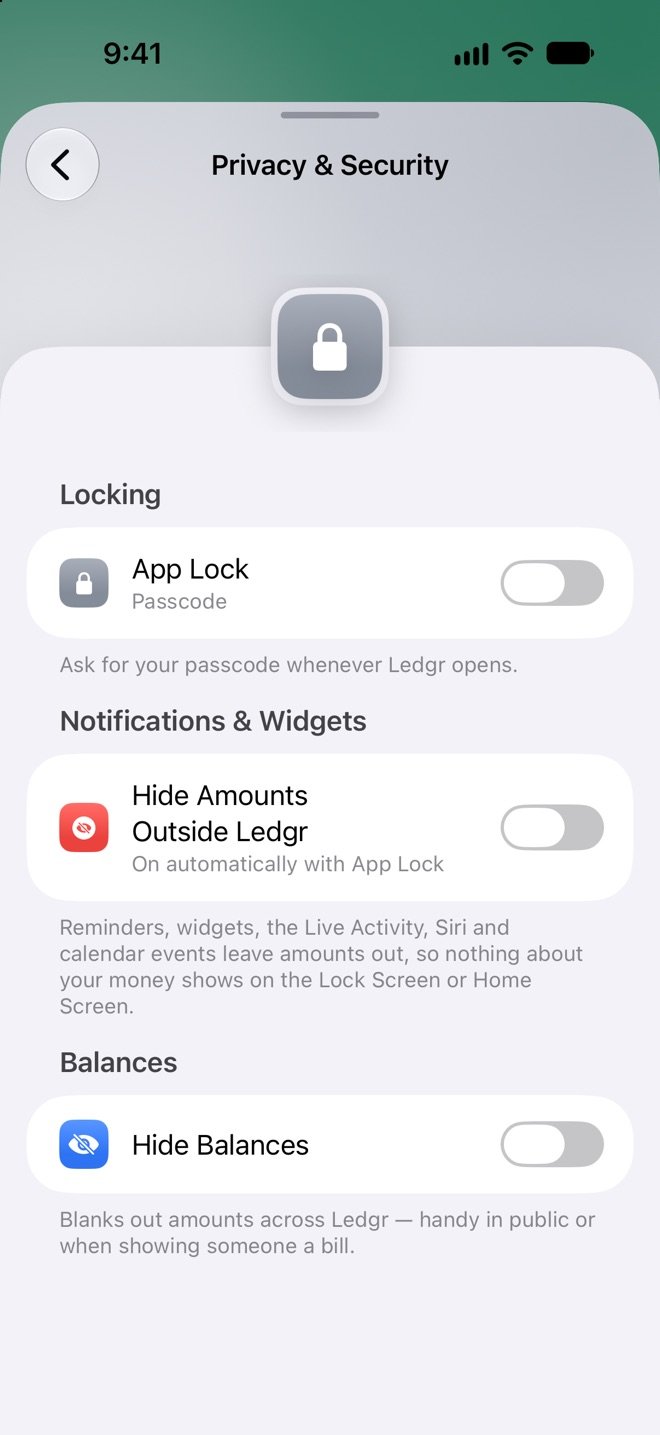
Reminders show the bill's name and amount. To keep amounts off the Lock Screen, turn on Hide Amounts Outside Ledgr in Settings › Privacy & Security. It keeps amounts out of reminders, widgets, the Live Activity, Siri and calendar events. Turning on App Lock turns it on too. With App Lock on, the Live Activity has no pay buttons.
Common questions
My reminders aren't arriving. What should I check?
Open Settings › Reminders and look at the row at the top. Make sure Bill Reminders is on, check the bill's own Reminder section, then tap Send a Test Reminder. Focus modes can also hold notifications back. Troubleshooting has more.
Can I get a reminder 5 days before?
Yes, for a single bill: choose 5 Days Before in its Reminder section. The app-wide setting offers on the day, 1, 2 or 3 days, 1 week or 2 weeks before.
Why do I keep getting reminders for a bill I've paid?
Ledgr follows up until a bill is marked paid or skipped. Mark it paid, from the notification or the app, and the follow-ups stop.
Does snoozing a reminder change the due date?
No. Snoozing only moves the reminder. The bill stays due on the same date.
Still stuck?
Try Troubleshooting, send a message from Settings › Contact Support in Ledgr, or email hello@szymonstephansikora.com. I read every message.