 Ledgr
- Guides
- Bills
Adding bills
Add a bill in a few seconds with the short New Bill form, or fill in every detail when you need to. Ledgr can also spot repeating charges in the expenses you log and offer to turn them into bills.
Add a bill
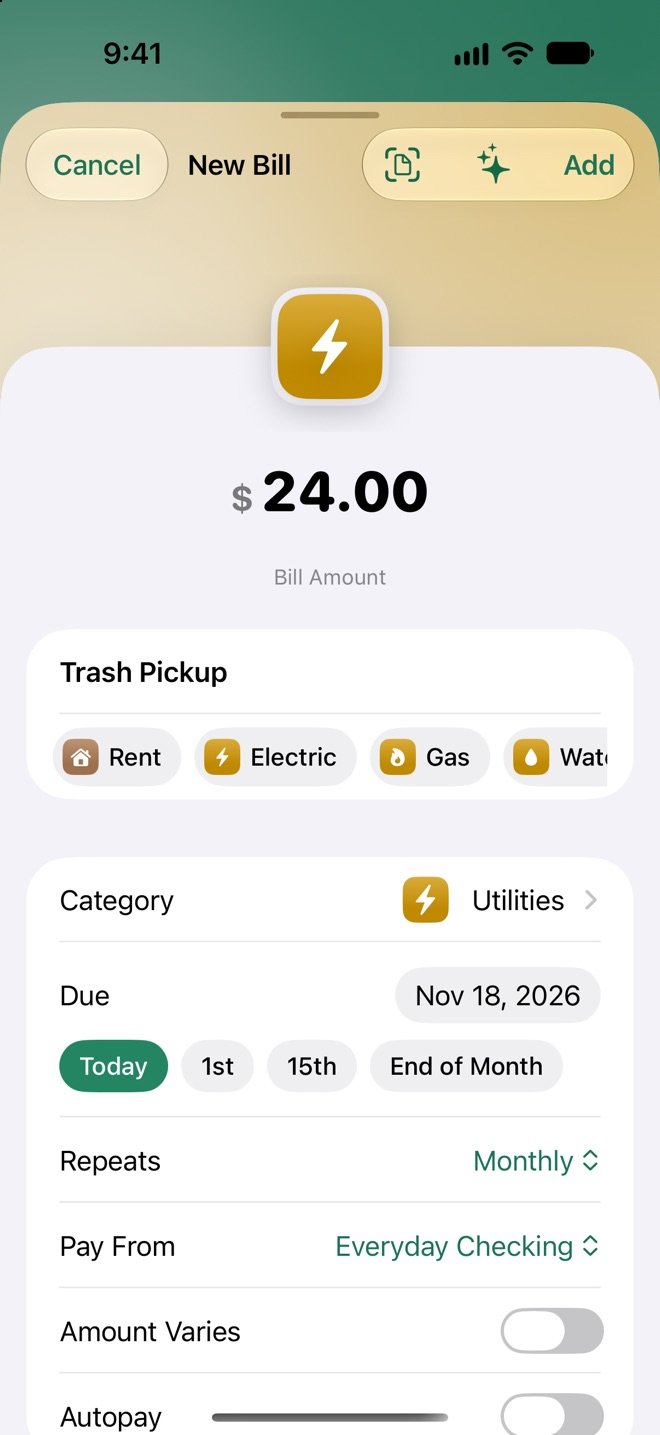
New Bill is the short form you see when you add a bill. It asks for just enough to get reminders and due dates working, and you can fill in the rest later.
- On Home or Bills, tap +. It opens New Bill straight away. On a Mac, press ⌘N or choose File › New Bill.
- Type the Bill Amount in the big field at the top.
- Type a name ("Name, e.g. Rent"), or tap one of the template chips below it.
- Check the Category. Ledgr suggests one from the name, on your device. Tap it to pick another, or choose New Category… to make one.
- Set when it's Due and how often it Repeats (see the next section).
- If you track accounts, choose where it's paid from under Pay From.
- Turn on Amount Varies if it's different each time, like electricity. Marking it paid then asks what you paid.
- Turn on Autopay if the bill pays itself, for example by direct debit.
- Tap Add.
There are 17 template chips: Rent, Electric, Gas, Water, Internet, Phone, Credit Card, Student Loan, Car Loan, Insurance, Streaming, Music, Cloud, Gym, Childcare, Personal Loan and Collections. Electric, Gas, Water and Credit Card start with Amount Varies on. For debts such as a card or loan, New Bill also shows Card or Loan Account, so you can link the bill to the account it pays down.
Below the form are two more buttons:
- All Details opens the full form: "Reminders, notes, website, tags, splitting and debt details".
- Pay Later Plan is for buy-now-pay-later purchases: "Track Affirm, Klarna, Afterpay and other installment plans payment by payment". See Debt payoff & pay later.
Tip: Touch and hold + (click and hold on a Mac) for Quick Add, Log Income, New Income Source and more. Quick Add lets you type a bill in your own words, like "Netflix 15.99 monthly on the 3rd", then tap Continue to check it in New Bill.
Tip: If the system closes Ledgr while you're halfway through a bill, the form comes back with what you'd typed the next time you open it.
Due dates and repeats
Under Due, tap a chip for the most common dates, or pick any date:
- Today, 1st, 15th or End of Month.
- Weekly and every-2-weeks bills show Today, Tomorrow and the rest of the week instead, so you can pick the day of the week.
Under Repeats, choose One Time, Weekly, Every 2 Weeks, Monthly, Quarterly or Yearly.
Dates in the past
If you pick a date that's already gone, Ledgr warns "This date has passed, so the bill will start out overdue". You then have two ways out:
- Turn on Already Paid if you paid that one. Ledgr records the payment on that date, and takes it out of the Pay From account if you chose one. If the date is far enough back that later payments were also due, those still show as overdue.
- Tap Start From [date] Instead to move the bill to its next upcoming date.
Or leave it, and the bill starts out overdue so you remember to pay it.
Tip: For a bill due on the last day of every month, turn on Always the Last Day of the Month in All Details. It then lands on the 28th, 29th, 30th or 31st as the month needs.
Every detail you can add
Tap All Details in New Bill, or open a bill and tap Edit, for the full form. Fill in only what helps you. The sections, in order:
Essentials
- Repeats, as in New Bill.
- Always the Last Day of the Month, for month-end bills.
- Pay From: the account it comes out of. Marking the bill paid takes the amount off this balance.
- Autopay: for bills that pay themselves. You confirm they went through instead of marking them paid.
- Amount Varies: for bills like electricity that change each time. Enter a range with Usually From and Up To. When you mark it paid, Ledgr asks what you actually paid.
Who Pays
Only in a shared household. Choose Anyone, Me or a member. "Only you get reminders. Everyone else hears about it only if it goes overdue." See Sharing a household.
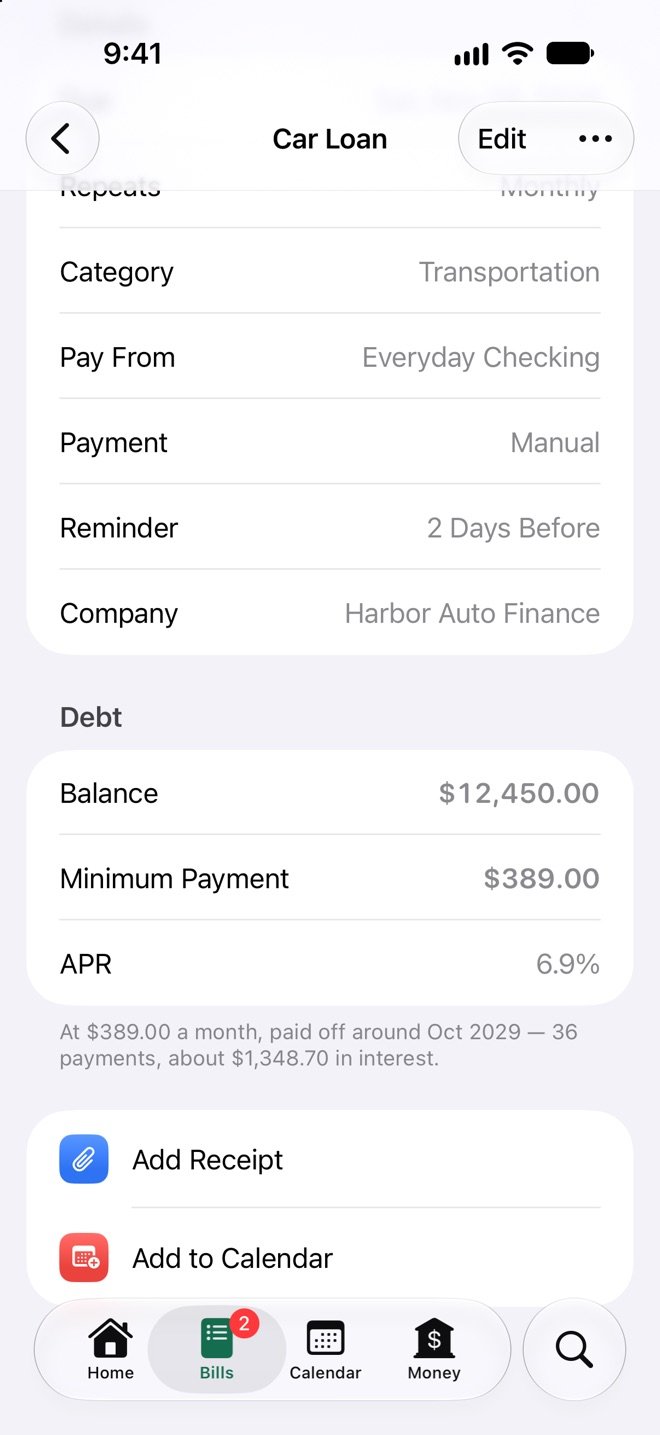
Debt
For credit cards, loans and accounts in collections. For other bills it's under More Options.
- Card or Loan Account, Balance Owed, Minimum Payment and APR %.
- Standing: Current, 30, 60 or 90+ Days Past Due, In Collections or Charged Off.
- Missed Payments, Past Due Amount and Late Fee.
With a balance owed, the bill shows when it'll be paid off, and the Debt Payoff Planner appears under Money › Plan. See Debt payoff & pay later.
Reminder
Turn Remind Me on or off for this bill. Under When, choose Default to use the timing in Settings › Reminders, or set this bill's own: On the Day, 1, 2, 3 or 5 Days Before, 1 Week Before or 2 Weeks Before. See Reminders & notifications.
Details
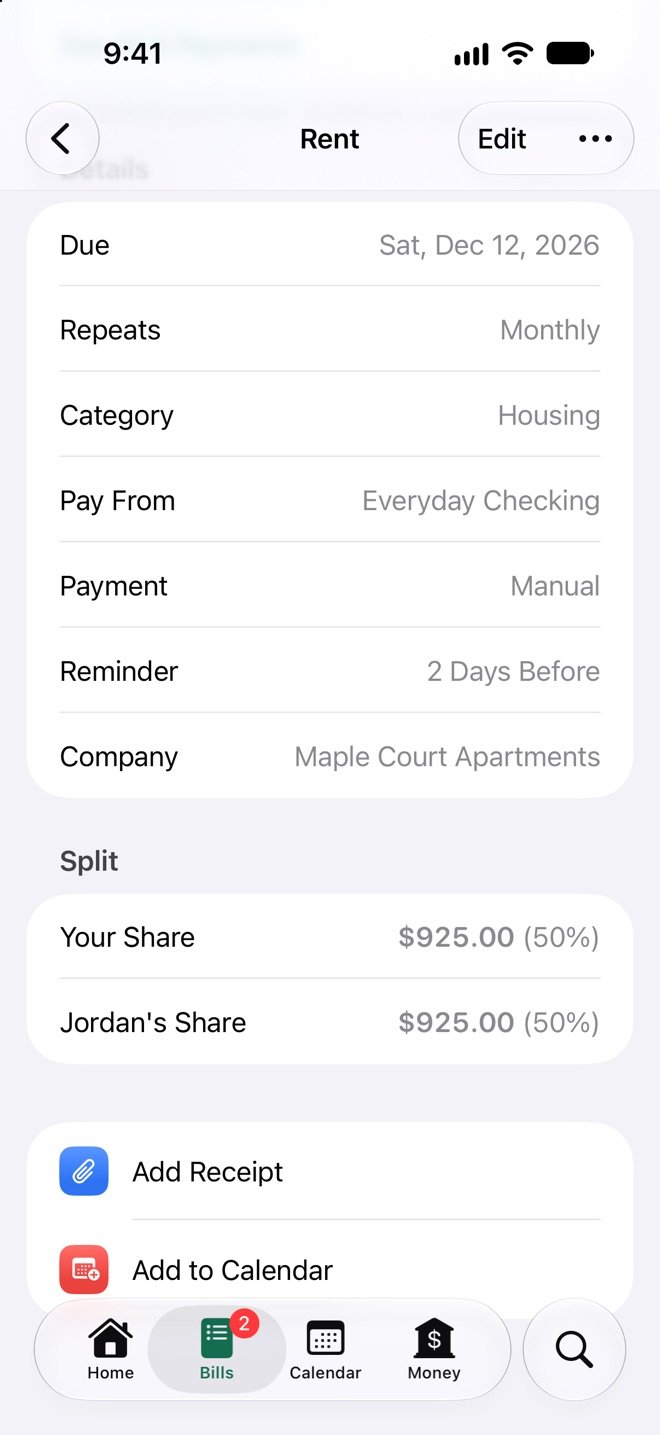
- Company: who you pay. Search matches it.
- Notes: account numbers, what's included, anything you want to remember.
- Tags: tap Add Tag… to label the bill, like Shared or Work.
Split
Shown here if you split bills with someone or share a household; otherwise it's under More Options. Turn on Split This Bill to share it. Add names, or tap household members, then drag the "Your Share" slider (in 5% steps), or tap Split Evenly. See Splitting bills.
More Options
At the bottom of the full form, tap More Options for settings most bills don't need. Tap Fewer Options to hide them again. Once a bill has a website, phone number or Tax-Deductible set, those show under Details instead.
- Ends on a Date: for bills with a final payment, like a fixed-term loan. Set the Last Payment. After that the bill moves to Paused & Ended.
- Grace Period: 0 to 30 days. The bill isn't treated as late until the grace period runs out, and you don't get overdue follow-ups during it.
- Move Off Weekends: if a due date lands on a weekend, move it to the Friday Before or the Monday After.
- Free Trial: set when the Trial Ends, so you can cancel in time or know when charging starts.
- Payment Website: adds Pay Online to the bill and to its reminders.
- Customer Service Phone: adds Call to an overdue bill.
- Tax-Deductible: counts the bill's payments in Receipts & Tax. See Receipts & tax.
The last button on the form is Delete Bill.
Bills found in your spending
If you log expenses by hand on the Money tab, Ledgr looks through them for charges that repeat, like a subscription you never added as a bill. When it finds one, a Looks Like a Bill card appears on the Bills tab, for example "Seen 4 times in your spending · next around Oct 29".
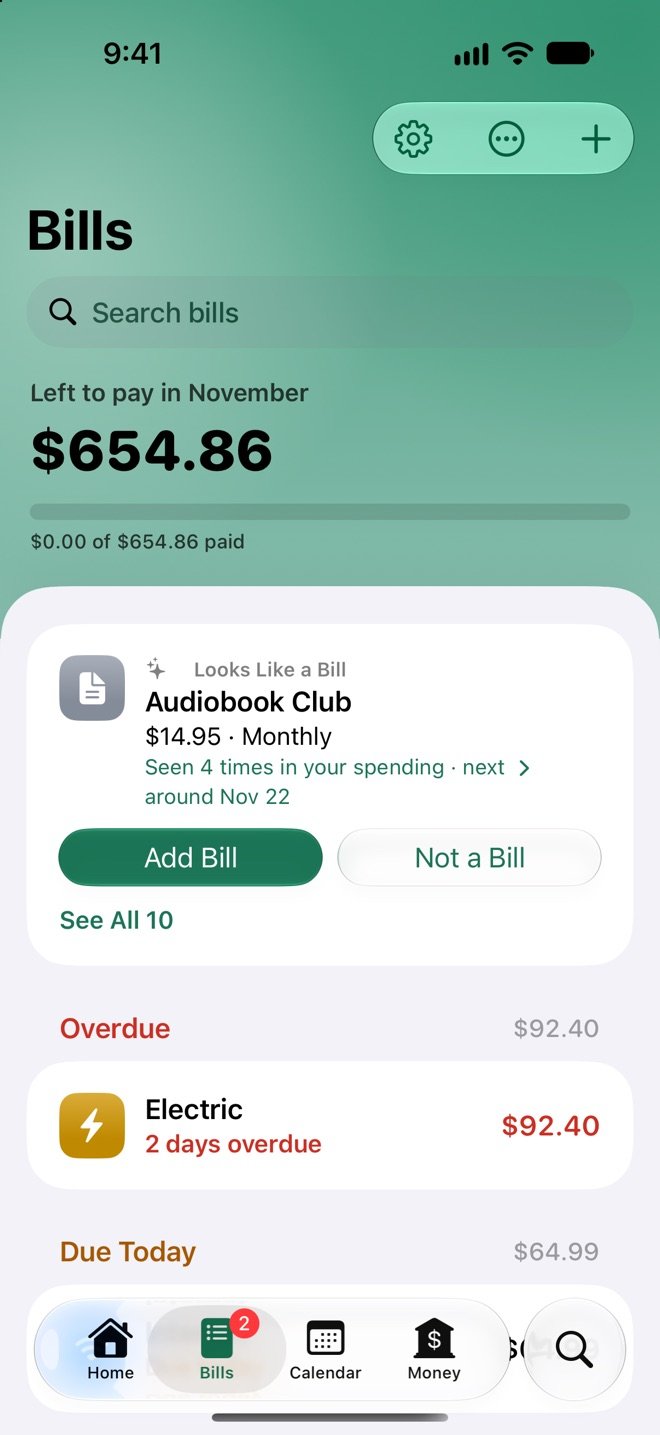
On the card:
- Add Bill opens New Bill already filled in. Check it, change anything that's wrong, and tap Add.
- Not a Bill stops Ledgr suggesting it. The banner reads "Won't suggest [name] again", with Undo in case you tapped it by mistake.
- See All N opens Found in Your Spending, every suggestion in one list, each with its own Add and Not a Bill. When you've dealt with them all, it reads "Nothing Else Found".
What Ledgr looks for
- Expenses you logged yourself in the last 15 months. Bill payments don't count.
- The same payee and category, repeating weekly, every 2 weeks, monthly, quarterly or yearly, with dates that line up within a few days.
- Amounts within 10% of each other.
- At least 3 charges, or 2 for something yearly.
Anything that matches a bill you already have is left out, and so are payees you've marked Not a Bill. All of this happens on your device.
No bills yet? If your Bills tab is empty but Ledgr has found some, the empty screen shows a button to review the bills found in your spending.
Turn Recurring Expenses into Bills
This is different from the suggestions above. Some expenses already repeat on a schedule, for example ones restored from an older backup, and Ledgr adds them automatically each time they come due. (New expenses don't repeat: add a bill for anything regular.) Making it a bill gives it reminders, a payment history and calendar dates. When you have any, a Turn Recurring Expenses into Bills prompt appears near the top of the Money tab.
- On the Money tab, tap Turn Recurring Expenses into Bills.
- Ledgr asks "Convert to Bills?": "Each recurring expense becomes a bill on the same schedule. Past expenses are kept."
- Tap Convert.
Each one becomes a bill named after its note (or its category, if there's no note). The expense stops repeating, and the expenses already logged stay in your history. Daily expenses aren't included, because bills can't repeat daily.
Edit, duplicate, archive or delete
- Edit: open the bill and tap Edit. On a Mac, press ⌘E. You can also touch and hold a bill in a list (right-click on a Mac) and choose Edit.
- Duplicate: in the same menu, or the bill's ••• menu. Handy for similar bills, like two phone lines. The copy's name ends in "(Copy)".
- Archive: takes a bill you no longer pay off your lists, but keeps its history. Find it again under Bills › More (•••) › Archived, where you can Restore it.
- Delete: in the bill's ••• menu (Delete Bill) or at the bottom of its editor. On a Mac, ⌘⌫.
Deleting a bill keeps the payments it recorded in your history, as ordinary expenses, so your balances stay as they are. To remove them as well, choose Delete Bill and Its Payments when Ledgr asks; their amounts go back into the accounts they came out of. Either way, Undo appears for a moment in case you change your mind. To keep the bill itself, archive it instead.
Common questions
Which should I use, New Bill or All Details?
New Bill is enough for most bills. Use All Details when you want a reminder of its own, a payment website, a split or debt details. You can always add them later with Edit.
My electricity bill is different every month. What do I enter?
Enter a typical amount, then turn on Amount Varies and set the usual range in All Details. When you pay, enter what you actually paid.
Why isn't Ledgr suggesting a subscription I pay?
Suggestions only come from expenses you've logged by hand, with at least 3 matching charges (2 for yearly ones) that line up in date and amount. If you marked that payee Not a Bill, it won't be suggested again.
Does Ledgr pay my bills?
No. Ledgr never connects to your bank or moves money. It tracks what's due and what you've paid. Pay Online opens the company's website so you can pay there.
Still stuck?
Try Troubleshooting, send a message from Settings › Contact Support in Ledgr, or email hello@szymonstephansikora.com. I read every message.